How to add people to an architectural render.
An empty render reads as a model; the same view with a few people reads as a place. Here is the fast way, and the Photoshop one.
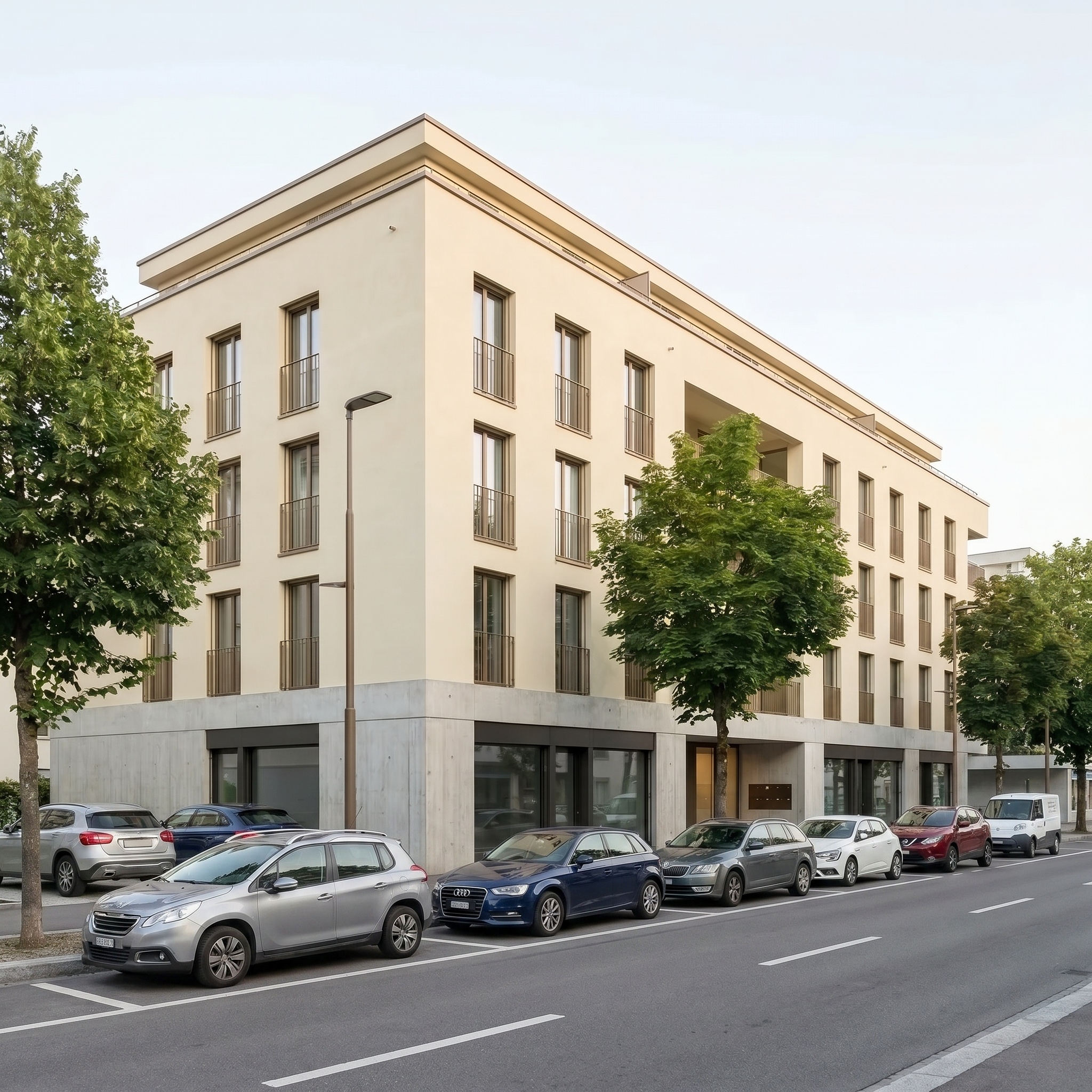
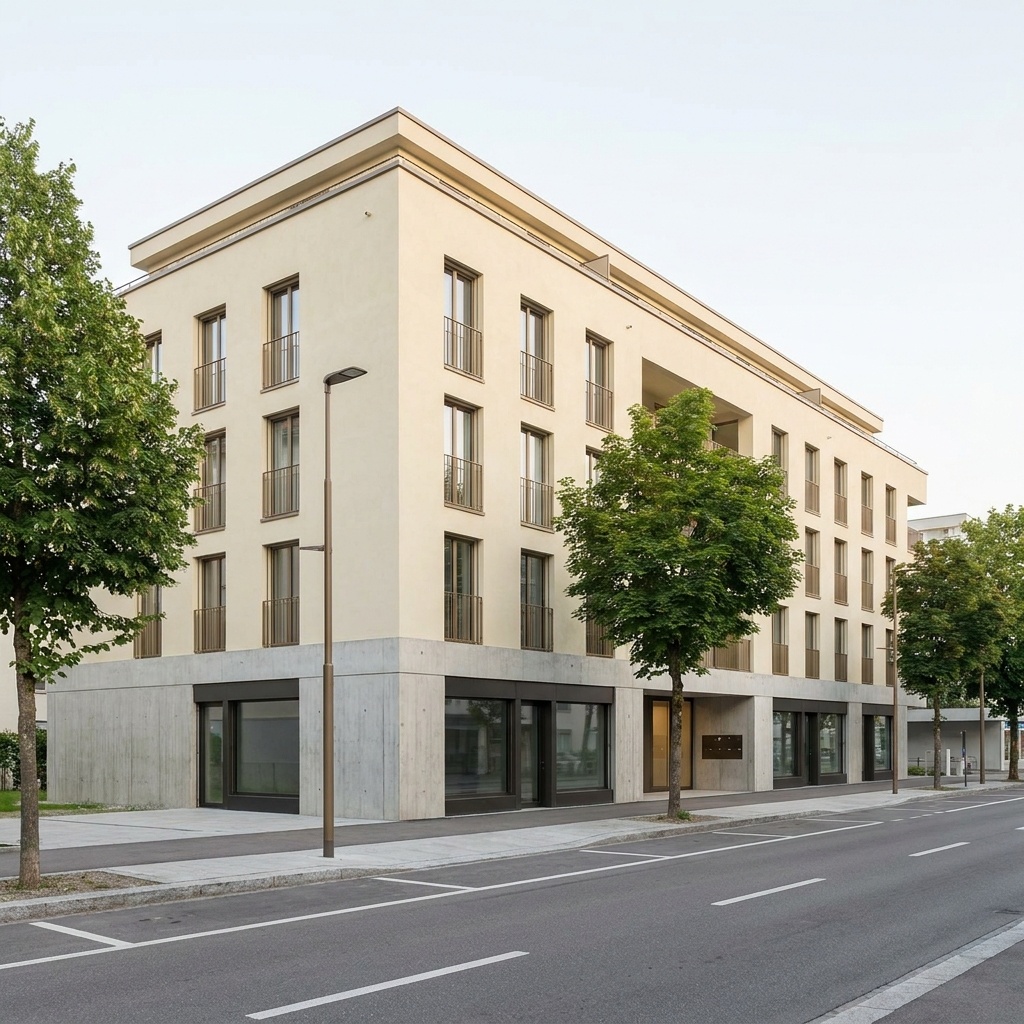
Same view. Now with people.
A view before and after the People template. Camera, buildings and light unchanged.
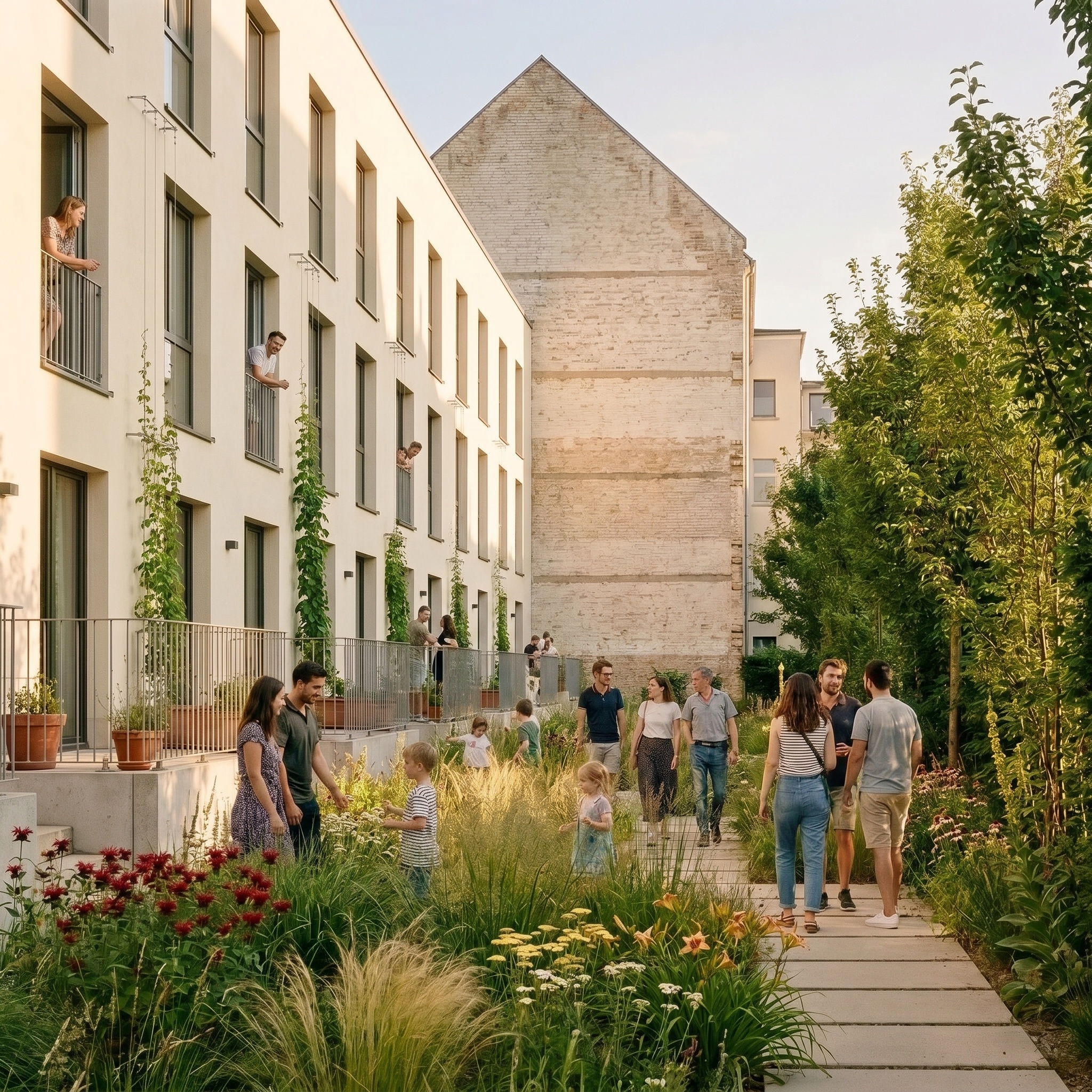
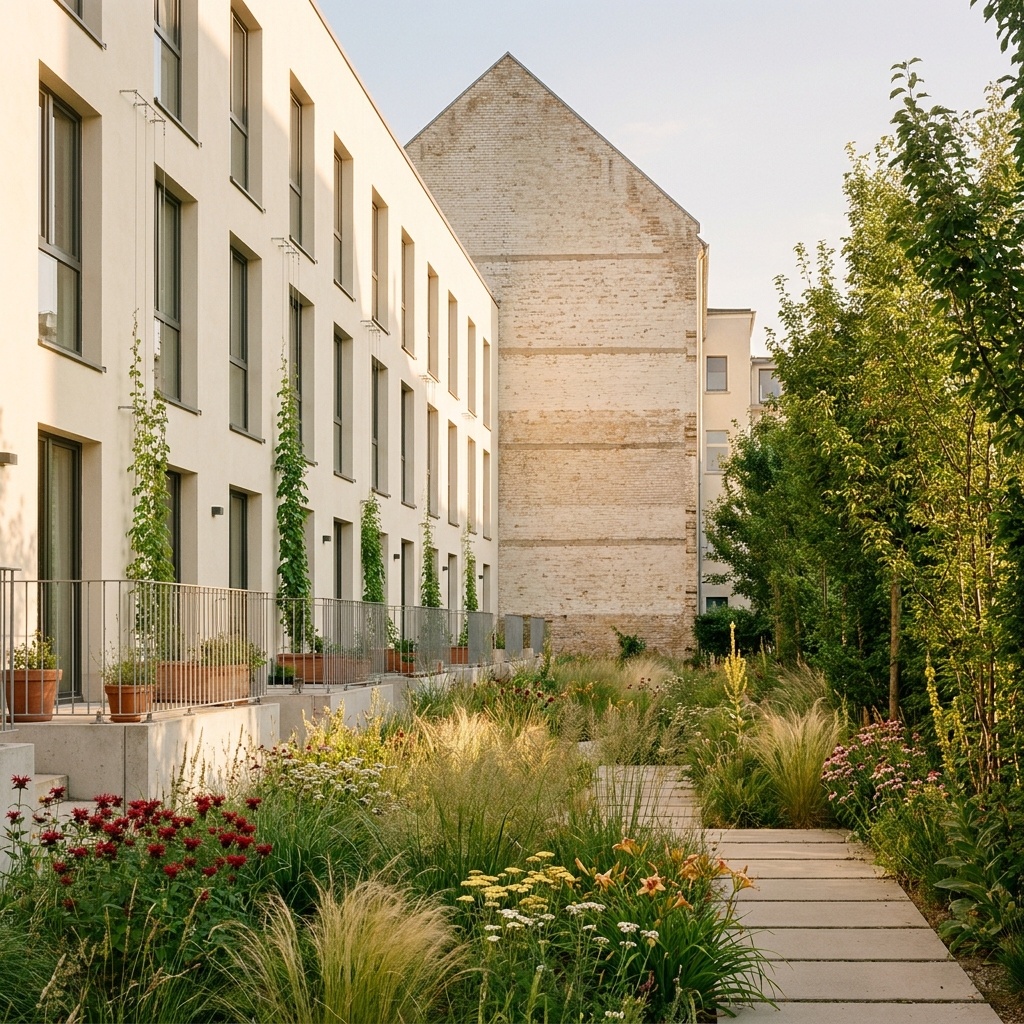
The faster method, in four steps
Export the view as an image
A render, a viewport capture or a photograph, with the ground visible.
Open the People template
Drop the image into the template. It takes one image: yours.
Choose the density
Four levels, from Solo to Crowd. The template places everyone.
Run it, then compare
Camera, light and buildings stay as they are. Run again if needed.
Try it on your view.
Drop in a render, a viewport capture or a photograph. It opens in the Populate the Scene template, ready to run.
Drop your image here
or click to browse · PNG, JPG, WebP up to 10 MB
- Free to try
- No plugin
- No credit card
The classic way: cutouts in Photoshop
The usual method is to collect people as cutouts, drop each one onto its own layer, then adjust it to the scene. A cutout library (PNG figures with transparent backgrounds) covers the sourcing; the work is in fitting each figure to your image.
Per figure, that means: scale it against the architecture, match its perspective, add a contact shadow under the feet, cast a longer shadow in the direction of your sun, and adjust the colour and contrast so the figure sits in the same light as the building. Ten figures on a plaza is ten times that routine.
It gives you full control, down to the exact person at the exact spot, and it stays the right choice when a specific person or pose is part of the brief.
Why added people look pasted in
Scale is the first failure. A person is about 1.75 m tall, and when the camera is at eye height on level ground, the heads of standing people sit close to the horizon line. A figure whose head is far above or below the horizon, with no step or slope to explain it, looks pasted in.
The second is light. Shadows that point the wrong way, or no shadow at all, are the quickest giveaway. Sun direction and shadow length must match the shadows of the building and trees already in the image.
The third is placement. People floating above the ground, standing in a row on a lawn, looking into the camera or blocking an entrance all draw the eye away from the architecture. People belong on paths, terraces, plazas and thresholds, going about something.
How to make it read as a place
Fewer people, placed well, beat many placed carelessly. Two or three figures near an entrance, a bench or a crossing give scale; a crowd is for squares and streets that are busy in real life.
Keep people small and secondary. They are there to give the architecture scale and life, not to be the subject, so keep faces non-specific and clothing understated, in tones that suit the season visible in the image.
If the view is for a competition board or a client deck, check the result at the size it will be seen. Figures that hold up on a full-screen image should also hold up when the render is placed on a sheet.
When to keep the manual cutouts
Keep the manual method when the brief calls for specific people, exact poses or a precise composition, for instance a person in a particular spot in the foreground, or a figure that has to match a photograph from the site.
Use the template when you want believable scale and life across several views quickly, to see how a view reads before you commit to a hand-finished version, or to get a base you can still correct in Photoshop afterwards. If your view starts as a 3D model that is not rendered yet, the SketchUp page at /for/sketchup shows how to export a view and turn it into a photoreal render first.
The steps in detail
Export the view as an image
Use a render, a viewport capture or a photograph, with the ground and the entrances visible. People are placed where they can stand, so a view that shows paths, terraces or a plaza gives them room. Avoid extreme wide-angle views, where proportions become ambiguous.
Open the People template
Drop the image into the widget on this page, or open the People template ("Populate the Scene"). It takes one image: yours.
Choose the density
The density selector has four levels: Solo, Pair, Small group and Crowd. Use Solo or Pair for a courtyard or a house, Small group for a street or an office entrance, Crowd for a public square. You do not place anyone yourself; the template decides where people stand and what they do.
Run it, then compare
The template keeps your camera, light and buildings as they are and adds people to the existing image. If the result is not what you wanted, run it again or change the density, and keep the version that suits the view. Then chain another template if you need one, for example a new hour of the day.
Signing up is free, with no credit card. New accounts start with free credits and receive more every Monday; the pricing page lists the plans and what each credit buys.
The template is built to add people and leave everything else as it is: camera, framing, perspective, light, buildings, vegetation, paving and sky. Compare a detail that matters against your original, as you would with any generated image.
Not at the moment. You choose the density, from Solo to Crowd, and the template places people where they can stand, such as paths, plazas, terraces and entrances, in natural postures. If you need a person in an exact spot, add that one by hand.
Yes. Commercial use and full IP assignment are included, with no attribution, and no watermark on paid plans. Nothing you create is published unless you share it.
Both. Any image of a building or a space works, as long as the ground is visible. Standard architectural focal lengths give the most reliable results.
Templates that pair well.
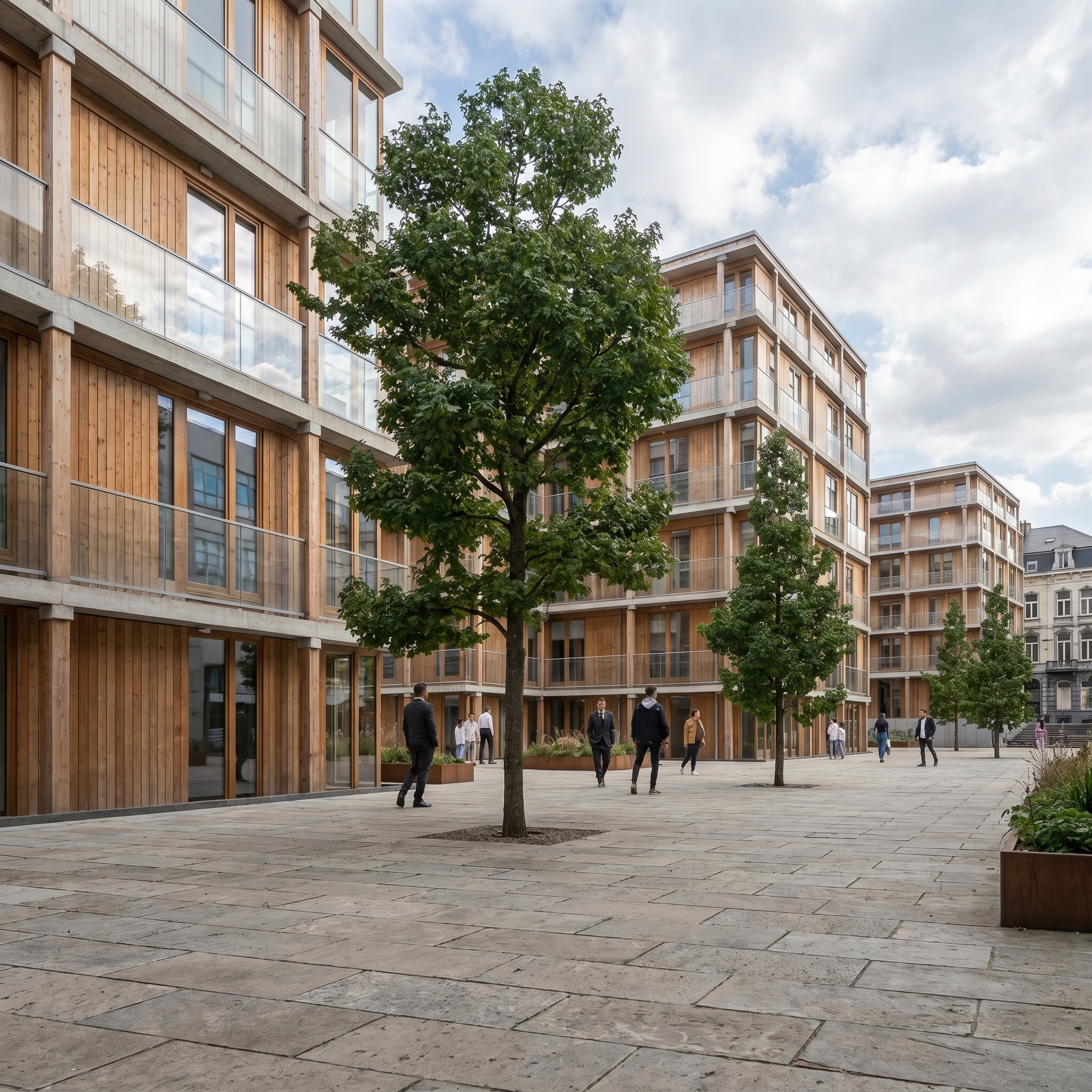
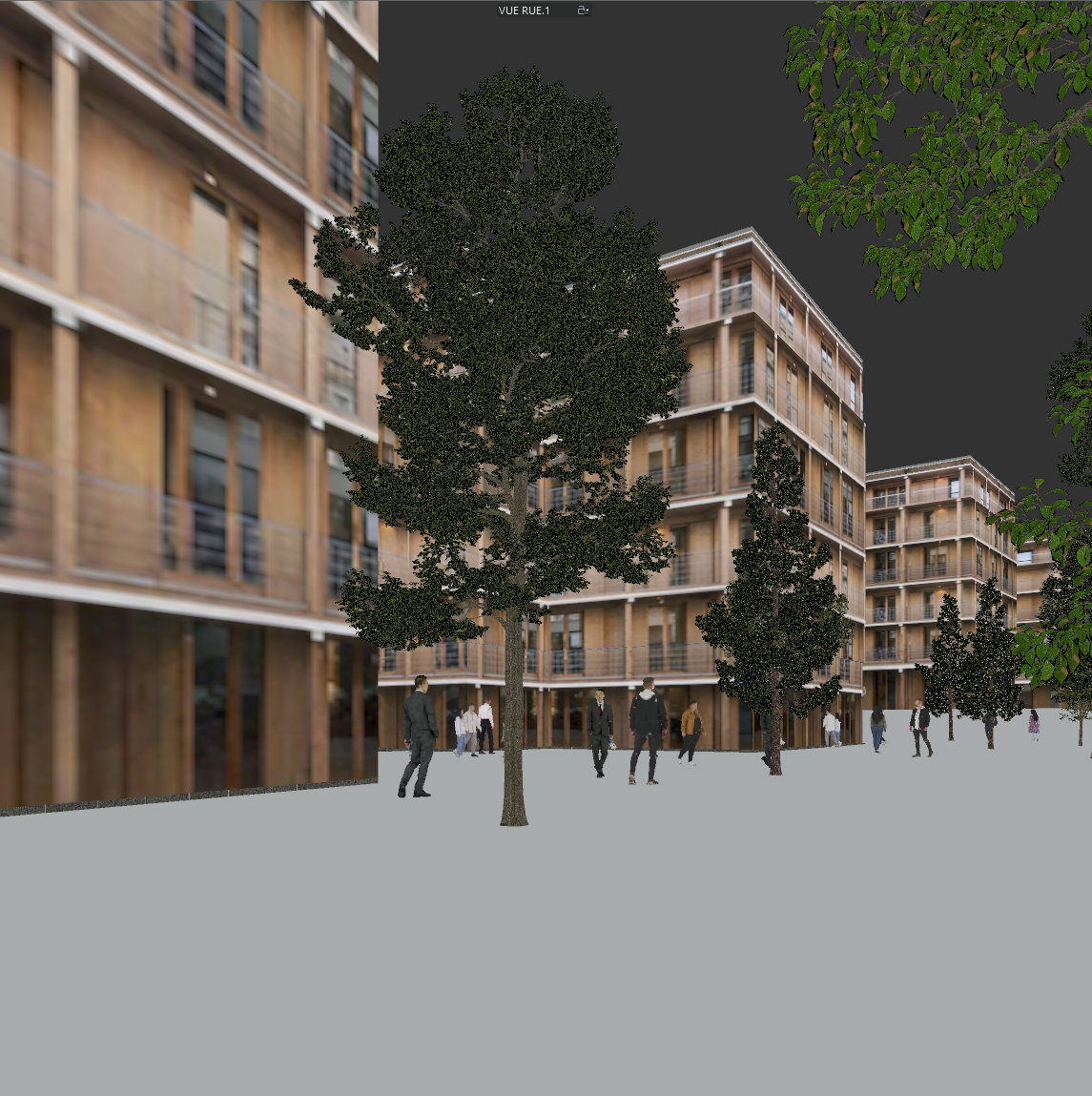
Try it on your own view.
Free to try. No credit card, nothing to install.