Archicad to photoreal render, no plugin.
Save the 3D view you already framed in Archicad and turn it into a photoreal render. Your camera and geometry stay as modelled. Nothing to install, so it works with any Archicad version.
- Free to try
- No plugin
- No credit card
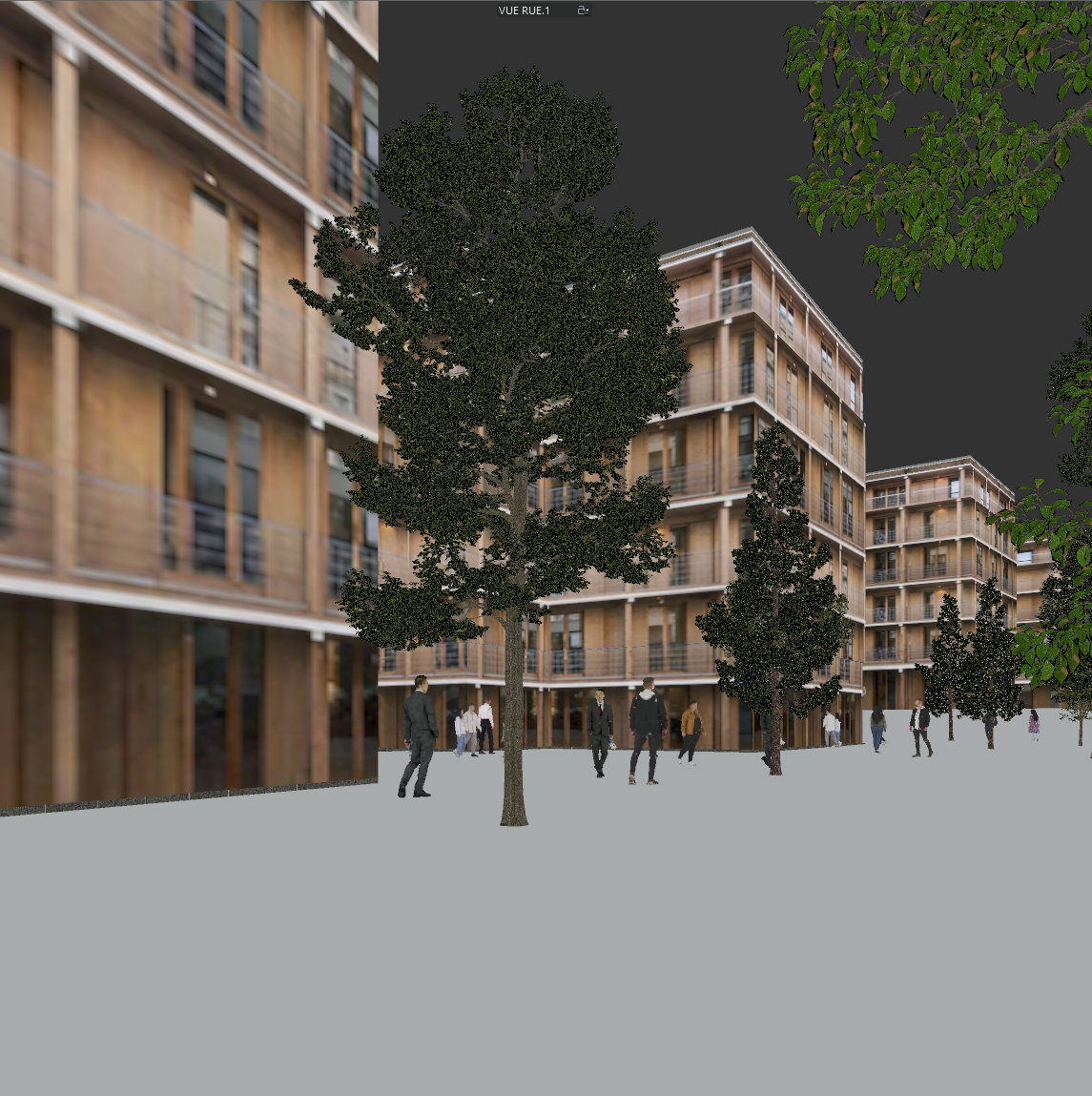
Nano Banana Pro
Sample input · click Generate to see the result
From Archicad to render in five steps
Open the 3D window in perspective
Open the 3D window and switch to a perspective projection. Open View › 3D View Options › Perspective Settings (the 3D Projection Settings dialog for perspectives) to place the camera and the target. Keeping them at the same height keeps the verticals straight, the way an architectural photographer would shoot.
Frame the view and save it
Orbit and zoom until the composition is the one you want to show. Save it as a Saved View in the Navigator so you can export the same angle again after a design change.
Pick a clean 3D style
Open View › 3D View Options › 3D Styles. Set the 3D View Mode to Shading, keep the Sky Color and Ground Color distinct so the horizon is legible, and thin or switch off Contours: heavy black outlines read as drawn lines, not as built edges.
Set the sun and the shadows
In the 3D Style, tick Sun Shadows and Shade surfaces using Sun. Then set the sun in the 3D Projection Settings dialog: enter a date and time (combined with the project location) or choose Custom and type the sun altitude and azimuth. The direction of the sun in your image guides the light of the render.
Save the image and drop it into Photoreal
With the 3D window active, use File › Save As and choose PNG or JPG. To get more pixels, right-click the 3D window tab and set the 3D window size first; a width of 3,000 pixels or more is a good target. Publisher also works. Upload the image to the Photoreal template and run it.
What Photoreal keeps from your model
An Archicad Saved View is a fixed camera on a virtual building, and Photoreal keeps it that way: the viewpoint, the volumes, the walls and openings and the framing stay as saved. Interior or exterior, what it rebuilds is the photographic layer: light, material texture, reflections, depth and grading.
The cleaner the saved view, the closer the result. Shaded surfaces tell the model which material goes where; a sky and a ground color give it the horizon; sun shadows give it the hour. For an interior, save a view with the ceiling and walls in place, so the room reads as a closed space.
Why start from an exported image
A plugin has to support the Archicad release you run, and it needs updating when that release changes. arkia starts from a saved image instead, so any Archicad version works and there is nothing to install or keep in step with Archicad.
It also means the same workflow covers the rest of the office. A Revit, SketchUp or Rhino view goes through the same template, and the renders land in a shared team gallery.
After the first render
Archicad Saved Views are made to be exported again after a change, and each export can go through Photoreal again. Keep the render of the current scheme, change the model, export the same Saved View and compare. On the render you keep, chain other templates: add people for scale, add planting around the building, or try another finish on a wall or a floor before you edit the model.
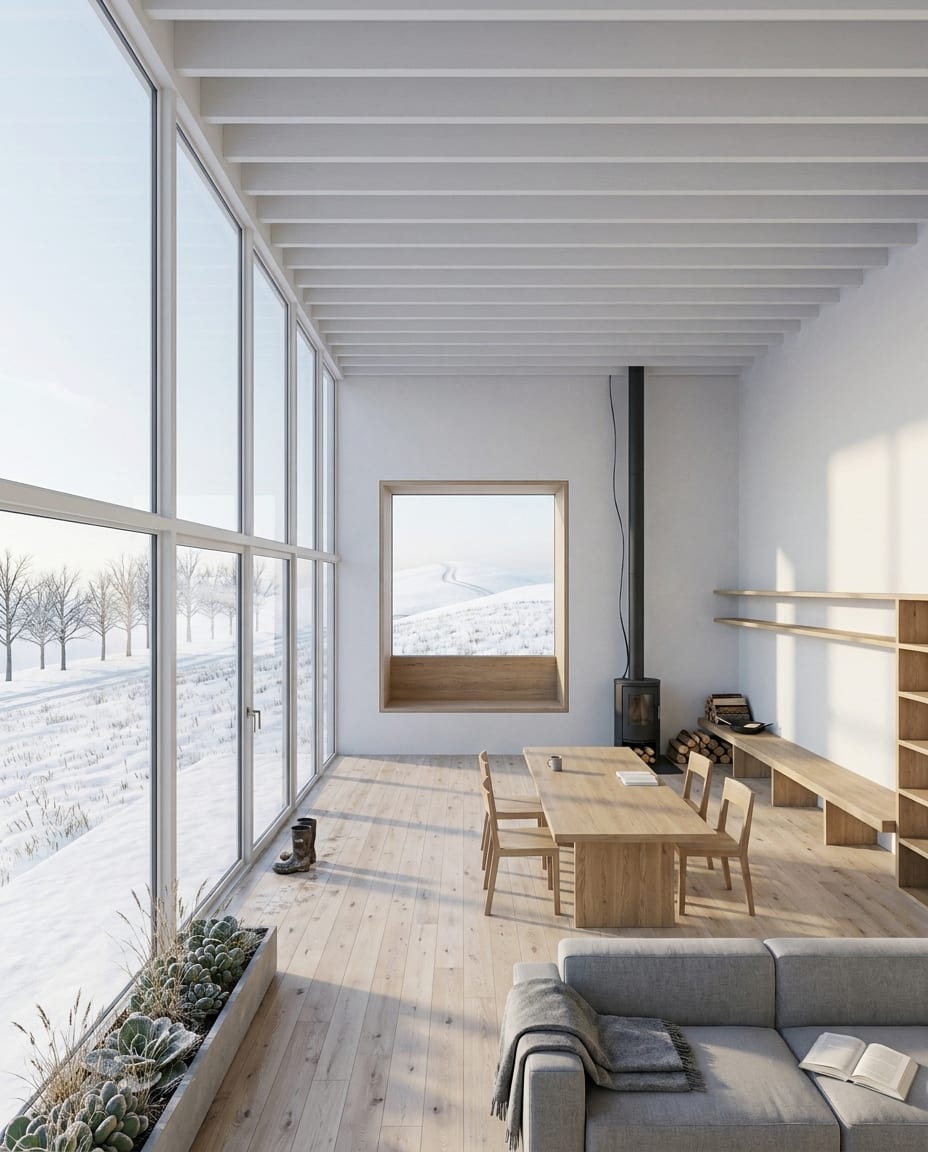
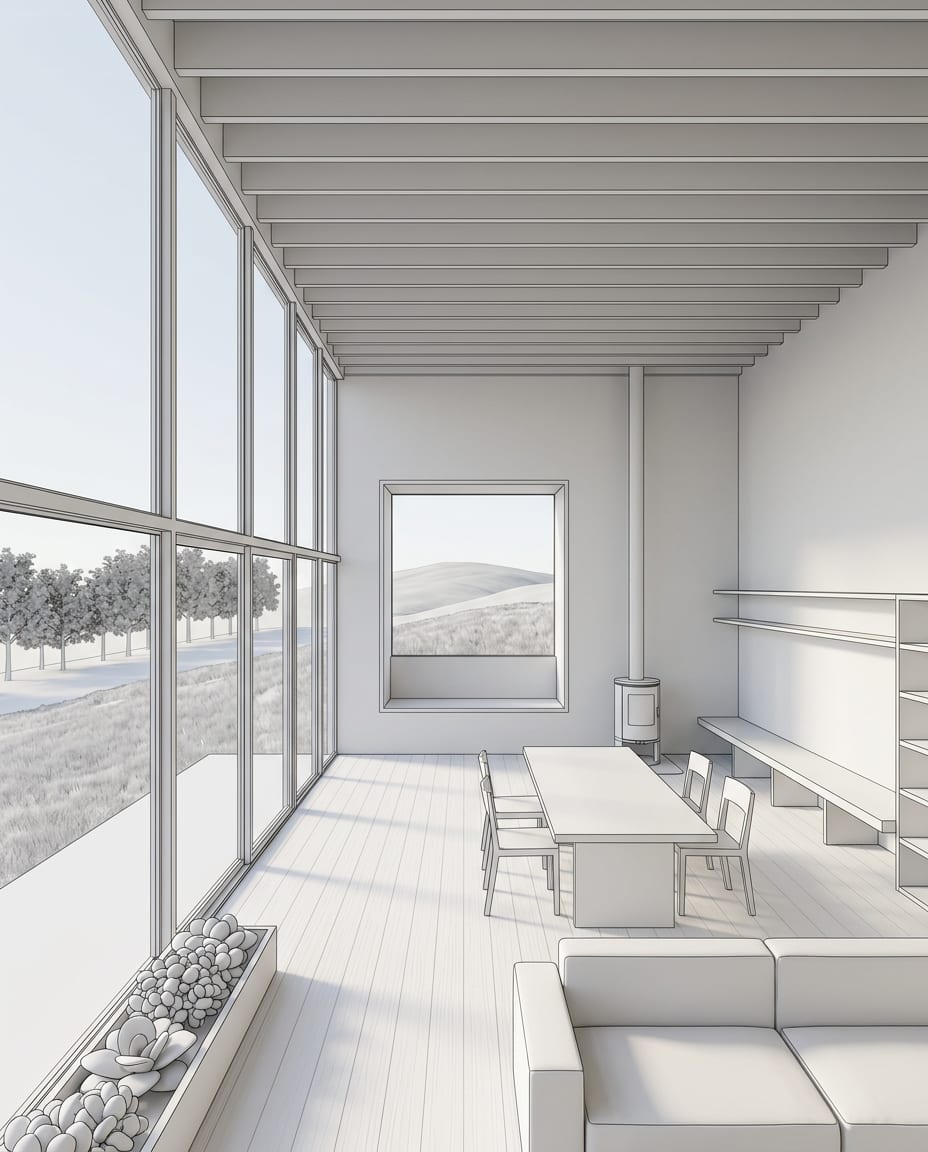
Same view. Now a photograph.
A sample 3D view of a living room interior (white model) and the arkia Photoreal render of the same view. Camera and geometry unchanged.
Drag the slider to compare
No. arkia works from an image saved from Archicad, so there is no add-on to install and nothing to keep in step with your Archicad release. You upload the saved image in your browser and run the Photoreal template.
Any version that can save a 3D window as an image, which is why the spec says Any. A screenshot of the 3D window also works, at a lower resolution.
OpenGL is the simplest choice for an image: it saves a bitmap of the 3D window as you see it. The Vectorial engine mostly serves 2D drawings and hatching, which Photoreal does not need.
No. A shaded 3D window view is enough. You do not need to run a PhotoRendering pass in Archicad, or set up its render engine, before sending the view to arkia.
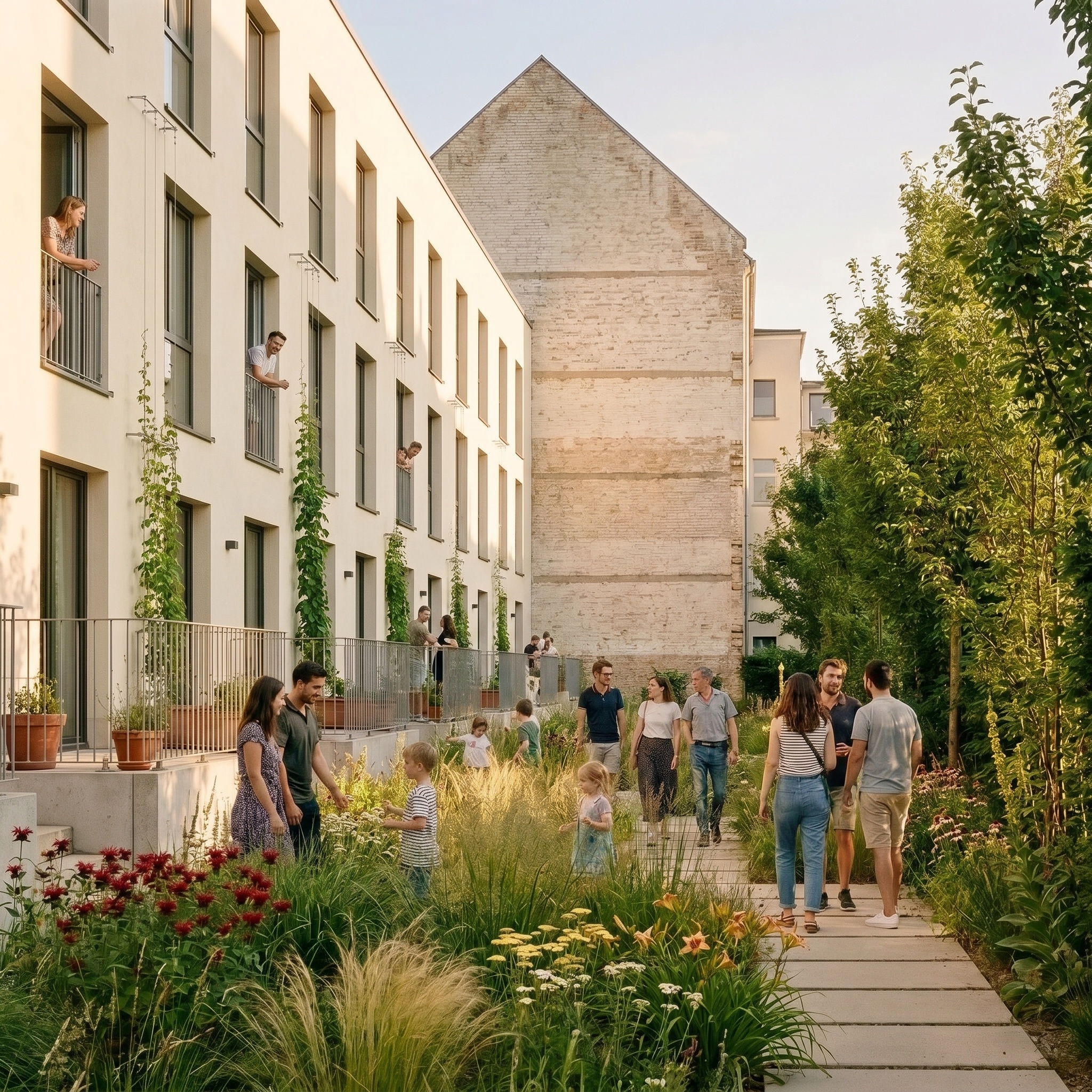
Templates that pair well.
Your Archicad view is one upload away.
Free to try. No credit card, nothing to install.