Revit to photorealistic render, nothing to install.
Export the 3D view you already set up in Revit and turn it into a photoreal render. Your camera and geometry stay as modelled. It starts from an image, so it works with any Revit version, Revit LT included.
- Free to try
- No plugin
- No credit card
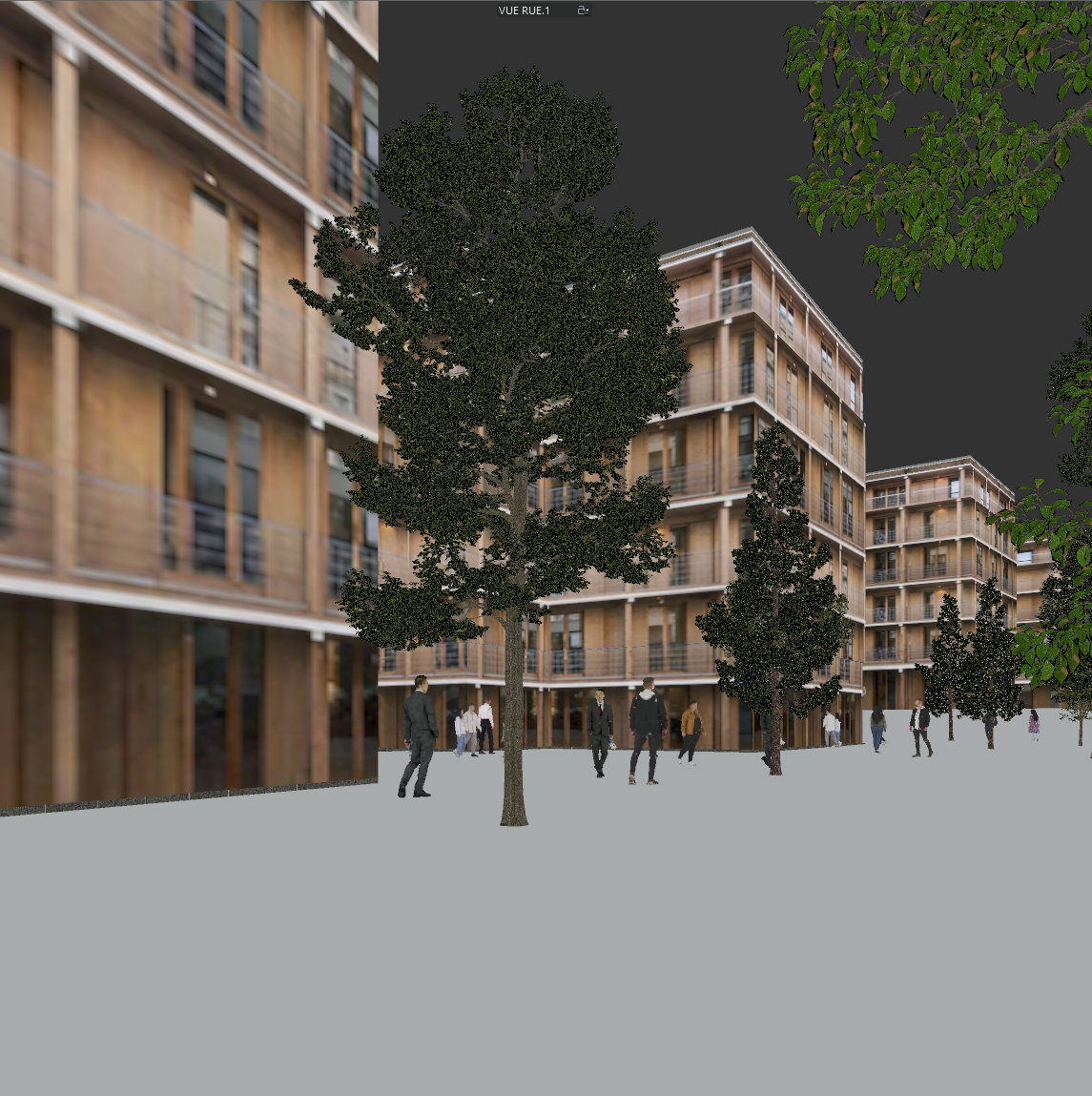
Nano Banana Pro
Sample input · click Generate to see the result
From Revit to render in five steps
Set the camera in a 3D view
From a plan, section or elevation view, go to View › 3D View › Camera, click to place the camera, then click again to set the target. With Perspective ticked in the Options Bar, Revit creates a perspective 3D view. Select the camera and adjust Eye Elevation and Target Elevation in Properties: an eye height near 1.6 m (5 ft) gives a street-level photograph.
Frame it with the crop region
Turn on Show Crop Region in the View Control Bar and drag its grips to frame the image the way you want to see it. Dragging the grips changes the field of view, so check the result before you export.
Choose Realistic, with shadows and a sun
In the View Control Bar, set the Visual Style to Realistic, which displays material appearances and the view lighting. Then open Graphic Display Options from the same menu: in Shadows, tick Cast Shadows (and Show Ambient Shadows if you like), and pick a sun setting with the date and time you want to show. The sun direction in your export guides the light of the render. Shaded with shadows also works if your machine is slow in Realistic.
Export the view as an image
File › Export › Images and Animations › Image. Choose the current view only, set Image Size with Fit To to a large pixel count (3,000 to 4,000 pixels on the long side), and pick PNG or JPEG as the format. This is a plain image export, not a rendering job, so it is fast and also available in Revit LT.
Drop it into Photoreal
Upload the image to the Photoreal template and run it. You can run the same view again to compare variants.
What Photoreal keeps from your model
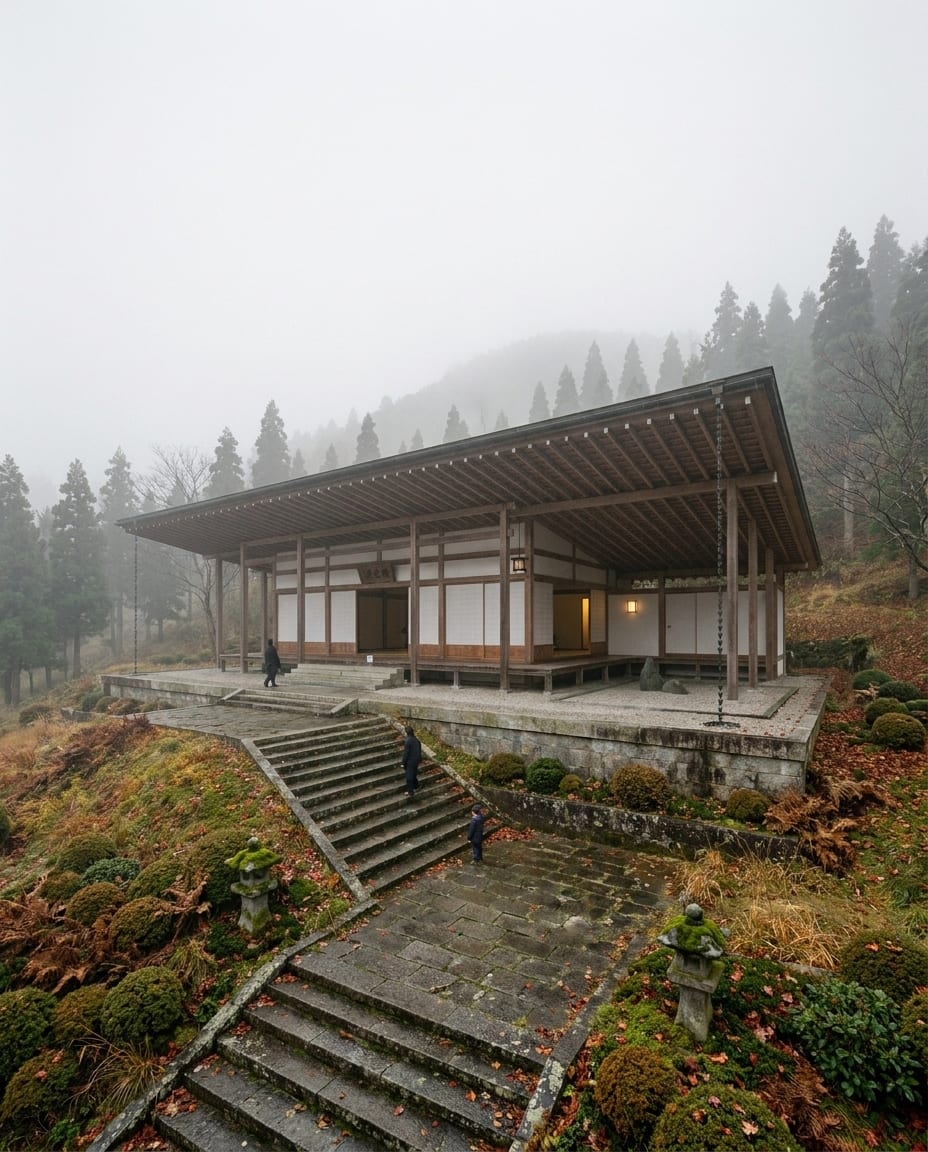
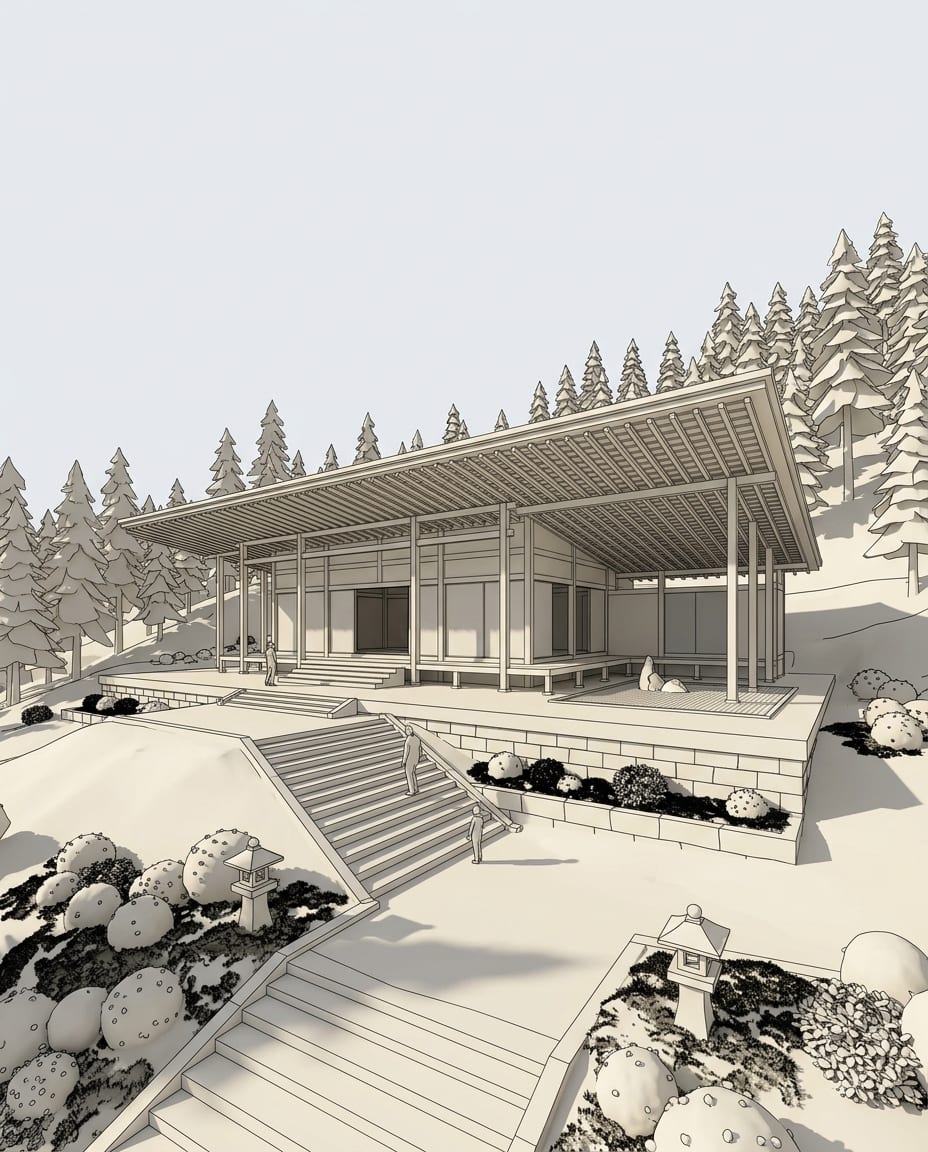
A Revit 3D view is the output of a coordinated model, and Photoreal treats it that way: the camera, the building volume, the grid of walls, windows and doors, and the composition you set in the crop region stay as exported. What it rebuilds is the photographic layer: light, material texture, reflections, depth and grading.
The cleaner the export, the closer the result. Material colours in Realistic tell the model which material goes where, shadows give it the hour, and a view with the sky and some context around the building gives it the horizon. Hide the section boxes, annotations and tags that clutter a working view before you export.
Why start from an exported image
A Revit add-in has to support the release you run, and it needs updating every year when Revit does. arkia starts from an exported image instead: there is nothing to install, nothing to keep in step with Revit, and it works the same on any version, including Revit LT.
It also means the office does not depend on one machine. Anyone with a view can upload it from the browser, and the renders land in a shared team gallery. A SketchUp, Rhino or Archicad view goes through the same template.
After the first render
Revit projects move through phases and design options, and the images tend to follow: one view per option, one per stage. Run the same exported view through Photoreal for each option and put the renders next to each other. Then chain other templates on the one you keep: add people for scale, add planting around the building, or test another facade material before you change a family in the model. There are over 50 templates, each one a single step on the image you already have.
Same view. Now a photograph.
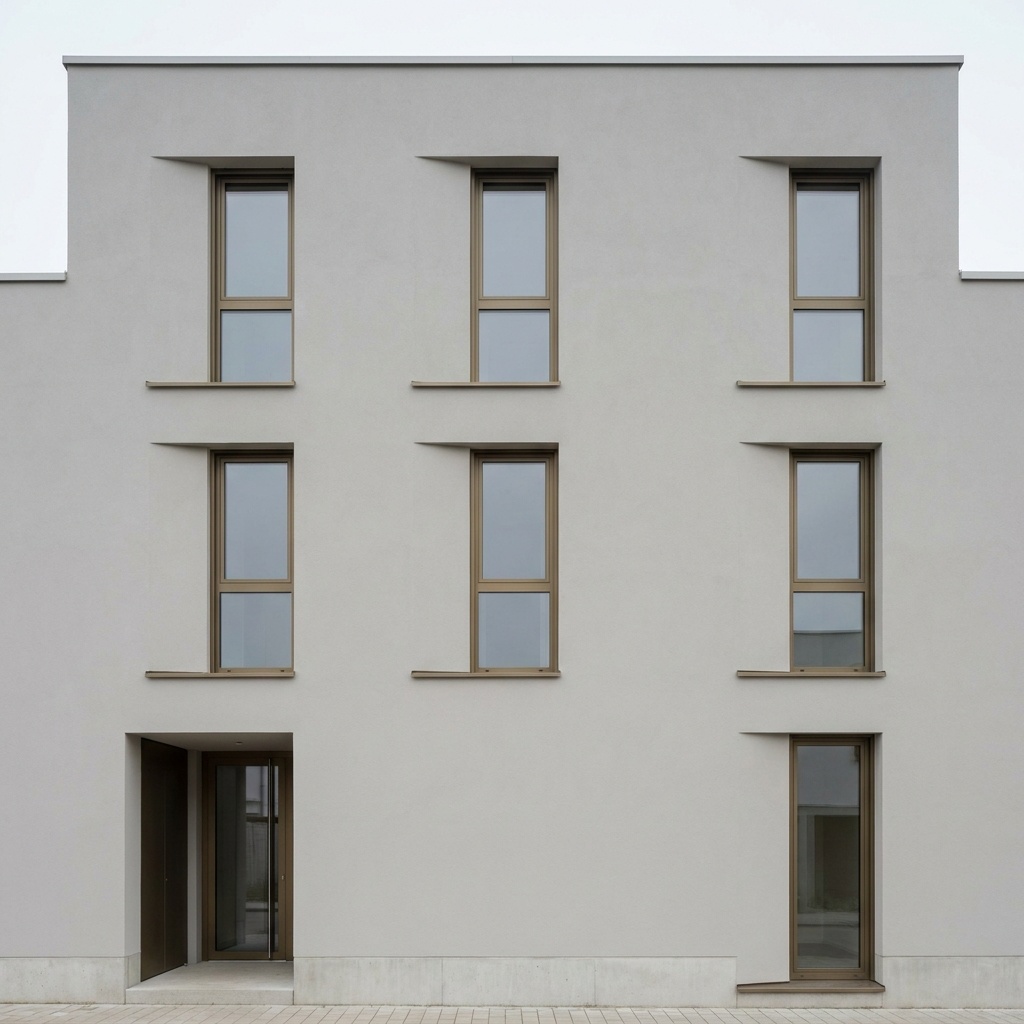
A sample 3D view and its Photoreal render. Camera and geometry unchanged.
Drag the slider to compare
No. arkia works from an image exported from Revit, so there is no add-in to deploy on the office machines and nothing to update when a new Revit version comes out. You upload the view in your browser and run the Photoreal template.
Yes. Revit LT can export a view as an image (File › Export › Images and Animations › Image), and that image is all arkia needs.
No. You do not need to set up a Revit rendering. Export the 3D view as it appears with the Realistic visual style and shadows on, and Photoreal builds the photographic layer from there.
The camera, the building volume and the layout of walls and openings in your Revit view are the starting point, and the render is built on them. What changes is the light, the material texture and the photographic quality. Compare the render with the view it came from, as you would check any render against the model, before it goes in a deck.
Templates that pair well.
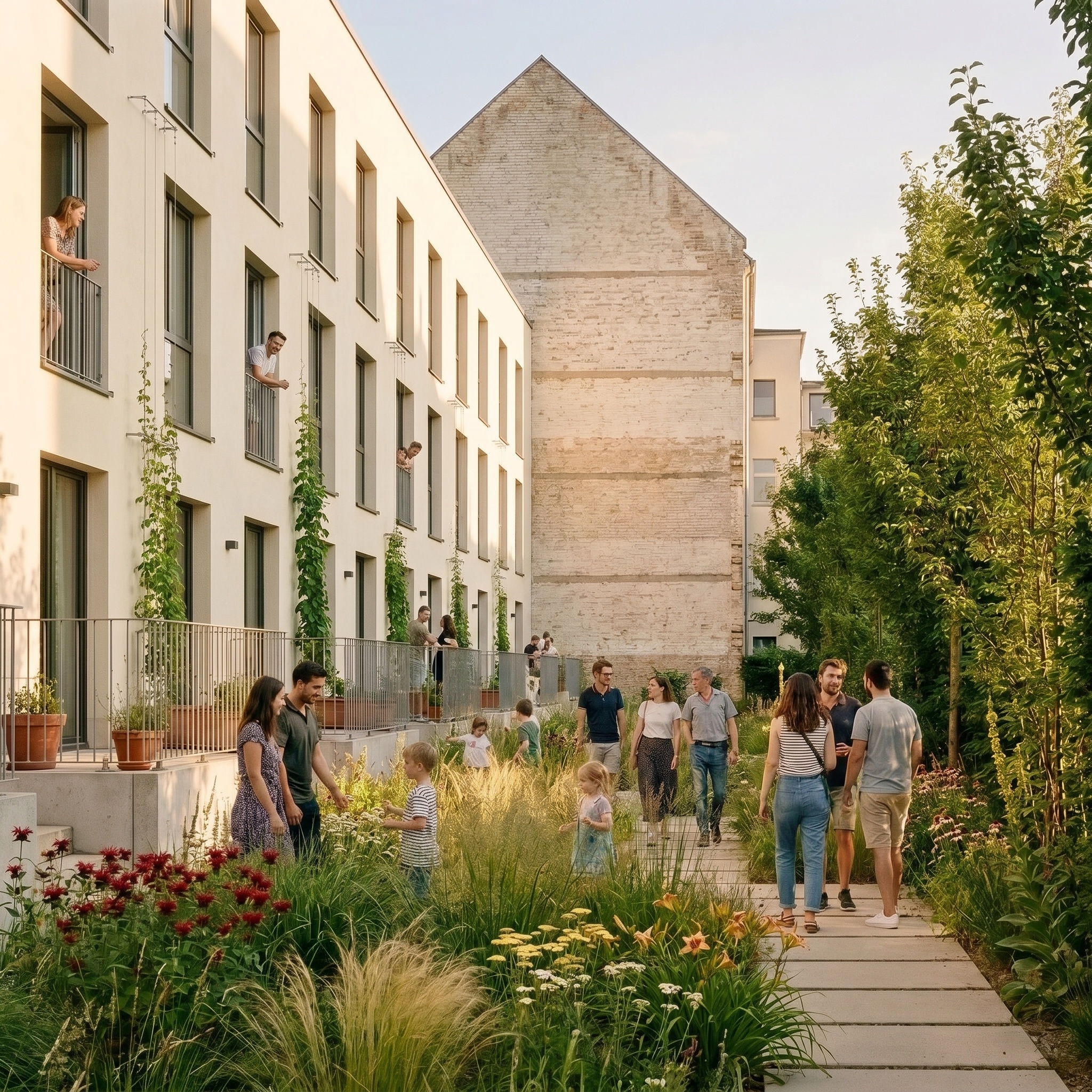
Your Revit view is one upload away.
Free to try. No credit card, nothing to install.