How to insert a 3D model into a photo.
Showing a building in its real street is the most direct way to present it. Here is how a photomontage is built by hand, what makes it look pasted in, and how to get a first image.
- Free to try
- No plugin
- No credit card
Nano Banana Pro
Sample input · click Generate to see the result
The faster method, in four steps
Photograph the site
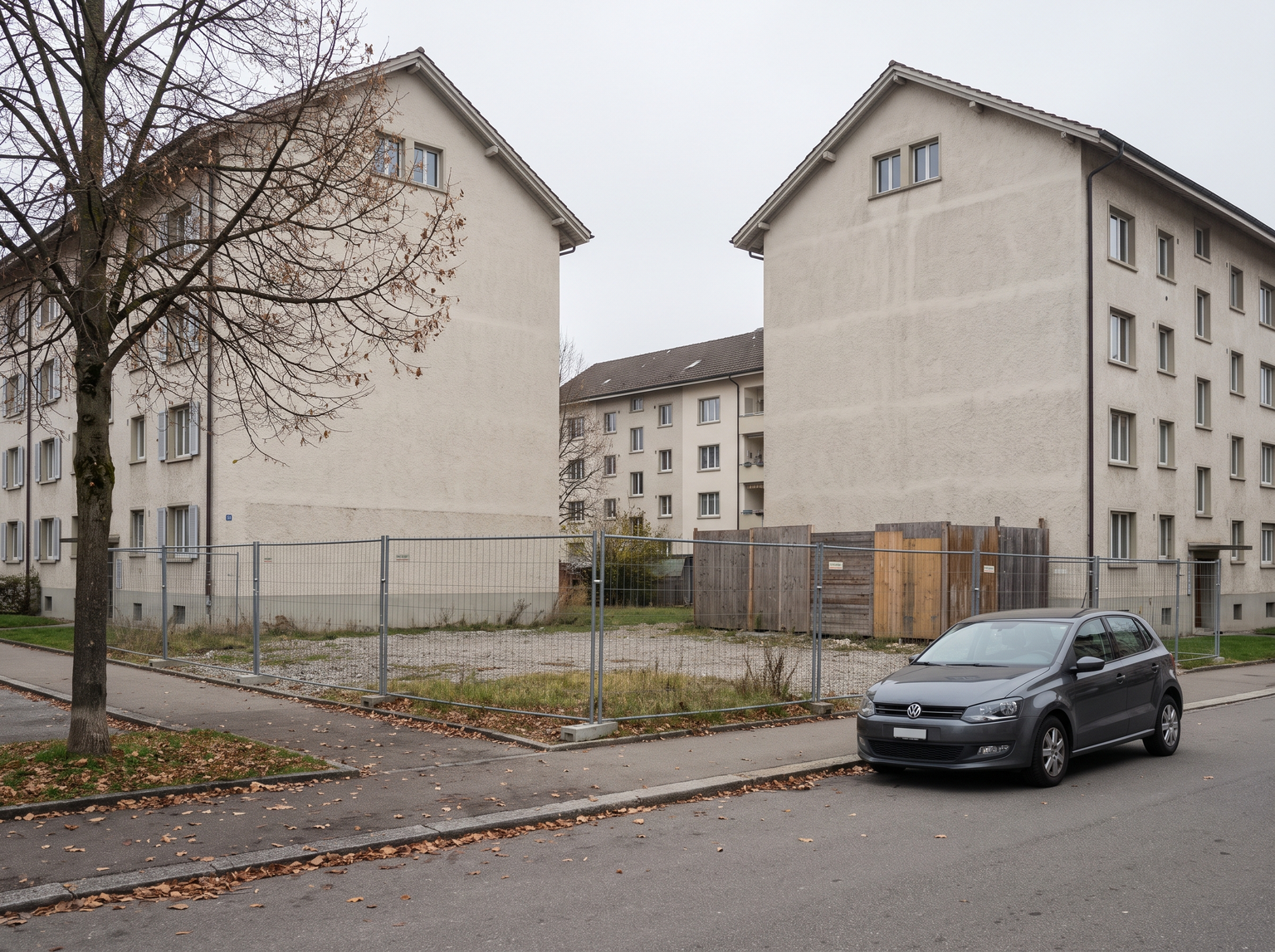
Take an eye-level photo of the plot from the sidewalk or across the street, with the vacant plot and the buildings on both sides in frame. Keep verticals as straight as you can, and avoid shots where cars or people block the plot.
Capture your model from a similar angle
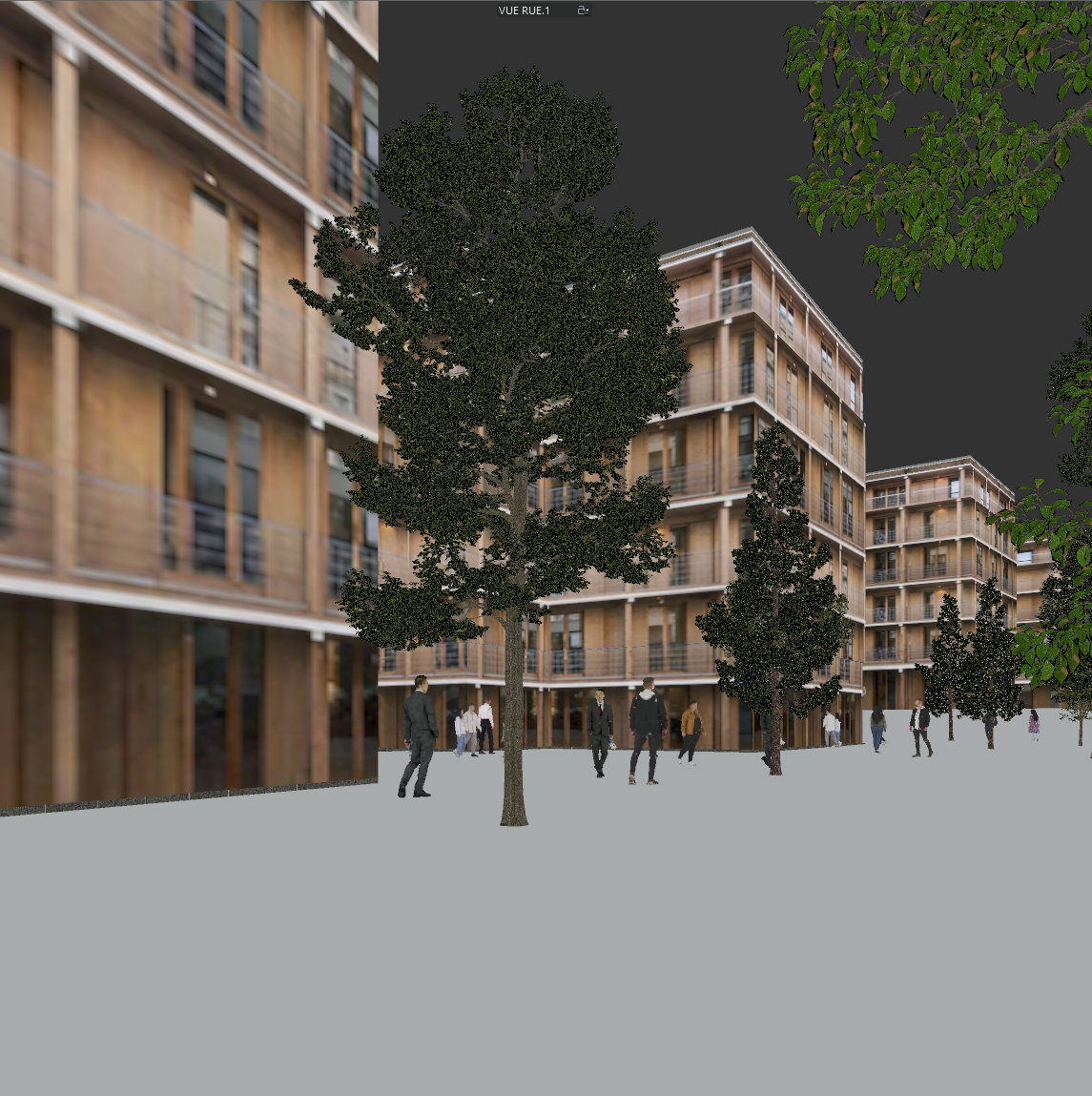
Take a screenshot of your 3D model from a similar angle and height to the photo, with basic shading or materials. The closer the two viewpoints, the more faithful the insertion. The model is used for the building only: massing, floors, facade, openings, roof and materials.
Open the Site Photo Insertion template
Drop the site photo into the widget on this page, then add your 3D view in the template, or open the Site Photo Insertion template. It has two inputs: the site photo and the project 3D view.
Run it and check the fit
The template keeps the photo as it is, including camera, light, sky, street and neighbours, and places the building on the plot with the photo's perspective, shadows and ground contact. Check height and placement against your drawings. If the project is wider than the gap, the template is built to narrow the building rather than cut the neighbours, but look closely at the edges where the new building meets them.
The classic way: a photomontage in Photoshop
The usual method starts from a render of the model on a transparent background. You set up a camera in the 3D software to match the photo, with the same viewpoint, height and focal length, then render the building alone and place it on a layer over the photo.
The rest is fitting. Verticals and vanishing points have to line up with the neighbours, the building needs a cast shadow on the ground and on the facades beside it, and exposure, contrast and colour temperature have to match the photo. Reflections in the glass should show the real street and sky. Foreground elements such as a lamp post or a tree branch go back in front of the building with masks.
It gives an exact result when the camera matching is done carefully, and it is the standard for work that has to be precise.
What breaks the illusion
Perspective is the main failure. If the building was rendered from a different eye height or focal length than the photo, its verticals and horizon will not agree with the neighbours, and no amount of colour work hides it. Match the camera first.
The second is light. A new building that is brighter, sharper or more saturated than the facades next to it looks pasted in. Shadow direction must follow the sun in the photo, and the building should carry the same haze as other buildings at its distance.
The third is ground contact. A building that floats, or that meets the pavement with no curb, no planting and no shadow, is the quickest giveaway. Construction fences, gravel and plot debris have to be replaced with real paving and edges.
Finally, scale. Check floor heights against the neighbouring buildings, not against the model.
How to get a believable first image
Choose the photo for the job: good light, a clear view of the whole plot, and both neighbours visible. A flat overcast day is easier to match than harsh sun with long shadows.
Take the model screenshot from the same side of the street and at about the same height as the photo. Only the building is used from it, so its sky, ground and trees do not matter.
Treat the first image as a study. It tells you quickly whether the proportions, the facade rhythm and the roof line work in the street, before you commit to a hand-finished version.
When to keep the manual photomontage
Keep the manual method when the exact position and height of the building have to be controlled, when parts of the scene need to pass in front of the building, or when the image has to be checked against measured data.
Use the template for early studies, client conversations and design reviews, when you want to see the project in its street quickly. The result is a concept photomontage, not a verified or measured view: placement and height are read from the images, so check them against your drawings.
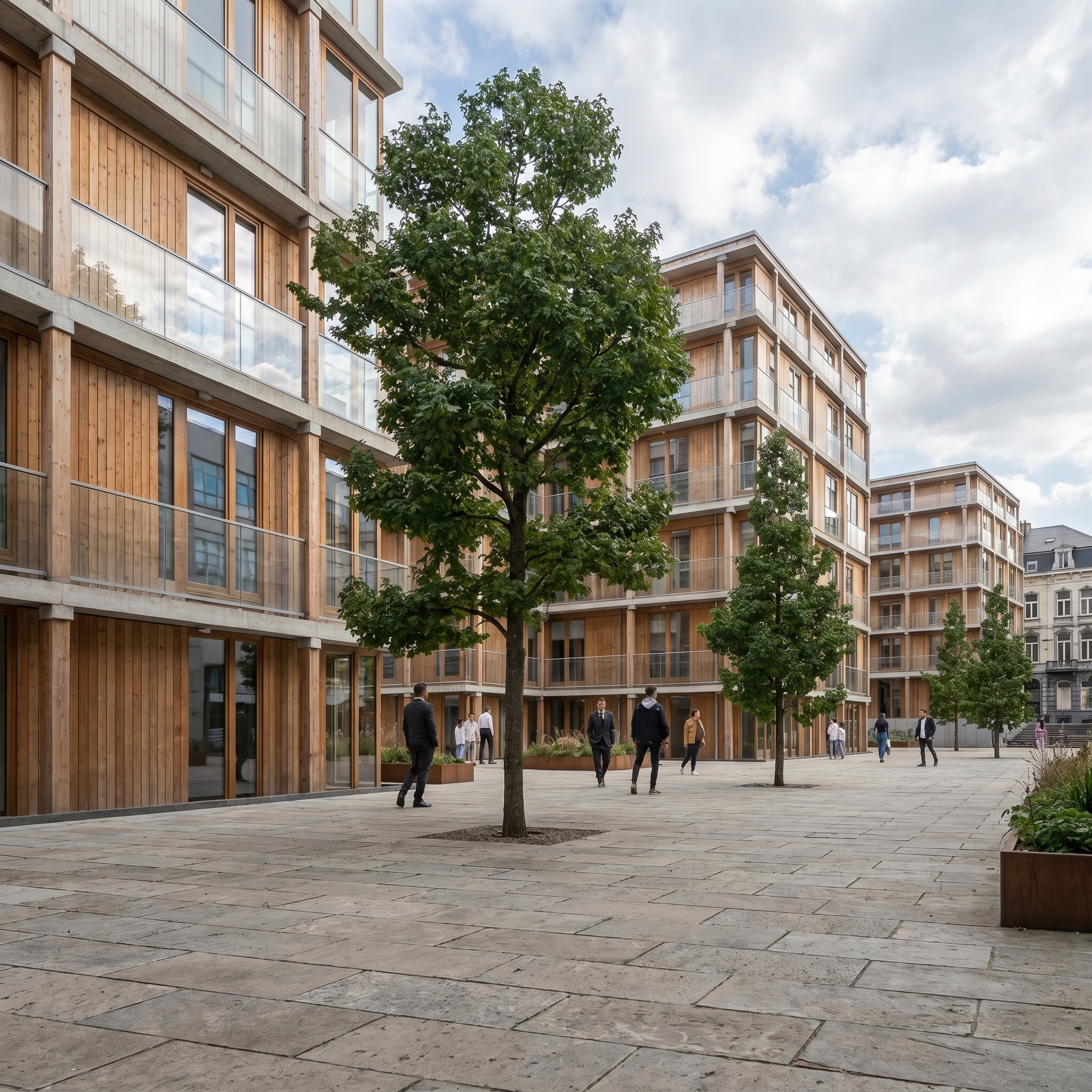
Same street. Now with the building.
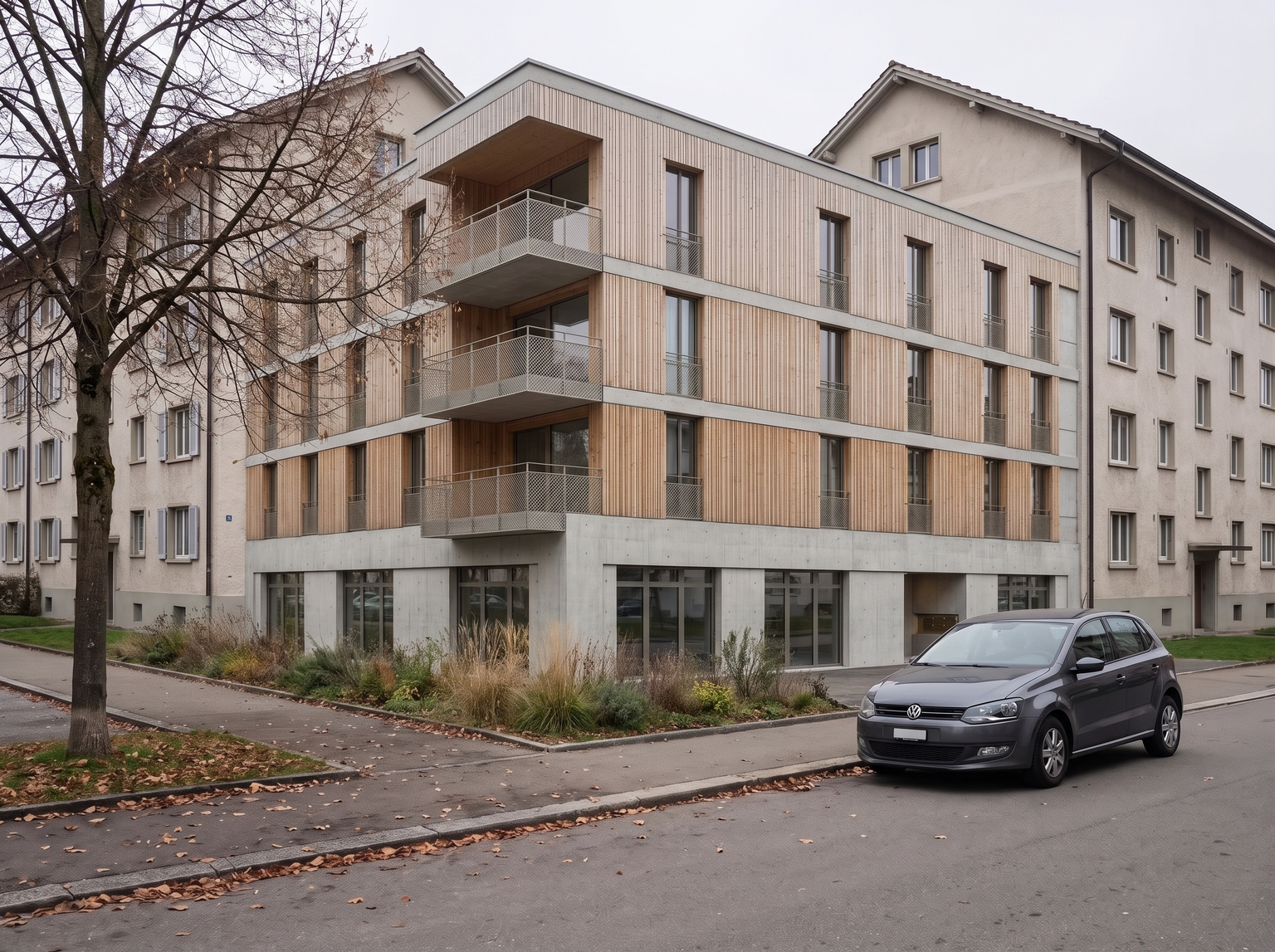
A site photo and the project placed on the plot. Camera and light are kept; check where the building meets its neighbours.
Drag the slider to compare
Signing up is free, with no credit card. New accounts start with free credits and receive more every Monday; the pricing page lists the plans and what each credit buys.
That is the aim: the template is told to keep the neighbours, street, trees and cars as photographed, and to narrow the new building to fit the gap instead of cutting into them. The result is generated, so check the edges: a volume much wider than the plot is the case most likely to overlap the buildings beside it.
You do not have to set up a matched camera. The template re-projects the building into the perspective of the photo. A 3D view taken from a similar angle and height still gives a more faithful result, and a very different angle can shift some facade proportions.
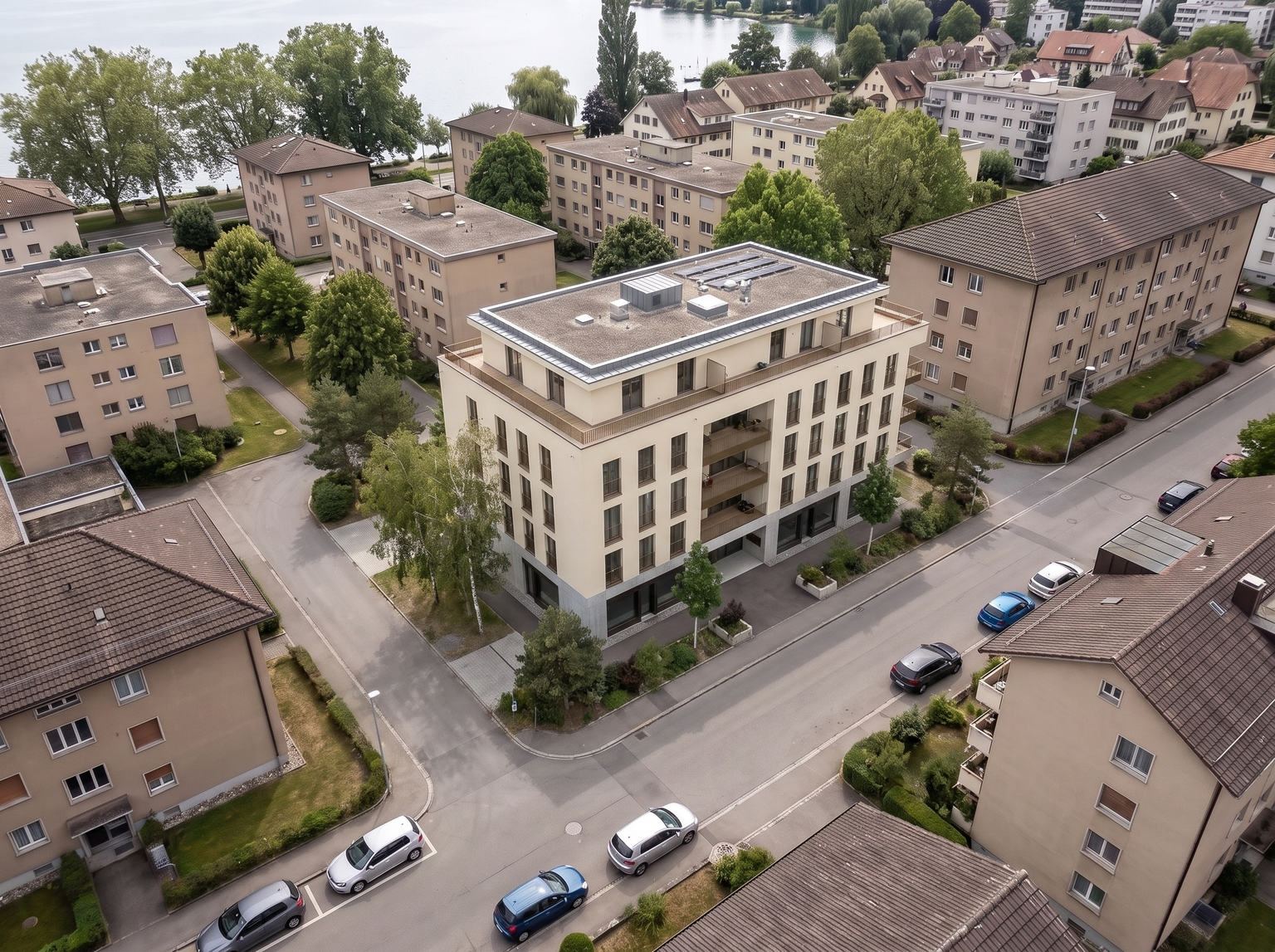
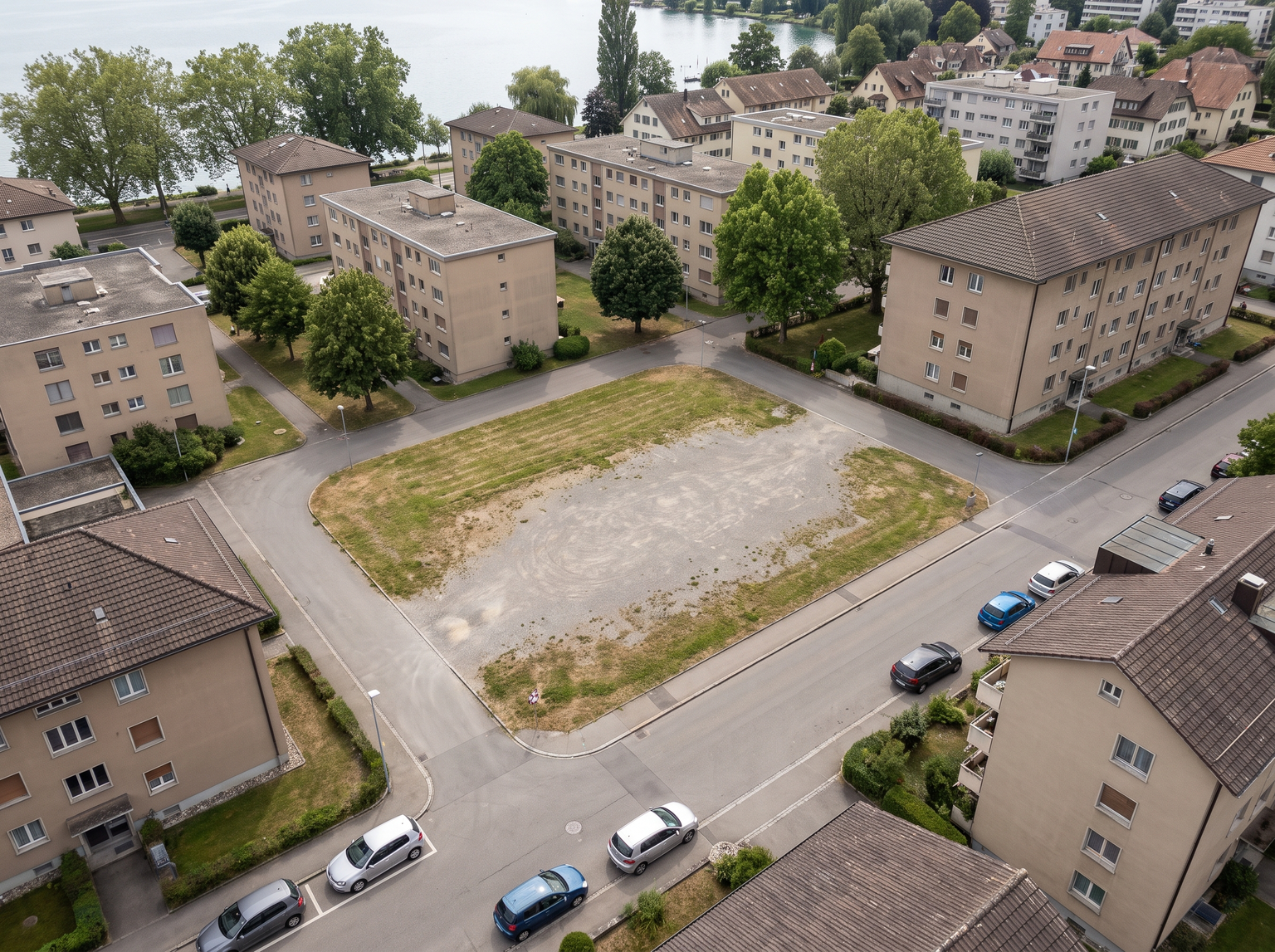
The Project Drone Insertion template works the same way from a drone photo: you add the aerial view of the plot and your 3D view, and the building is placed on the site.
Yes. Commercial use and full IP assignment are included, with no attribution, and no watermark on paid plans. Nothing you create is published unless you share it.
Templates that pair well.
Put your project in its street.
Free to try. No credit card, nothing to install.