How to turn a day render into a night render.
Darkening a render is easy; making it read as night is not. Here is the fast way, and the Photoshop one.
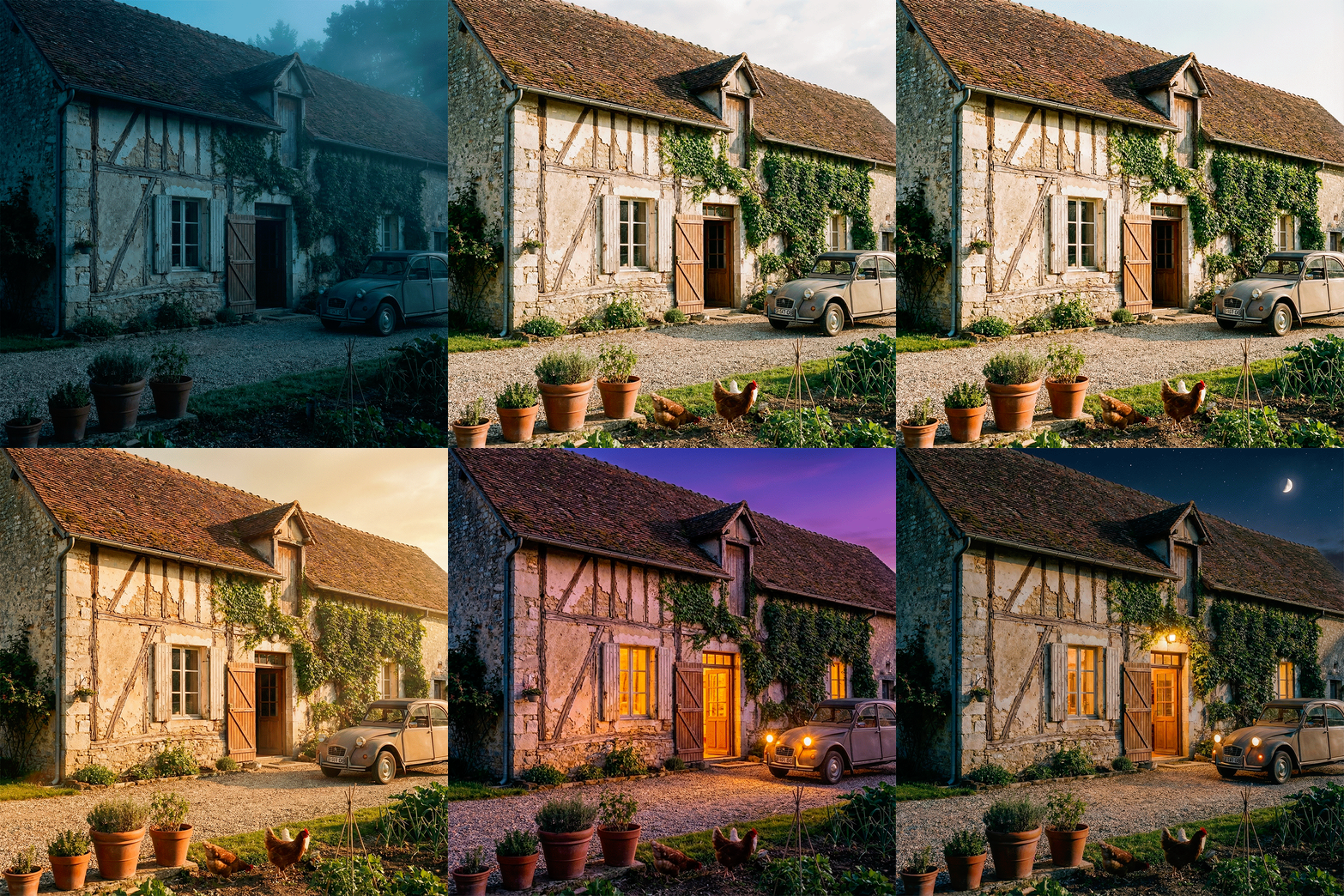
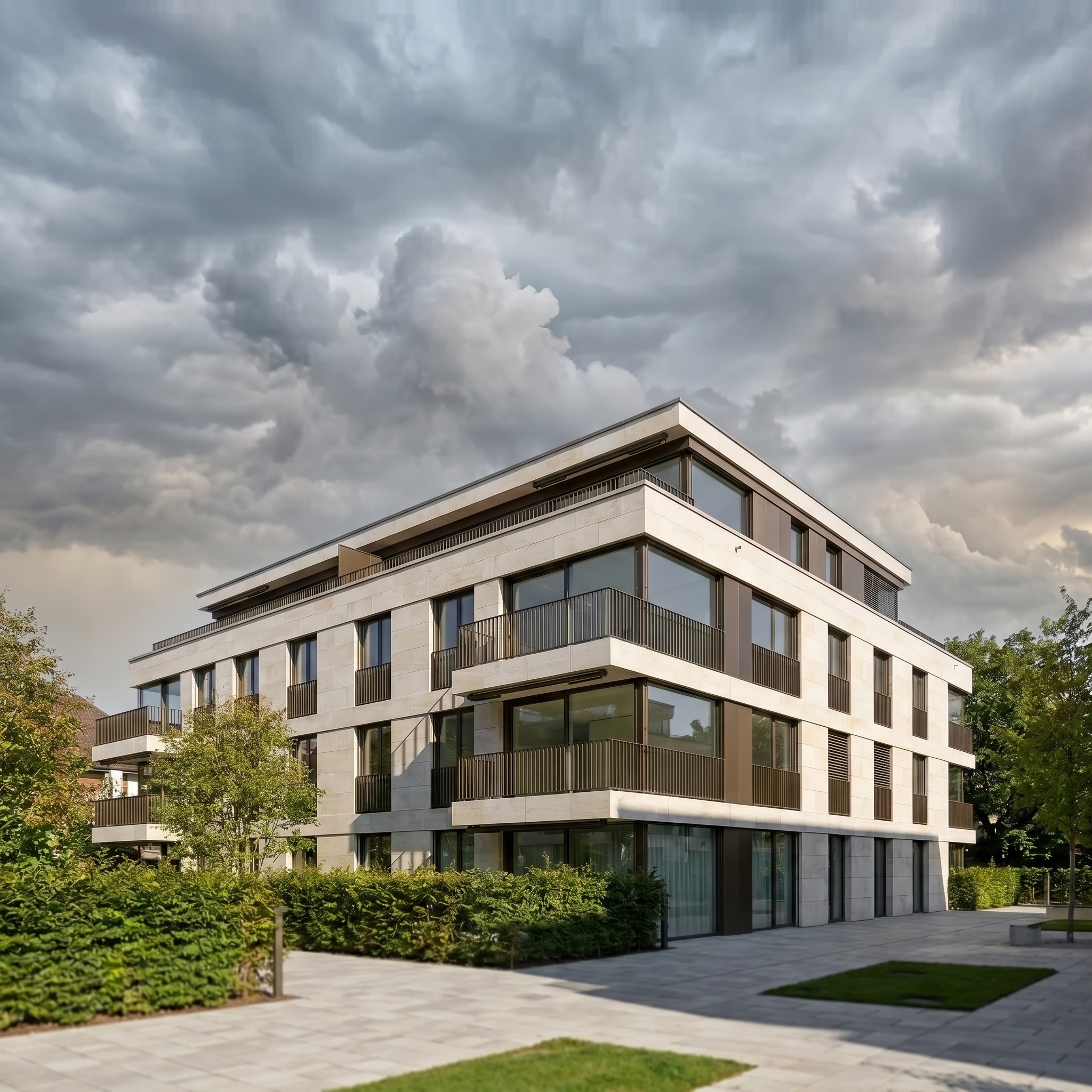
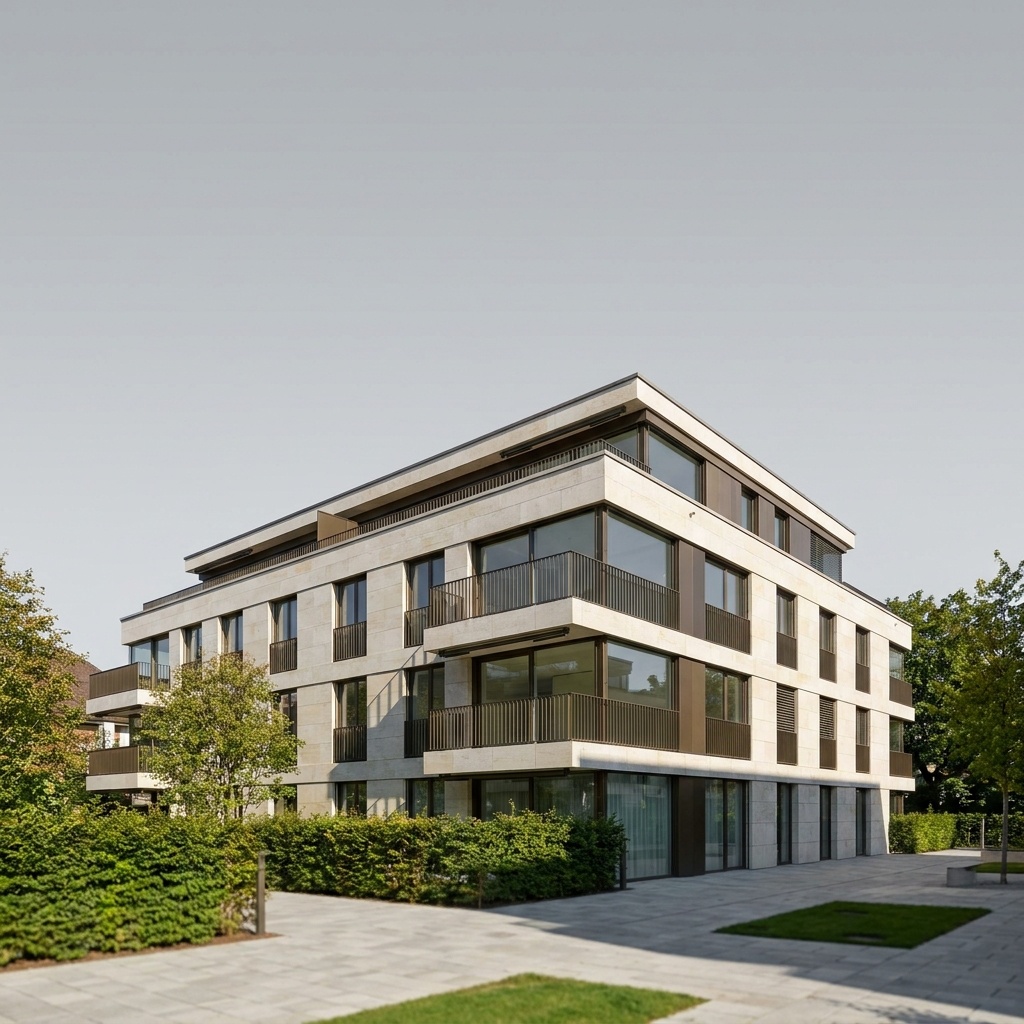
Same view. Every hour of the day.
A daylight view relit through the nine settings, from dawn to deep night. Camera and building unchanged.
The faster method, in four steps
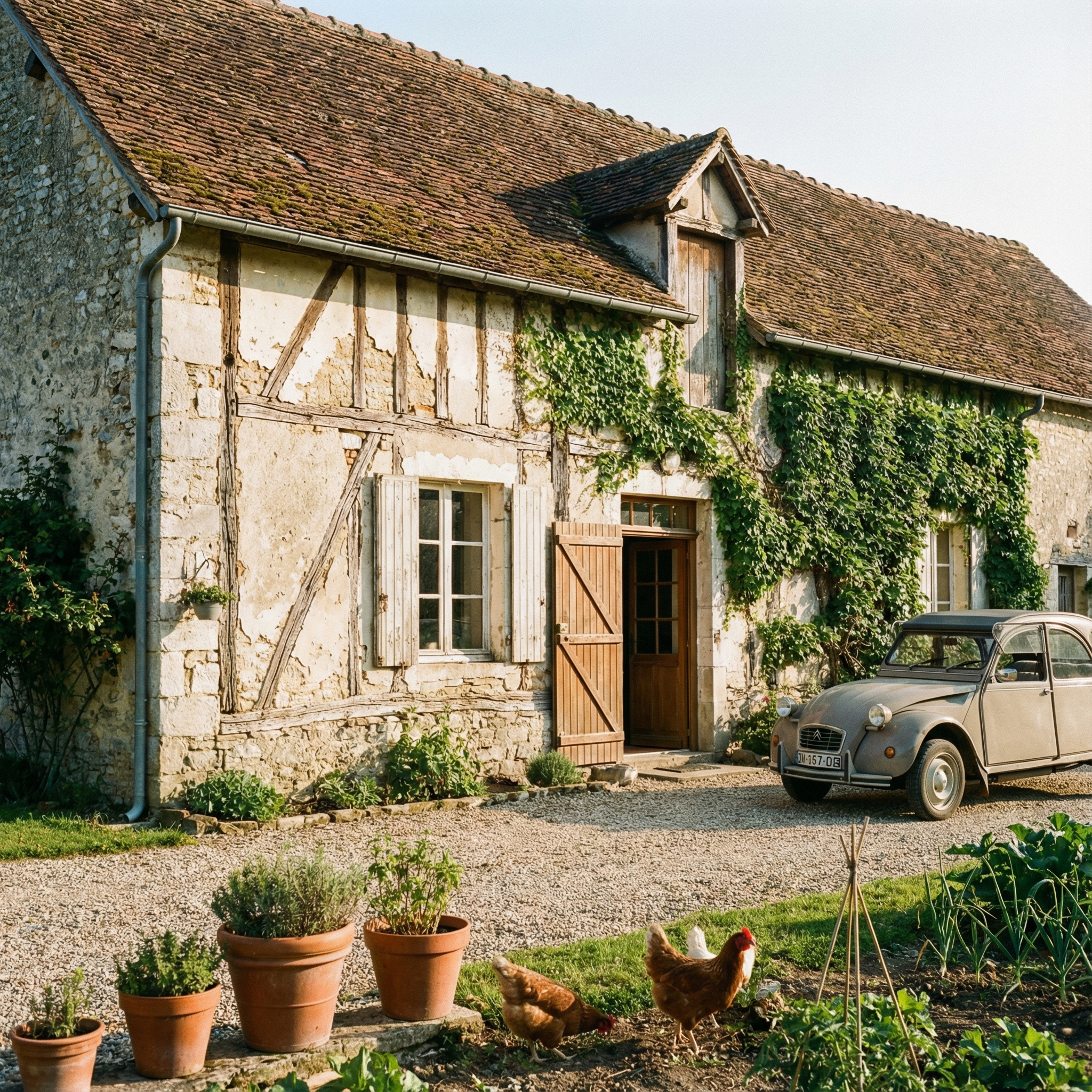
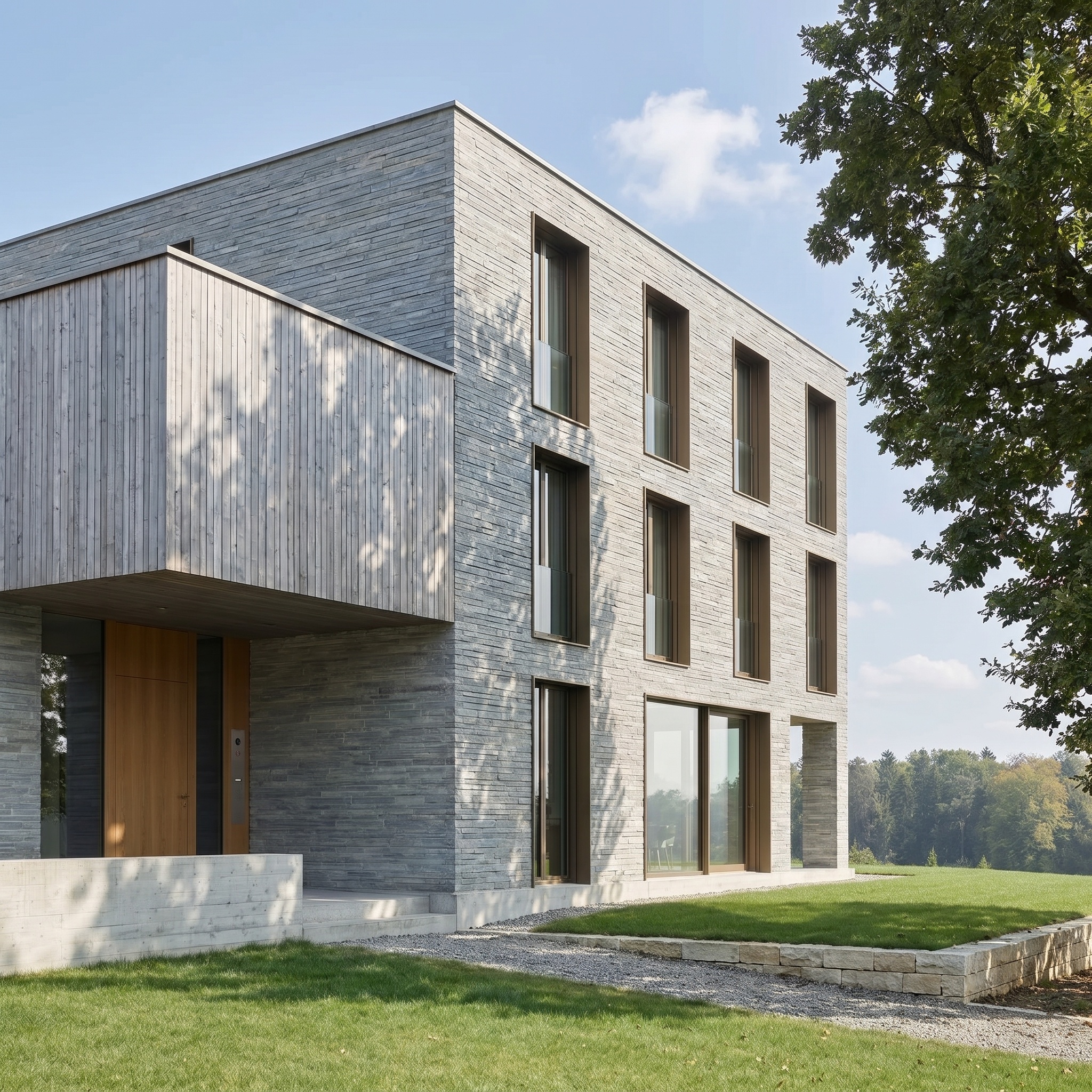
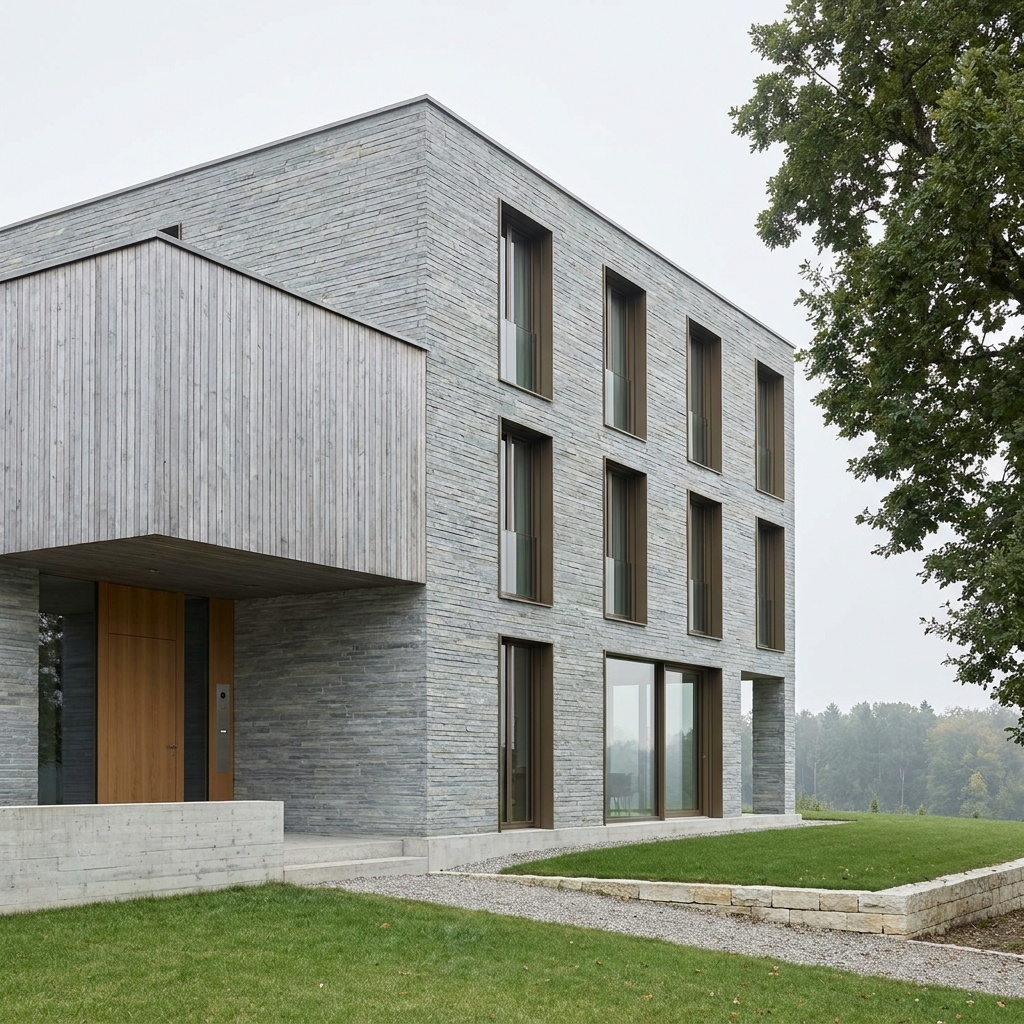
Export the daylight view
A render or a photo, with windows and lights visible.
Open the Lighting Change template
Drop the image into the template. It takes one image: yours.
Pick the time of day
Nine settings on the sun selector, from dawn to night.
Run it, then compare
Camera, framing and materials stay. Try two or three settings.
Try it on your view.
Drop in a render, a viewport capture or a photograph. It opens in the Lighting Change template, ready to run.
Drop your image here
or click to browse · PNG, JPG, WebP up to 10 MB
- Free to try
- No plugin
- No credit card
The classic way: day to night in Photoshop
The usual route starts by darkening the whole image with a Curves or Levels adjustment layer, then pushing the colour towards blue with Color Balance or a Photo Filter. The sky is replaced or repainted with a dusk or night gradient, and the clouds and sun glare are removed.
Then the building has to be lit from within. Windows are selected and filled with a warm colour on their own layers, often with a soft glow around them; lamps, bollards and entrance lights get small radial glows; the ground and facade near each source receive a warm wash through a layer mask, so the light seems to fall on the surfaces.
It gives you full control over which window is lit, how warm each one is and how much light reaches the ground. It is also a long list of masks per view, and it has to be repeated for every angle of the project.
Why night edits look fake
The most common failure is a darkened day image. The sun shadows are still there, long and sharp, even though no sun is up. At dusk and at night, shadows are soft or absent, and the light comes from the sky and from artificial sources. If the original shadows survive, the image reads as dim daylight.
The second is windows and fixtures. Dark windows on a night view look like an empty building; windows that are all the same flat yellow look pasted on. Real interiors vary in brightness and warmth, and the light has to spill onto the ground and the surfaces next to the building.
The third is the sky and the colour. A uniformly blue overlay turns everything cold, including the lit windows. At blue hour the sky still has a gradient from deep navy to a paler band at the horizon, and the contrast between cold outside and warm inside is what makes the image work.
Which time of day to choose
Full night is not always the right brief. Blue hour, just after sunset, shows the facade, the surroundings and the glowing interior at once, which makes it a natural first choice for an evening view. The darkest setting is moodier: a near-black sky, with the building defined by its own light.
Golden hour and the dusk setting are useful when the aim is a warmer or more dramatic day view rather than night. A good test is to run the same view at Golden hour, Blue hour and the darkest setting and compare them at the size they will be seen.
Whatever the setting, check that the lit areas make sense for the project: a night view should light the entrance, the circulation and the windows that matter, not every room equally.
When to keep the manual day-to-night
Keep the manual method when you need control over the light itself: one specific window lit and the others dark, a precise colour temperature, a lamp placed where it does not exist in the render, or a lighting design that has to match a drawing.
Use the template when you want to see how a view reads at several times of day, to produce an evening variant of each view of a project, or to get a base you can still correct in Photoshop afterwards. Heavily textured CG renders can show small inconsistencies on fine surfaces during dramatic light changes, so zoom in on a detail that matters. If your view starts as a 3D model that is not rendered yet, the SketchUp page at /for/sketchup shows how to export a view and turn it into a photoreal render first.
The steps in detail
Export the daylight view
Use a render or a photograph of the building, with the glazing and any lamps or fixtures visible. The template only lights what already exists in the image, so a view where windows and lights are modelled gives the most convincing night.
Open the Lighting Change template
Drop the image into the widget on this page, or open the Lighting Change template. It takes one image: yours.
Pick the time of day
The sun selector has nine settings, from Dawn, Sunrise, Mid-morning, Zenith, Early afternoon and Golden hour through dusk and Blue hour to night. For a night view that still shows the facade, Blue hour keeps a deep blue sky with the building lit from inside; the last setting, the darkest, goes to a near-black sky with warm windows.
Run it, then compare
The camera, framing, buildings and materials stay as they are; the sun, sky, shadows and atmosphere change. Run the same view at two or three settings to see which one carries the project, then keep that version.
Signing up is free, with no credit card. New accounts start with free credits and receive more every Monday; the pricing page lists the plans and what each credit buys.
The template is built to keep the camera, framing, perspective, buildings, vegetation, vehicles and surface materials as they are, and to change only the light, sky, shadows and atmosphere. Compare a detail that matters against your original, as you would with any generated image.
At Blue hour and the darkest setting, existing windows glow warmly and existing fixtures such as street lamps and ground lights are lit. The template does not add lamps that are not in your image, so a view with no visible fixtures gets light from its windows and the sky.
Yes. The same selector runs through nine settings, from Dawn and Sunrise to Golden hour, Blue hour and night, so one view can become a whole series.
Yes. Commercial use and full IP assignment are included, with no attribution, and no watermark on paid plans. Nothing you create is published unless you share it.
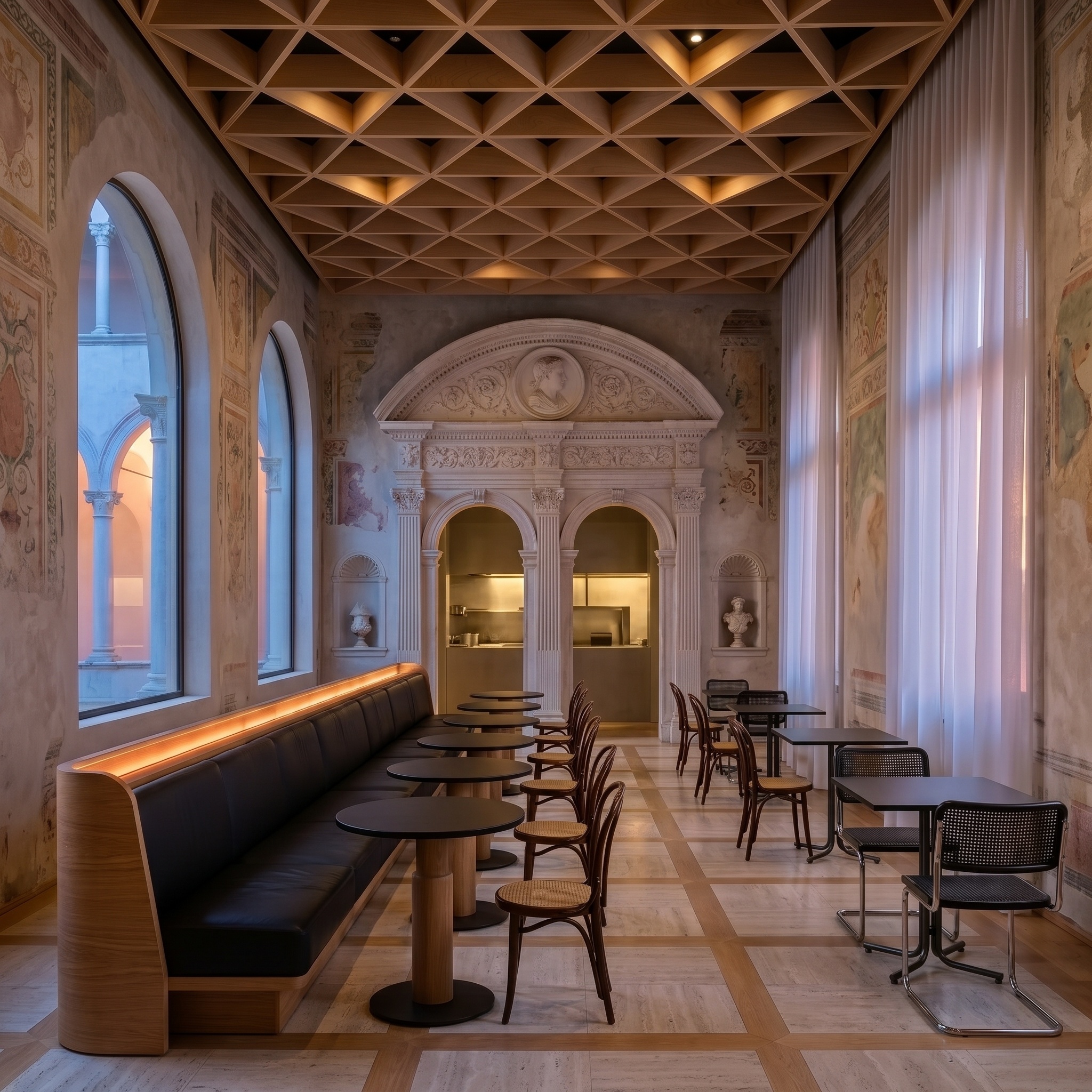
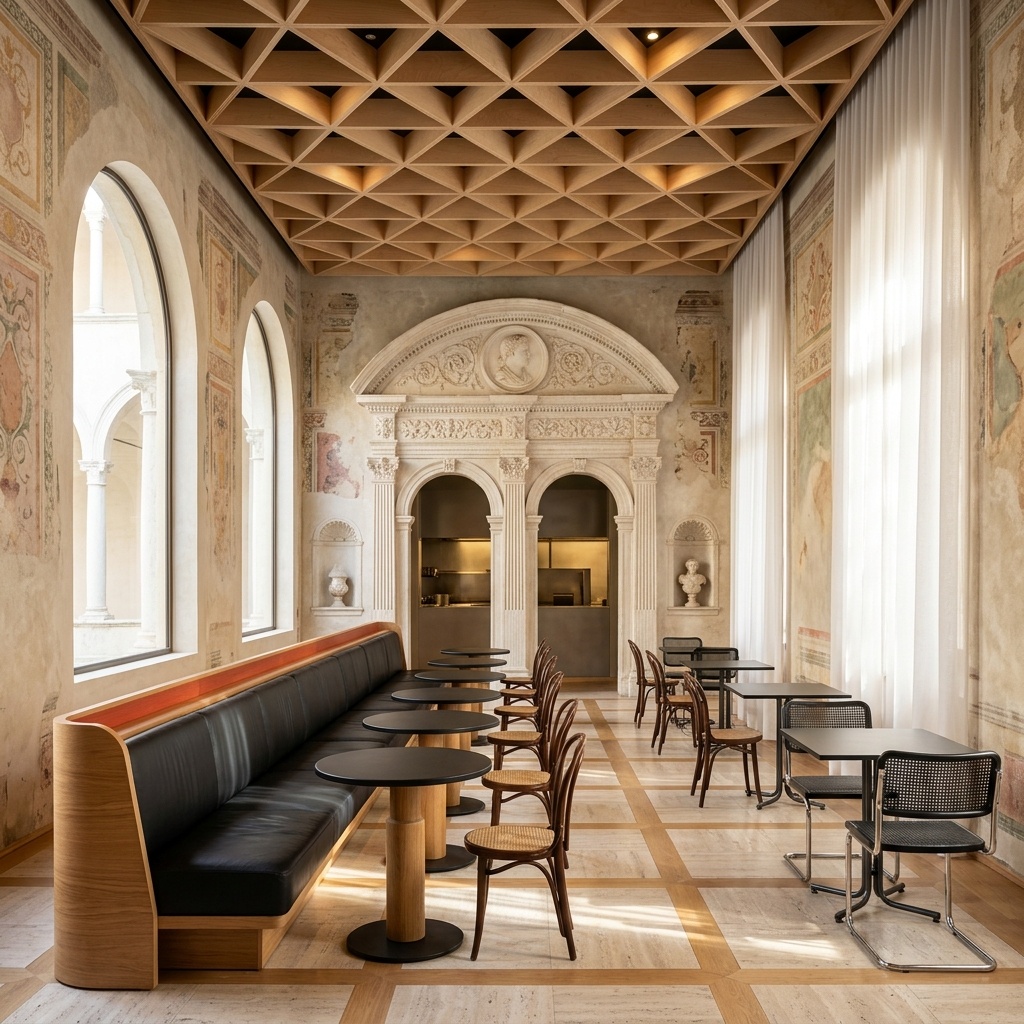
Templates that pair well.
Turn your own view to night.
Free to try. No credit card, nothing to install.