How to make a material board.
A material board shows a project as what it is made of. Here is the fast way from one image, and the classic one with real samples.
Same room. Now a material board.
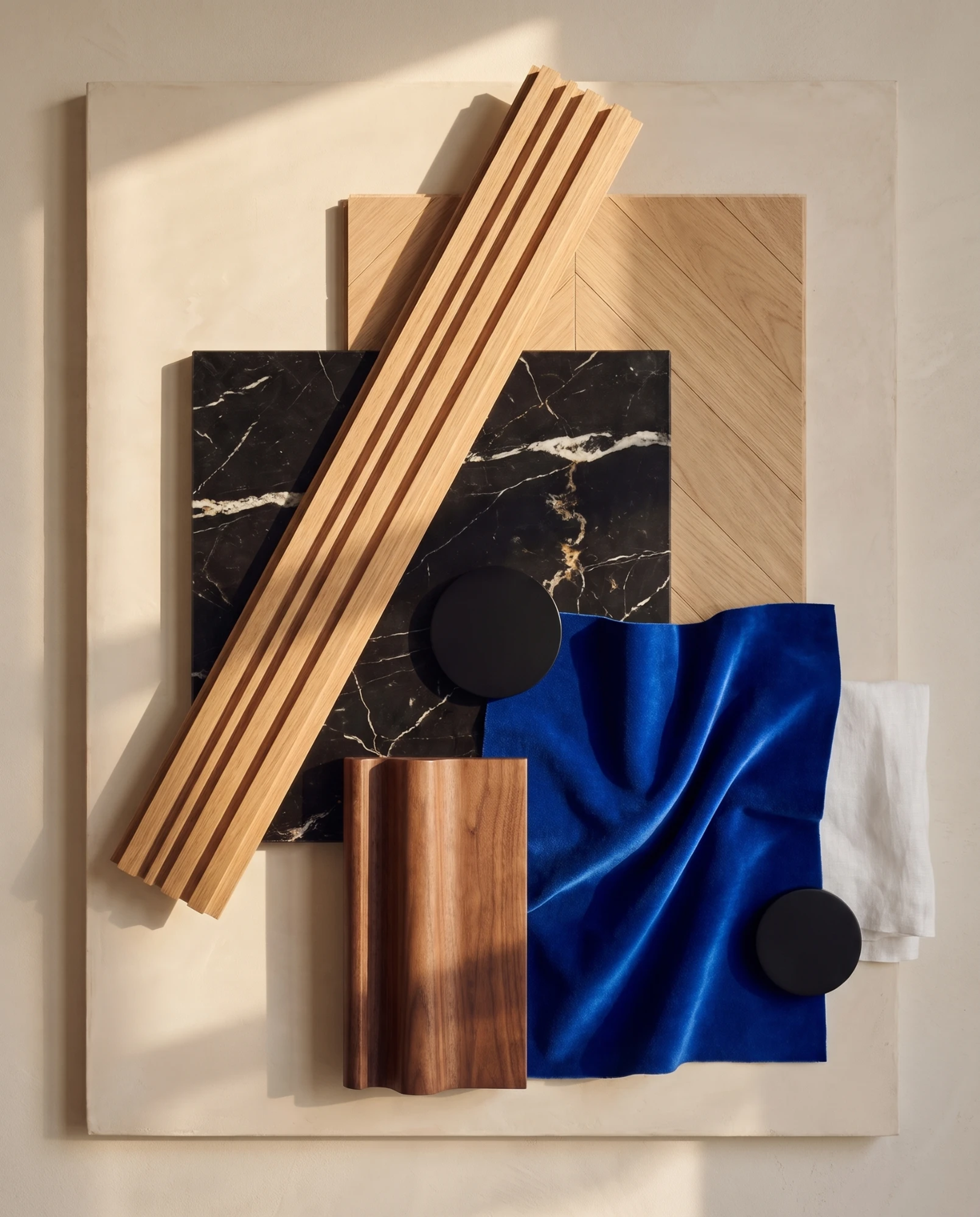
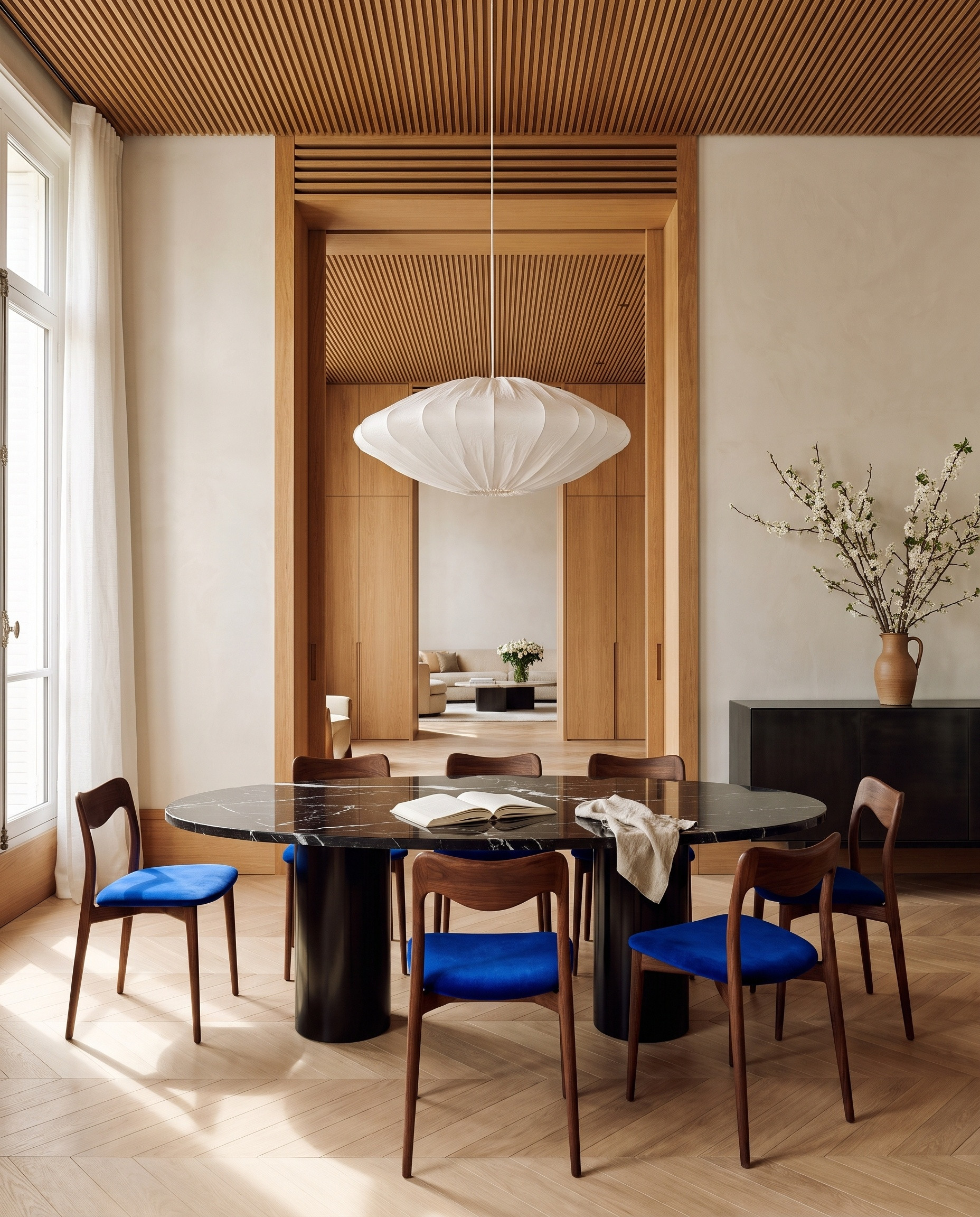
A dining room and its material board. Every sample is read from the image: oak, marble, walnut, velvet, lacquer, linen.
The faster method, in four steps
Drop in an image of the project
A render or a photo of an interior or facade, materials clearly visible.
Name an area, if you need to
Optional: point to a zone, such as the living area or the facade.
Run it
5 to 8 thick samples, read from the image, on a board in the wall material.
Put it to work
Next to the render on the client slide; Photo to PBR for a texture.
Try it on your view.
Drop in a render, a viewport capture or a photograph. It opens in the Material Palette template, ready to run.
Drop your image here
or click to browse · PNG, JPG, WebP up to 10 MB
- Free to try
- No plugin
- No credit card
What a material board is for
A material board, also called a material palette or a sample board, gathers the finishes of a project in one image: the floor, the walls, the joinery, the stone, the fabrics, the metals. Where a render shows a space, the board shows what it is made of, side by side and at the same light, so the relationships between colours and textures can be judged.
Interior designers use it to present a scheme to a client before anything is ordered, and to get a direction approved in one look. Architects use it on competition and planning boards to show how a facade is built, and inside the office to keep a project consistent: when a new space is designed, it is checked against the board.
It is also the start of the finish schedule. Once the board is agreed, each sample becomes a line with a supplier, a reference and a finish, which the contractor will price and build.
The classic way: real samples, a photo shoot, a layout
The hand-made board starts with collecting samples: offcuts of stone, wood blocks or floor boards, fabric swatches, paint chips, metal finishes, ordered from suppliers or taken from the office sample library. Some arrive in days, some in weeks, and some never in the right colour.
The samples are then arranged on a backing board, glued or pinned, with the larger surfaces as the larger pieces and the accents on top. The arrangement is photographed from above or straight on, in soft daylight or a light box, and the photo is retouched to bring the colours back to the real samples and clean the background.
For a digital board, the alternative is a layout in InDesign, Photoshop or a mood board tool, built from product photos and texture images. It is faster, but the images come from different sources, under different light and at different scales, and the board looks like a catalogue page rather than a set of materials.
Either way, it is hours of work per board, and it has to be done again each time the scheme changes, which is exactly when a client asks to see an option.
How to choose the source image
The board can only contain what the image shows, so choose an image where the materials are clearly visible. A sharp render or photo with the floor, the walls, the main furniture and the fabrics in frame gives the richest board. A dark or blurred image gives vague samples.
Prefer daylight. Even, natural light shows the true colour and grain of each material; strong coloured light, deep shadows or an evening ambience shift the colours the samples are copied from.
Frame wide, or name a zone. A wide view of the room catches all the main surfaces. If the image shows several spaces or a whole building, write the one you want in Area to read, such as "the kitchen" or "the facade", rather than cropping it yourself.
Repeated pieces count. Materials that cover a large part of the image or dress a set of furniture, such as a row of chairs or a run of cupboards, always get their own sample, and so do the darkest material and the metal or lacquered finishes, even when they are small. Two tones of the same wood, such as a pale oak and a honey oak, become two samples.
What the board is, and what it is not
The result is an image, not a specification. It shows the materials of your project as samples, but it does not identify a product, a supplier or a reference, and it carries no names or labels. The finish schedule still has to be written from real products.
Check colours on real samples. The board copies the colour, grain and sheen it reads in the image, and the image itself depends on the render settings or the camera. Before a choice is confirmed with a client, compare it with a physical sample under daylight.
Only visible materials are used, 5 to 8 of them. A material hidden behind furniture, too small to read, or not in the image at all will not appear, and the template does not add materials you have not shown. For a board built from products you have already chosen, the hand-made method stays the right one.
The steps in detail
Drop in an image of the project
Use a render, a site photo or a reference image of an interior or a facade, sharp and well lit, where the materials can be read. Drop it into the widget on this page, or open the Material Palette template.
Name an area, if you need to
The Area to read field is optional. In an open-plan render or a wide photo, write the part you want, such as "the living area" or "the facade", and the rest of the image is ignored. The field only points to a zone: do not list materials there, they are always read from the image.
Run it
The template takes an inventory of the image surface by surface and turns each material into a thick physical sample: a stone slab, a wood moulding or a panel of the floor pattern, a metal or lacquer disc, a folded fabric. You get 5 to 8 samples overlapping on a board finished in the main wall material, in warm window light, as a portrait image with no text.
Put it to work
Place the board next to the render on the client slide, or in the project book. To use one of the materials in your 3D scene, run the source photo through Photo to PBR and name that material: it comes back as a flat, seamless texture. To test an alternative on a modelled facade, use Material Swap with a swatch of the new material.
Signing up is free, with no credit card. New accounts start with free credits and receive more every Monday; the pricing page lists the plans and what each credit buys.
Yes. Use a photo or render of a facade, or name "the facade" in Area to read when the image shows more than the building. The board is made from the facade materials in the same way: cladding, stone, metal, glazing frames.
No. Every sample is read from the image, and the count never exceeds what the image shows. To show an alternative, run another image, or test the new material on your modelled facade with Material Swap first.
No. The board is a photograph of the samples only, with no text, so you can label it in your own layout with your references and suppliers.
Yes. Commercial use and full IP assignment are included, with no attribution, and no watermark on paid plans. Nothing you create is published unless you share it.
Templates that pair well.
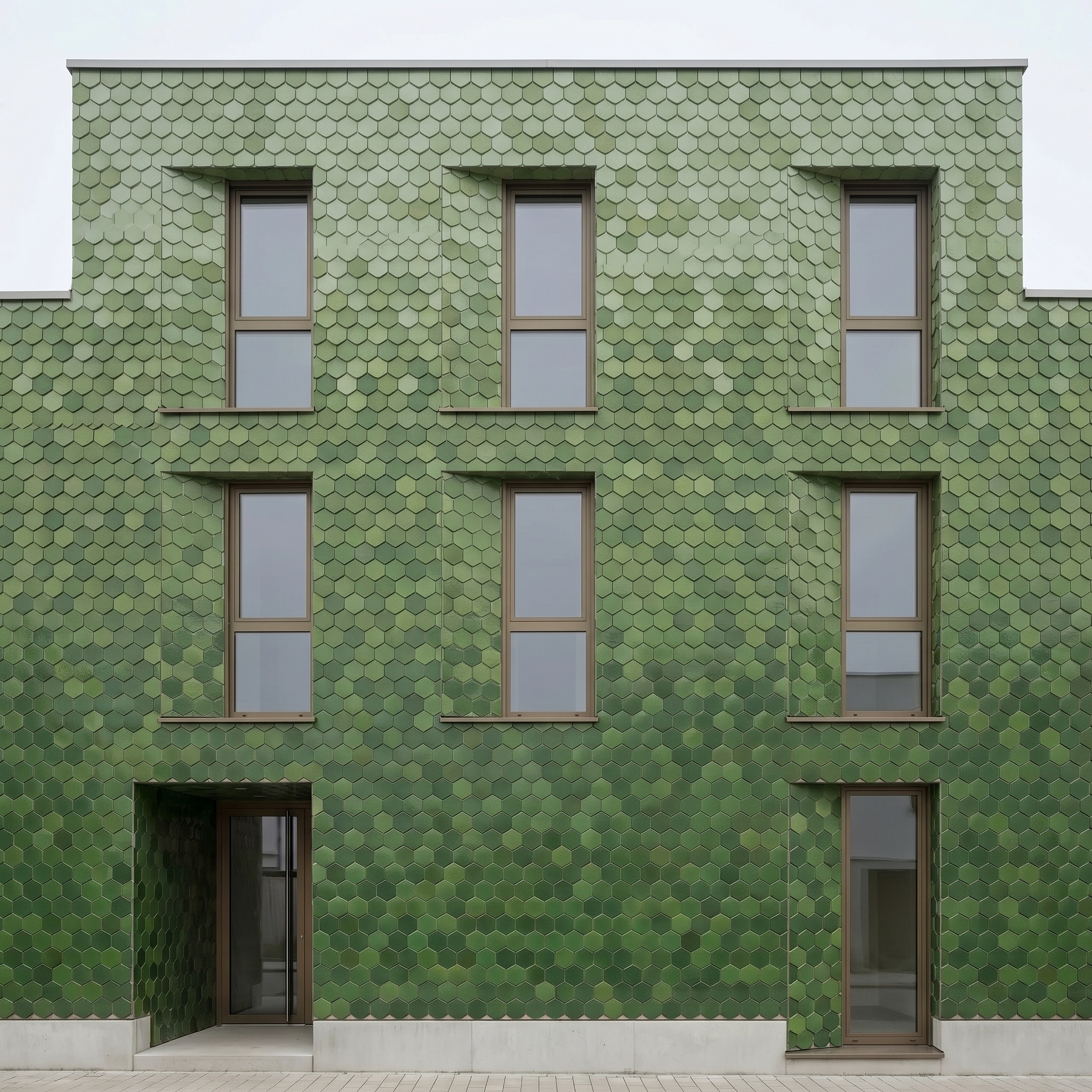
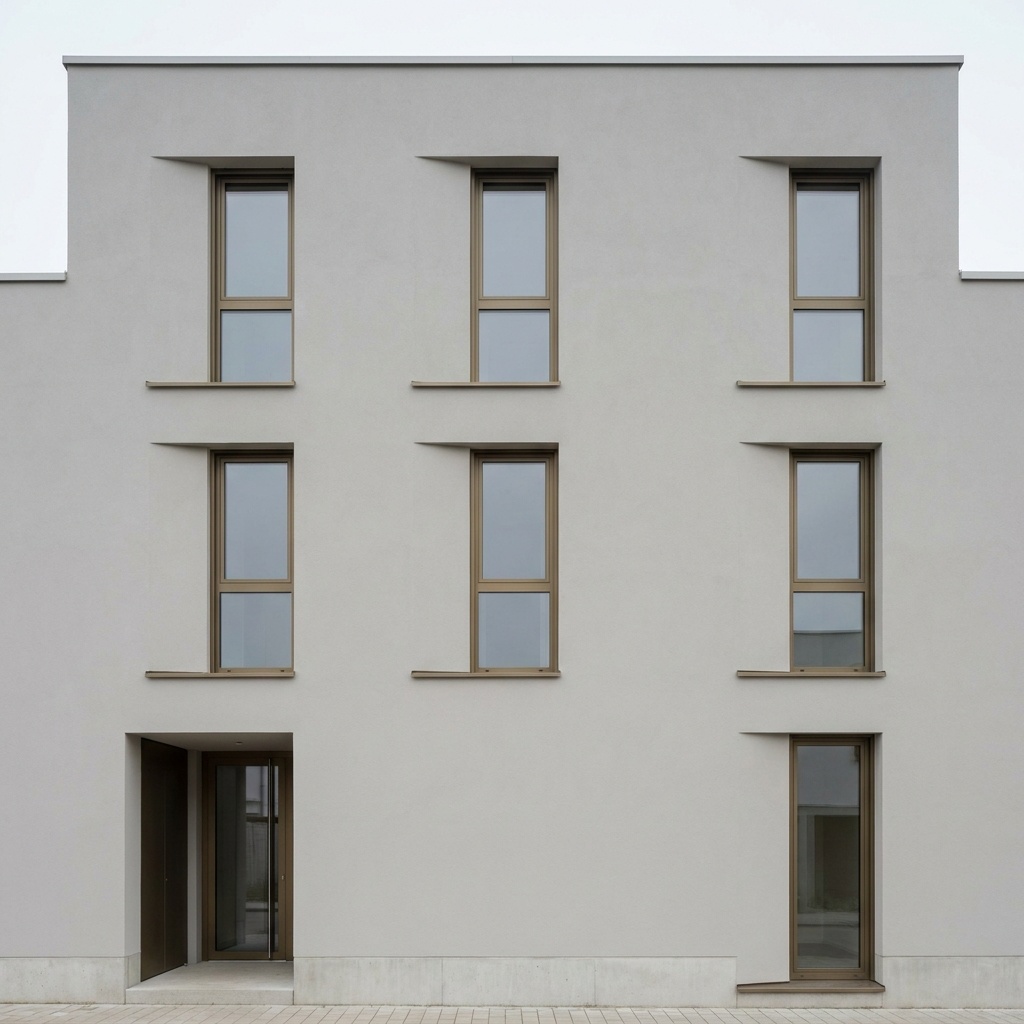
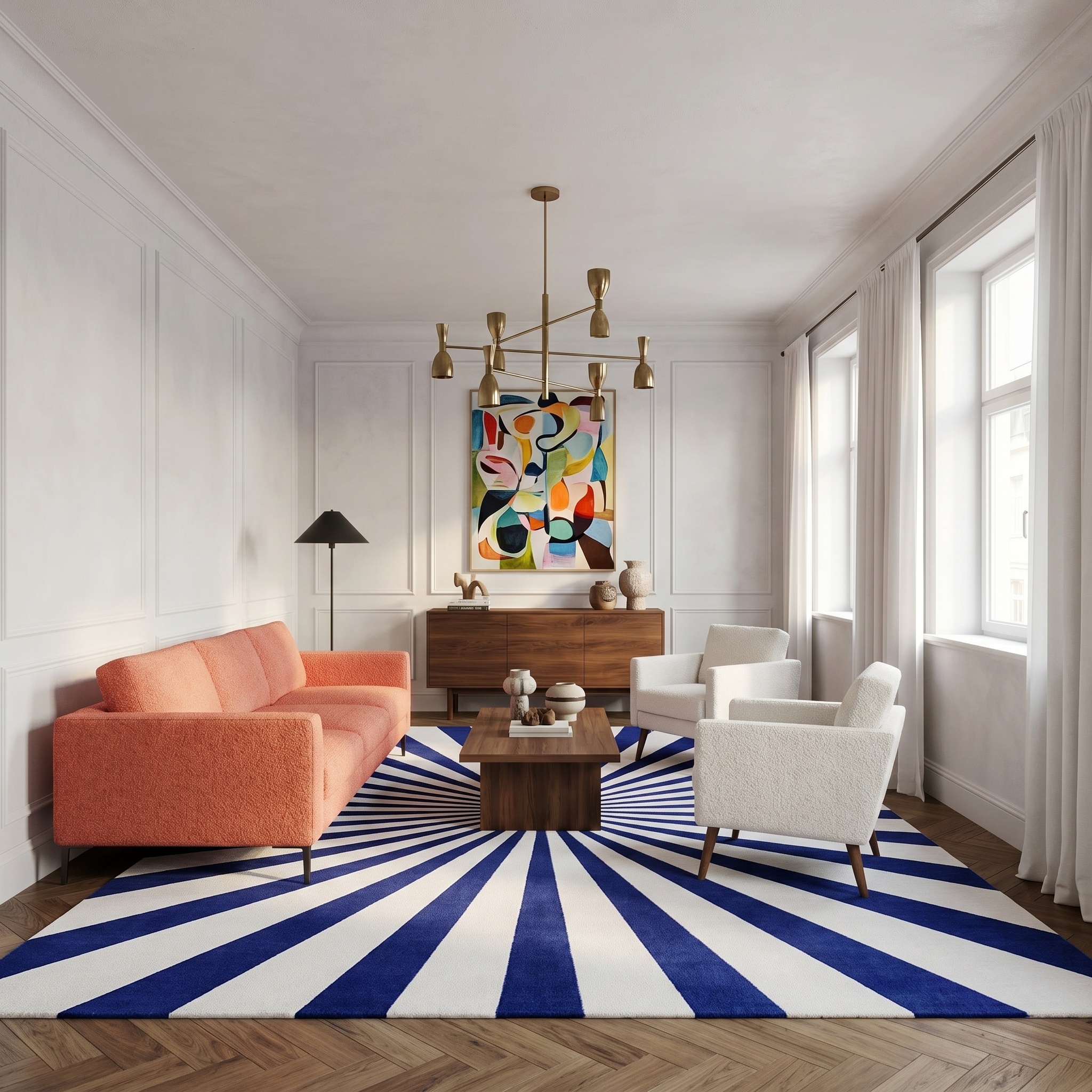
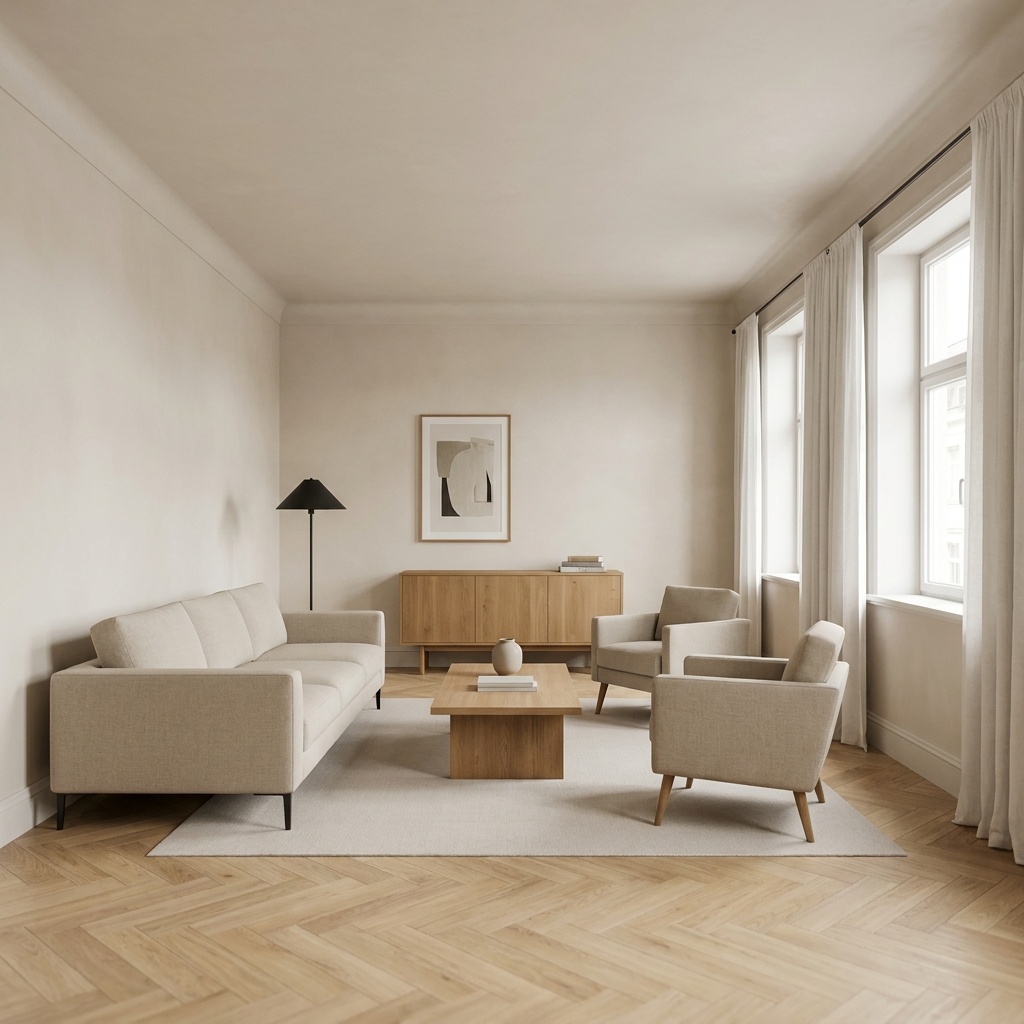
Make the board for your project.
Free to try. No credit card, nothing to install.