How to make a watercolor architectural rendering.
A watercolor shows intent and atmosphere without fixing every material. Here is the fast way from a 3D view, and the Photoshop one.
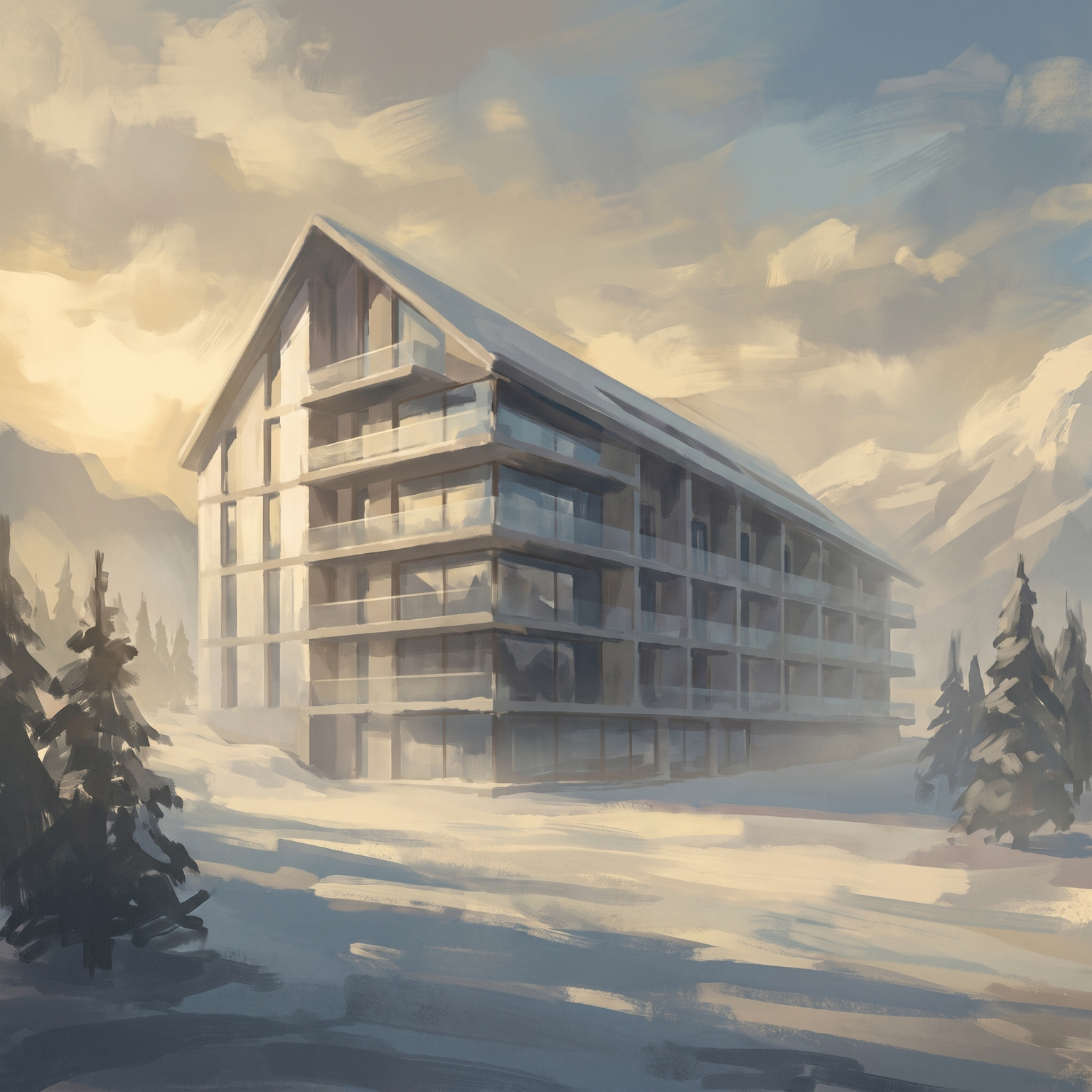
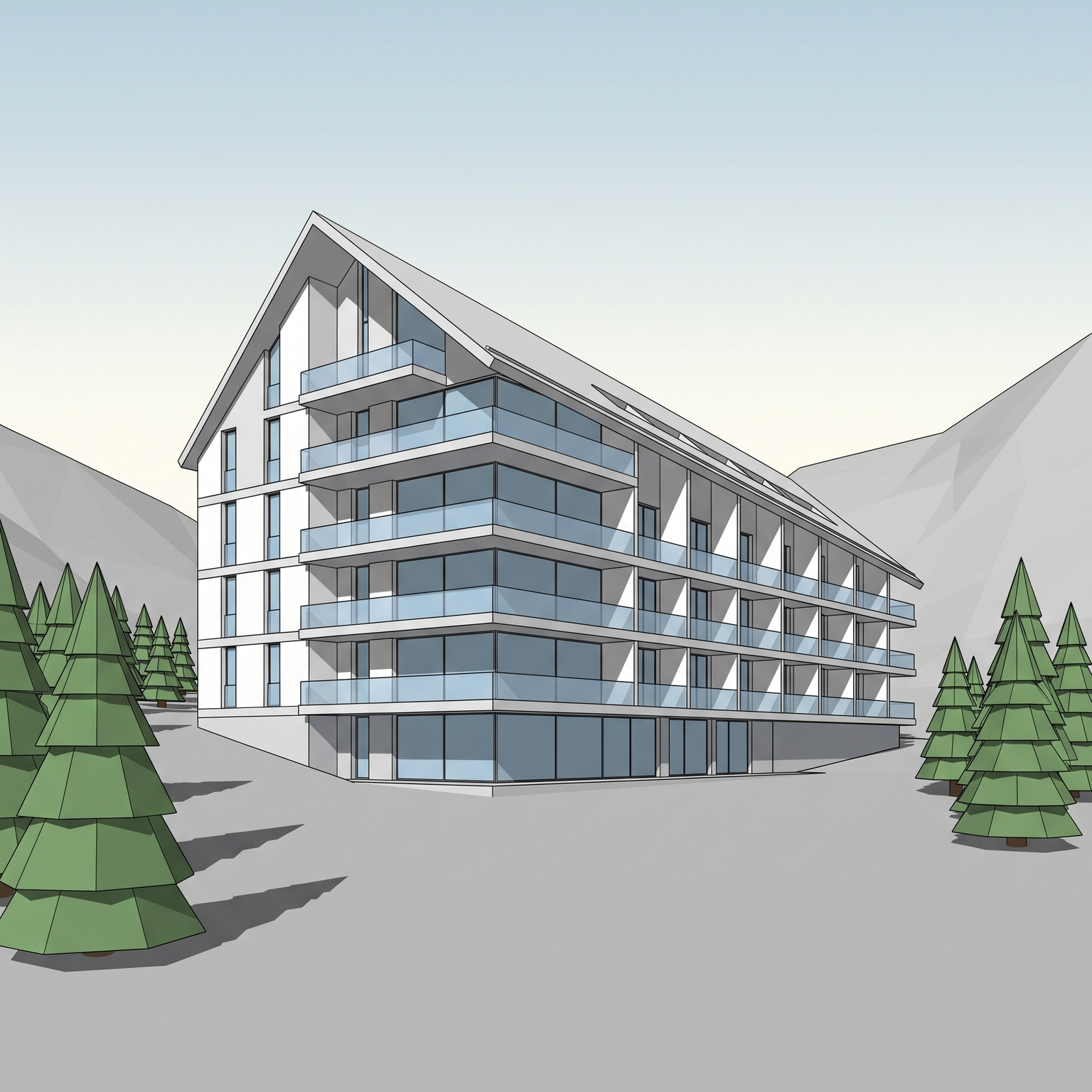
Same view. Now a watercolor.
A 3D view and its watercolor. Viewpoint and building outline unchanged.
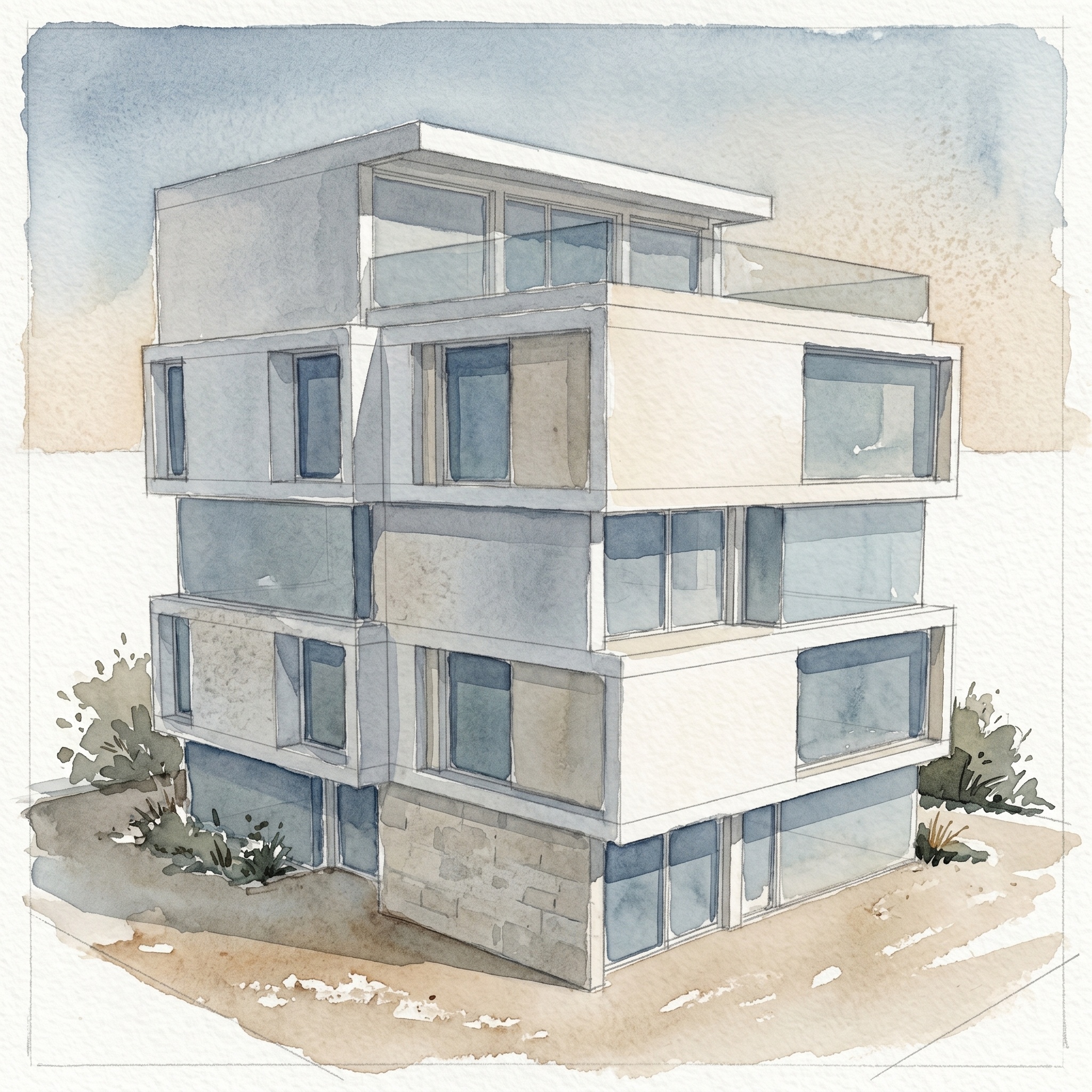
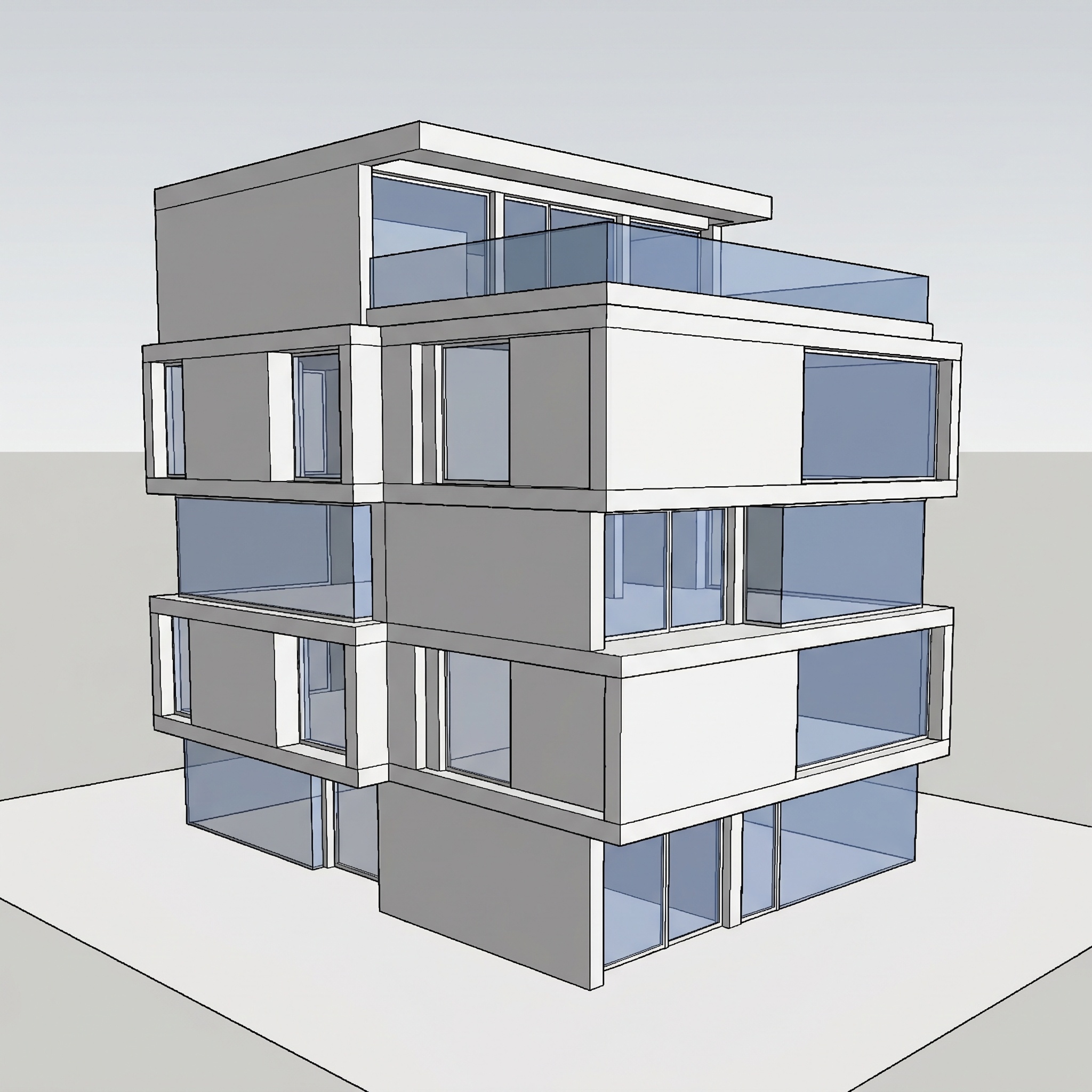
The faster method, in four steps
Capture a clean 3D view
A screenshot or a render, with the building clearly framed.
Open the Watercolor template
Drop the image into the template. Your 3D view is the only required input.
Add a reference if you have a style in mind
Optional: a scan of a watercolor you like sets the palette.
Run it and read the sheet
Paper grain, transparent washes, the same view. Run again for another take.
Try it on your view.
Drop in a render, a viewport capture or a photograph. It opens in the Watercolor template, ready to run.
Drop your image here
or click to browse · PNG, JPG, WebP up to 10 MB
- Free to try
- No plugin
- No credit card
The classic way: layers, masks and paper texture in Photoshop
Digitally, a watercolor is usually built from a clean linework or a lightly rendered base, then layered. The base goes on the bottom; washes are painted or filtered on separate layers above it, with layer masks controlling where each wash lands.
The paper does a lot of the work. A scanned watercolor paper texture, multiplied over the whole sheet, gives the grain and the tooth; blend modes let the pigment interact with it. Edges are softened with masks or a textured brush so washes bleed and halo where they meet, and white paper is kept by never painting the highlights rather than painting white on top.
It takes time, and each view is its own piece of work. It also gives full control: you decide the palette, where the pigment pools and what stays bare.
Why digital watercolor looks flat
The most common failure is a photo with a filter on it. A render pushed through a watercolor filter keeps its plastic shading and hard digital edges, so it reads as a processed image, not a painted one. A believable watercolor has flat transparent washes, soft edges and no cast-shadow drama.
The second is too much colour. Competition watercolor is restrained: earth tones, cool greys, soft blues and warm beiges, with at most one accent. Saturated greens and fluorescent tones break the effect.
The third is over-describing. Painters do not draw every mullion or leaf. Vegetation is loose masses of colour with a few defined accents, and fine details are simplified into washes.
Which views suit watercolor
Views with clear massing and a readable silhouette work best: a facade seen from the street, a view across a landscape, an aerial of the whole scheme. The building should be easy to find against the sky and the ground.
Keep the lines. A faint pencil or fine ink underdrawing showing through the washes is what makes a watercolor look like architecture and not a blur, so choose views whose primary contours and structural edges are clear in the source.
Watercolor is most useful where a photoreal image says too much: early concept, competition entries, client workshops and publication spreads. It shows intent and atmosphere without committing to materials you have not chosen yet.
When to keep the hand-painted watercolor
Keep the manual route when you need a specific hand, for example matching a painter stroke for stroke, or when you want to control exactly where pigment pools and which area stays bare.
Use the template when you want several views of one project in a consistent palette, a first sheet to react to, or a base that you then finish by hand. It is an interpretation, not a measured drawing, so it is not the tool for a sheet where every detail has to be exact. If you need a saturated, illustrative look, this is not the right template either.
The steps in detail
Capture a clean 3D view
Take a screenshot of your model, or use an existing render, with the building clearly framed. A plain viewport is enough: the template keeps the geometry, the openings and the camera, and repaints materials and light. Clear massing with visible openings gives the best washes; very dark or heavily post-produced renders lose contrast once converted.
Open the Watercolor template
Drop the image into the widget on this page, or open the Watercolor template. It has one required input, your 3D view, and one optional input, a watercolor reference.
Add a reference if you have a style in mind
Upload a scan of a watercolor you like as the reference, and the template borrows its palette, wash technique and balance between line and colour, not its subject. Leave it empty for the default muted palette. Using one reference across several views keeps a series consistent.
Run it and read the sheet
You get a watercolor on visible paper grain, with a faint underdrawing, transparent washes and bare paper left for the highlights. Fine details such as mullions or railings are simplified, as a painter would do. Run it again for another take, or on another view with the same reference.
Signing up is free, with no credit card. New accounts start with free credits and receive more every Monday; the pricing page lists the plans and what each credit buys.
The template keeps the building geometry, the massing, the opening positions and the camera angle of your view, then repaints everything else as watercolor. Fine details are simplified into washes, so check the points that matter against your model.
A plain viewport screenshot is enough. Untextured or half-textured models work well, because the materials are repainted as watercolor anyway.
Within limits. Upload a sheet as the optional reference and the template takes its palette, wash technique and line-to-colour balance, not its subject. It will not reproduce a hand stroke for stroke, and you should only use references you have the right to use.
Yes. Commercial use and full IP assignment are included, with no attribution, and no watermark on paid plans. Nothing you create is published unless you share it.
Templates that pair well.
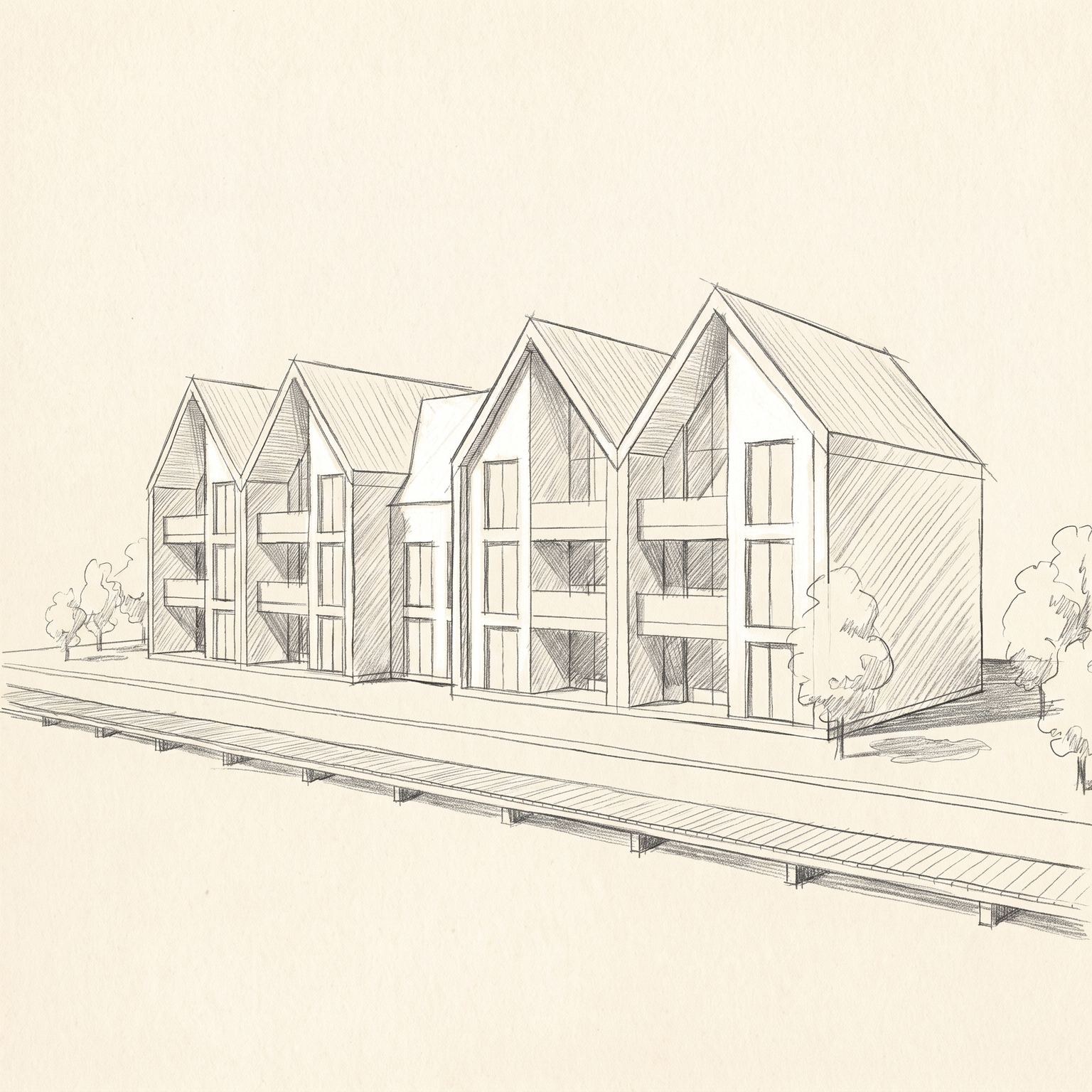
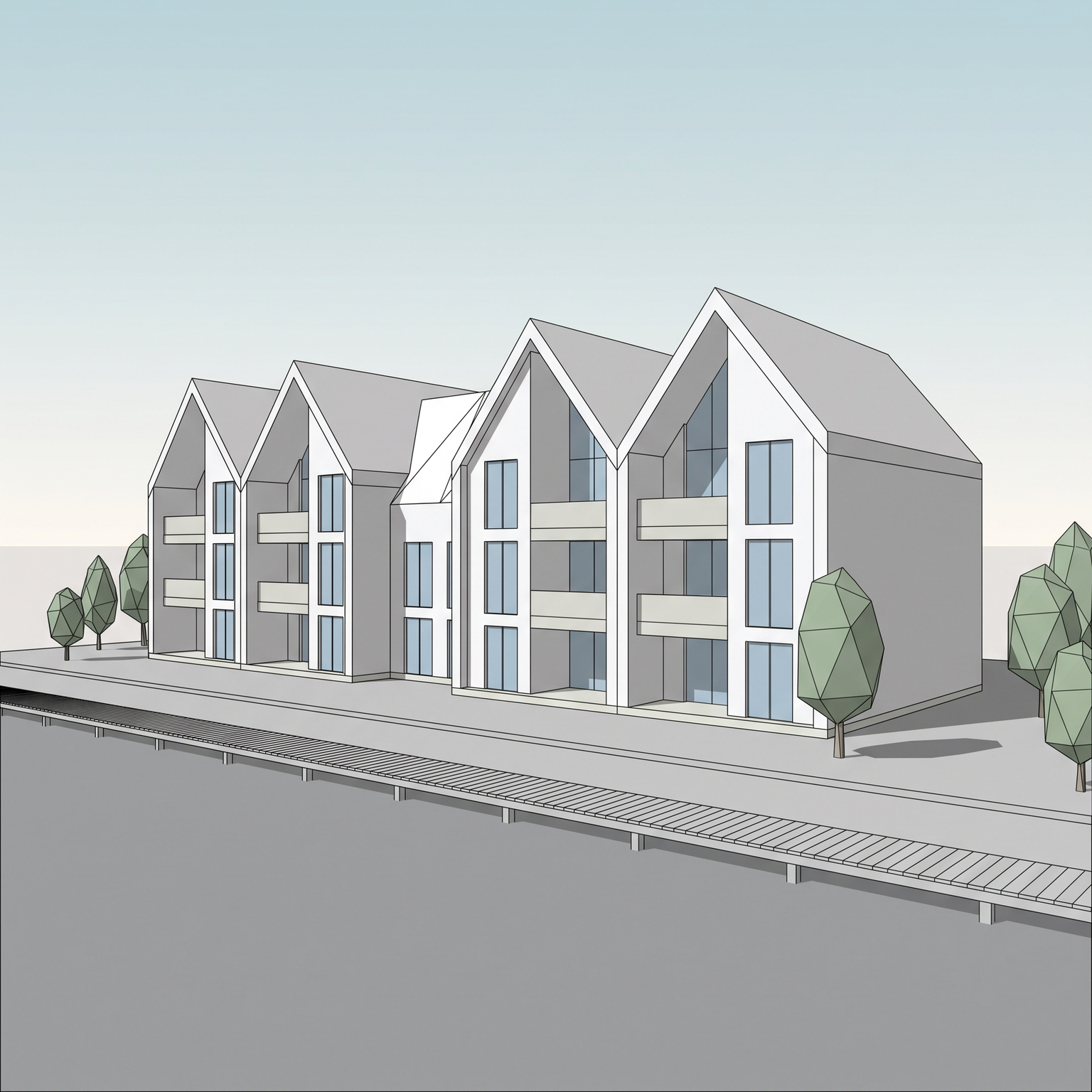
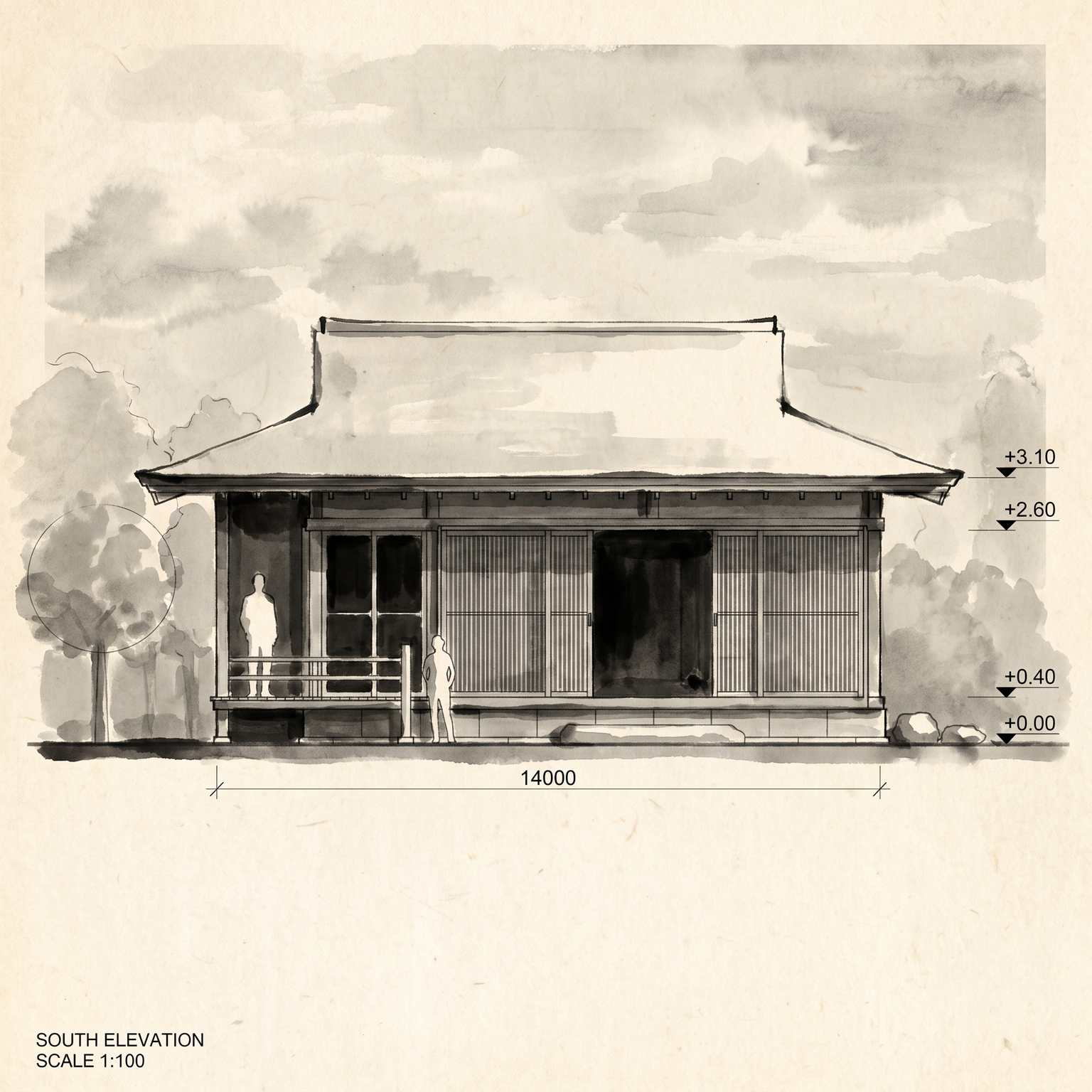
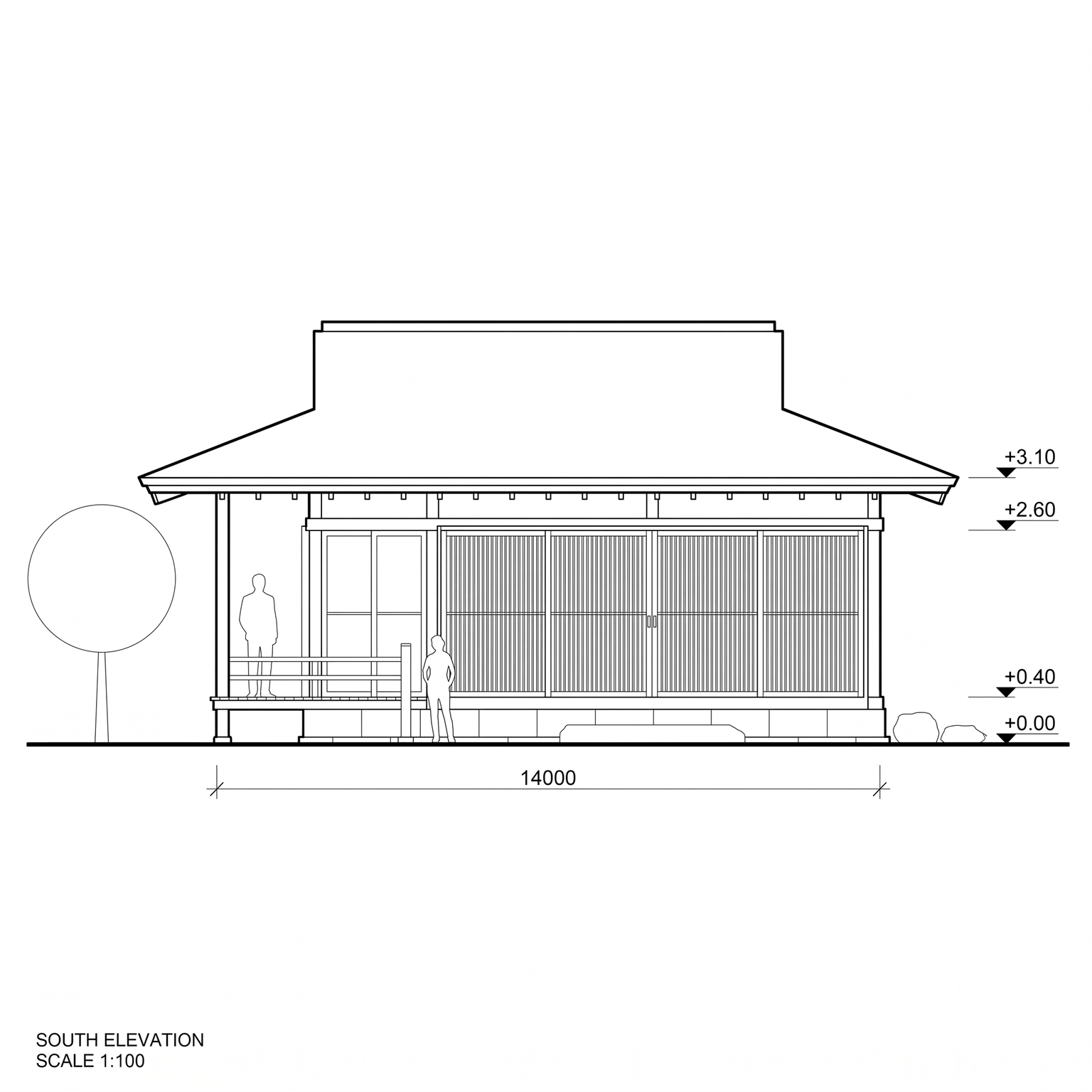
Paint your own view.
Free to try. No credit card, nothing to install.