How to make a massing diagram.
A massing diagram explains a scheme at a glance: volumes, setbacks and one thing to look at. Here is how it is made by hand from a 3D model, what separates a clear one from a cluttered one, and how to get a first version.
- Free to try
- No plugin
- No credit card
Nano Banana Pro
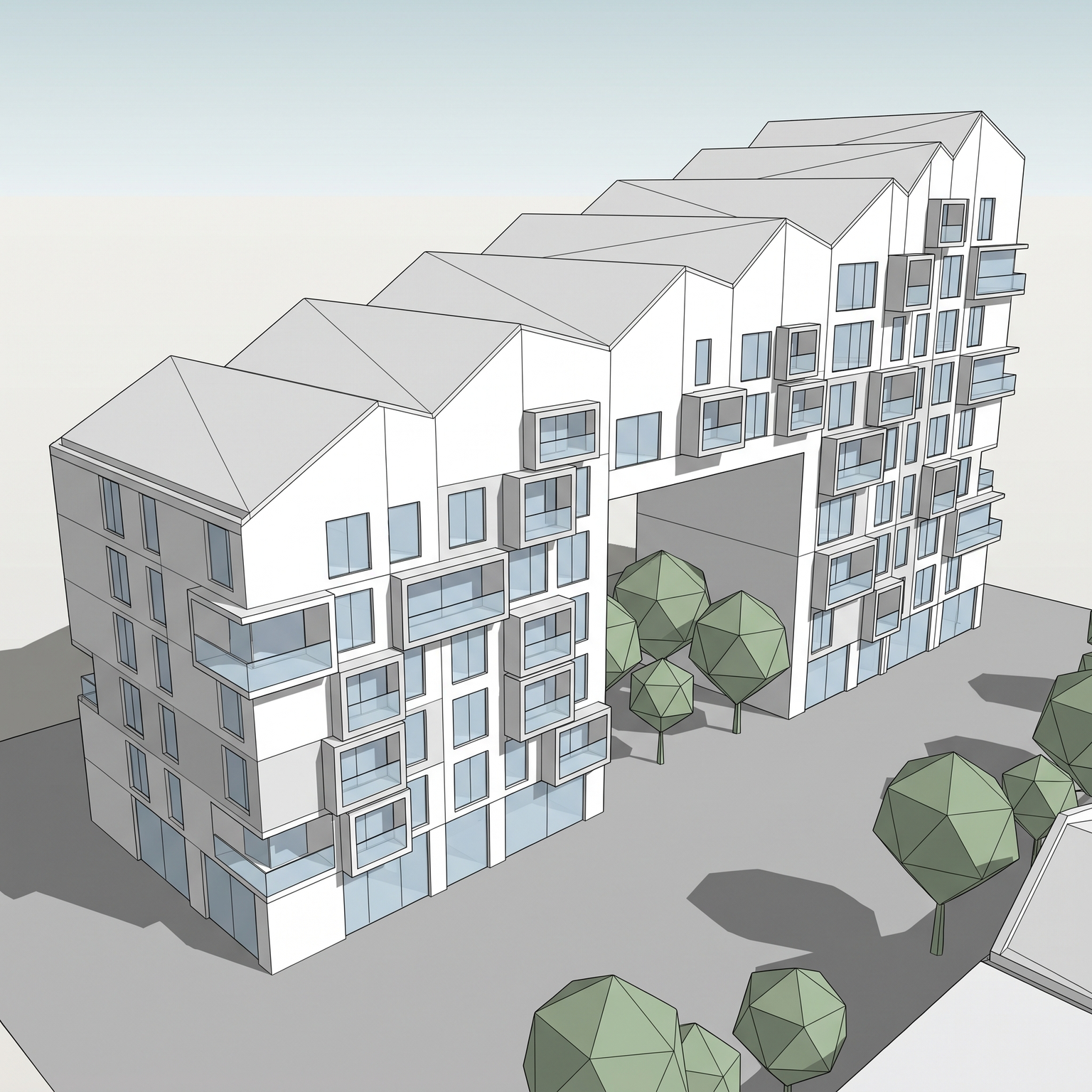
Sample input · click Generate to see the result
The faster method, in four steps
Choose a view that shows all the volumes
Take a screenshot of your model from a raised three-quarter or aerial angle, so every volume, setback, cantilever and roof step is visible. Materials and surroundings in the source do not matter: they are removed.
Open the Diagram template
Drop the image into the widget on this page, or open the Diagram template. It takes one input: your 3D view.
Know where the accent goes
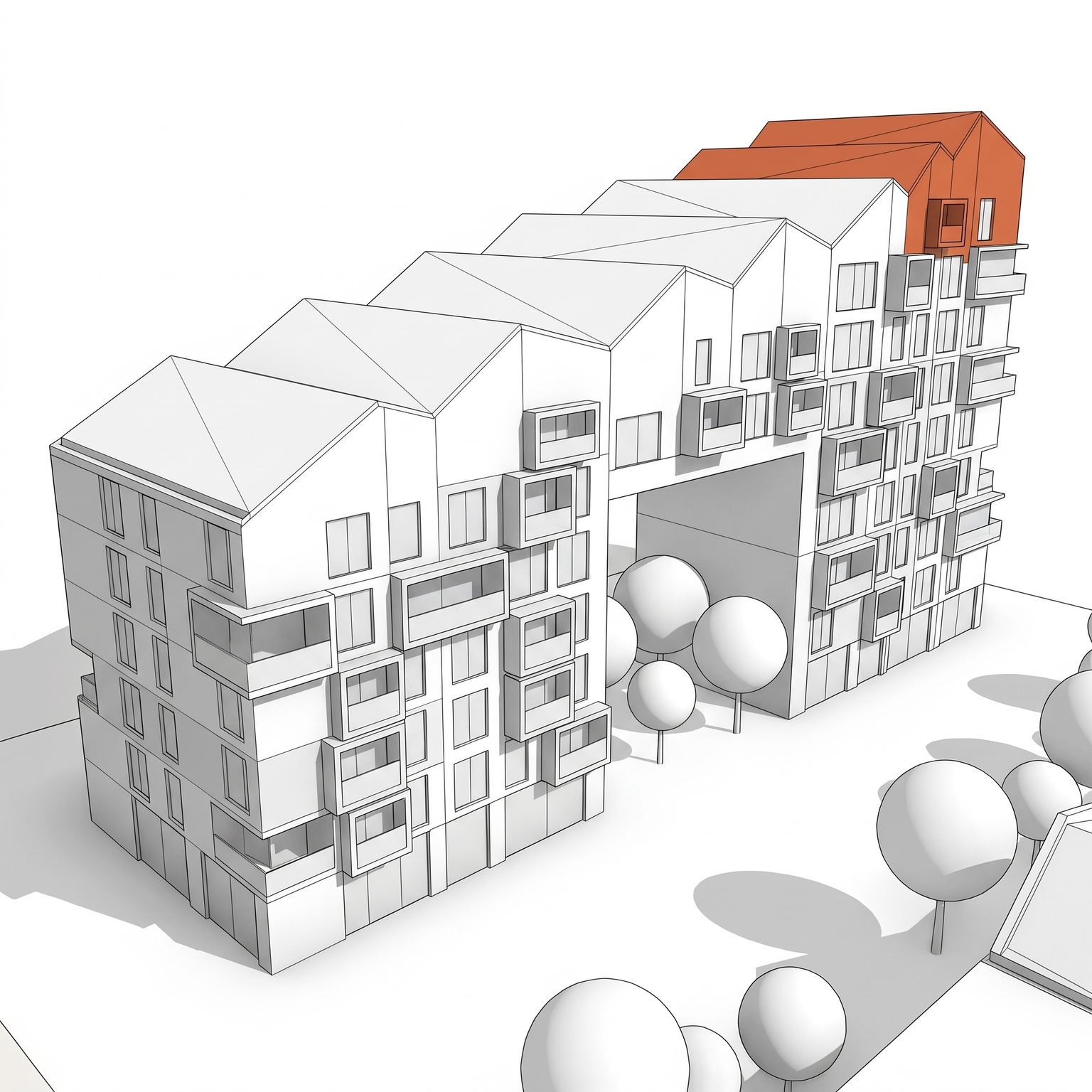
The template keeps every volume and the camera as they are and redraws them in matte white with three face values: white roofs, light grey lit faces and mid grey shaded faces. One colour is used: the uppermost volume, such as an attic or a top setback, in terracotta orange. You cannot move the accent to another volume, so choose a view and a scheme where the top is what you want to point at.
Run it, then annotate
You get a white diagram with thin black edges, recessed openings one tone darker and a white background. No arrows, labels or dimensions are added: place them yourself on top, in your layout software, with your board's fonts and conventions.
The classic way: a white model view, built by hand
In the 3D software, the model is switched to a single white material with no textures, no entourage and a plain background. A soft, ambient light with gentle occlusion in the corners replaces the sun, and an outline setting draws thin edges on the silhouette.
The view is then exported and finished in Photoshop or a layout tool: the ground is cleaned to white, an accent colour is filled on one volume with a mask, and arrows, labels and legends go on top. Many offices keep a template file so every diagram shares the same line weight and tones.
It gives full control over which volume is highlighted and which edges are drawn, and it is accurate because it comes straight from the model.
What separates a clear diagram from a cluttered one
A diagram shows mass, not finish. Windows, railings, mullions, cladding and vegetation compete with the volumes, so they are simplified away. Openings stay as shallow recesses, and slabs and fins as thin white planes.
Value does the work. With only a few face tones, the form reads from light and shade alone, and the eye goes to the one element that has colour. Two or three accents dilute the message.
Edges should be thin and consistent, drawn on the silhouette and the volume breaks only, and the background should be plain: no horizon, no sky, no street.
Finally, keep text out of the image until the end. Labels and arrows are easier to align on the final layout than to repaint into the picture.
Where massing diagrams are used
At feasibility and competition stages they explain the scheme before materials are decided. In presentations that compare options, the same camera and the same white treatment make the differences between schemes obvious.
They also work as a base for annotated diagrams: add arrows for circulation, programme colours, or the height of the neighbours on top of the white output. For a series, use one camera angle across options so they can be compared side by side.
When to keep the hand-built diagram
Keep the manual method when the accent must go on a particular volume, when you need several colours for programmes, or when a diagram has to follow your office's existing graphic standard exactly.
Use the template when you have several views or options to turn into the same clean style quickly, or when you want a first board image to react to. Detail is simplified (no frames, railings or textures), but mass is not changed. If you want a colour on another volume, add it afterwards on top of the white output.
Same view. Now a massing diagram.
A 3D view and its massing diagram. Camera and volumes unchanged.
Drag the slider to compare
Signing up is free, with no credit card. New accounts start with free credits and receive more every Monday; the pricing page lists the plans and what each credit buys.
Not for now. The orange accent is always applied to the top volume, such as an attic or an upper setback, and the rest of the massing stays white. To emphasise a different volume, recolour it on top of the white diagram in your image editor.
The template is built to keep every volume, setback, cantilever and void in the same footprint, height and position, with the camera locked. Detail is simplified, mass is not. Compare an area that matters against your model, as with any generated image.
No arrows, labels or dimensions are drawn. You get a clean image, and the annotation is yours to add in your layout software.
Yes. Commercial use and full IP assignment are included, with no attribution, and no watermark on paid plans. Nothing you create is published unless you share it.
Templates that pair well.
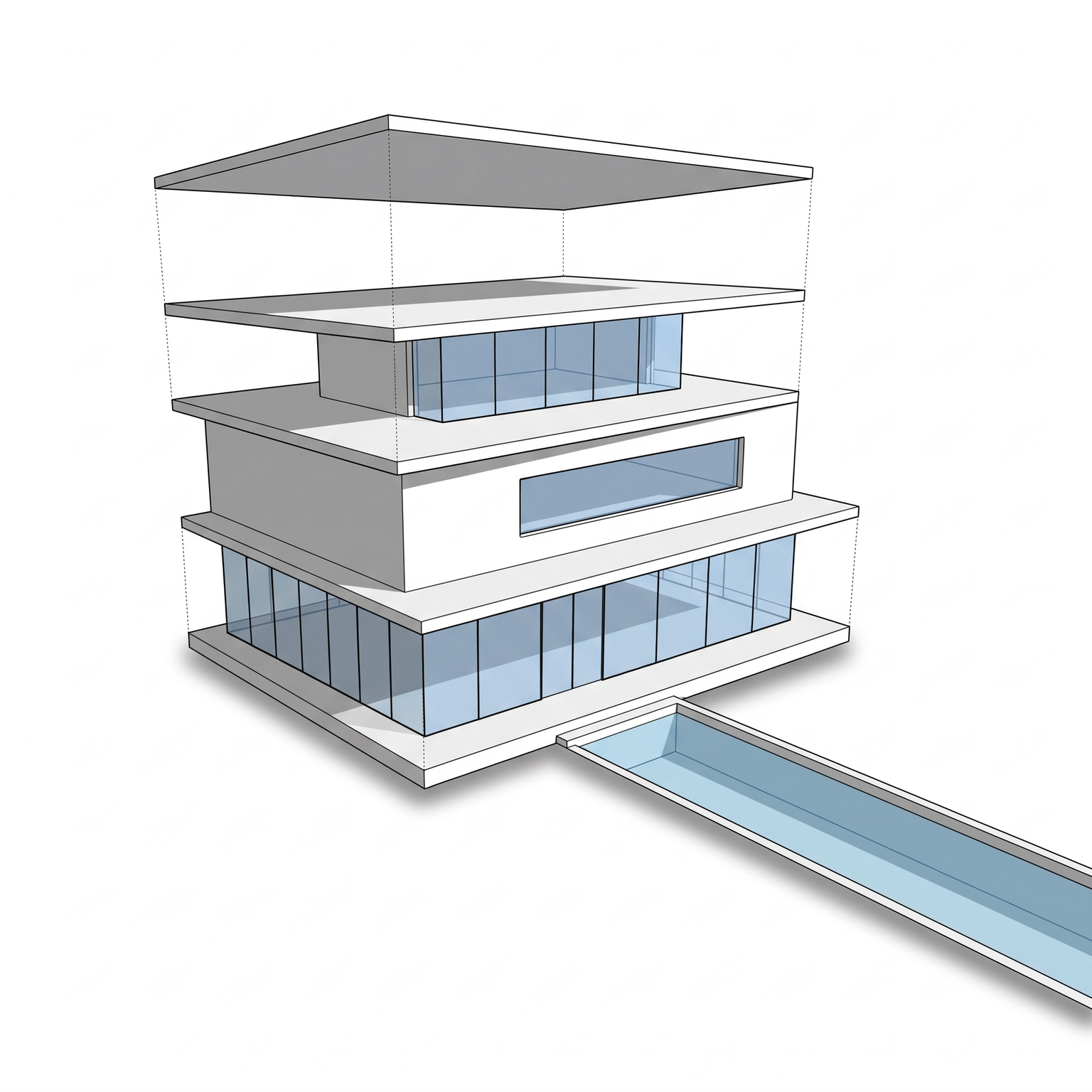
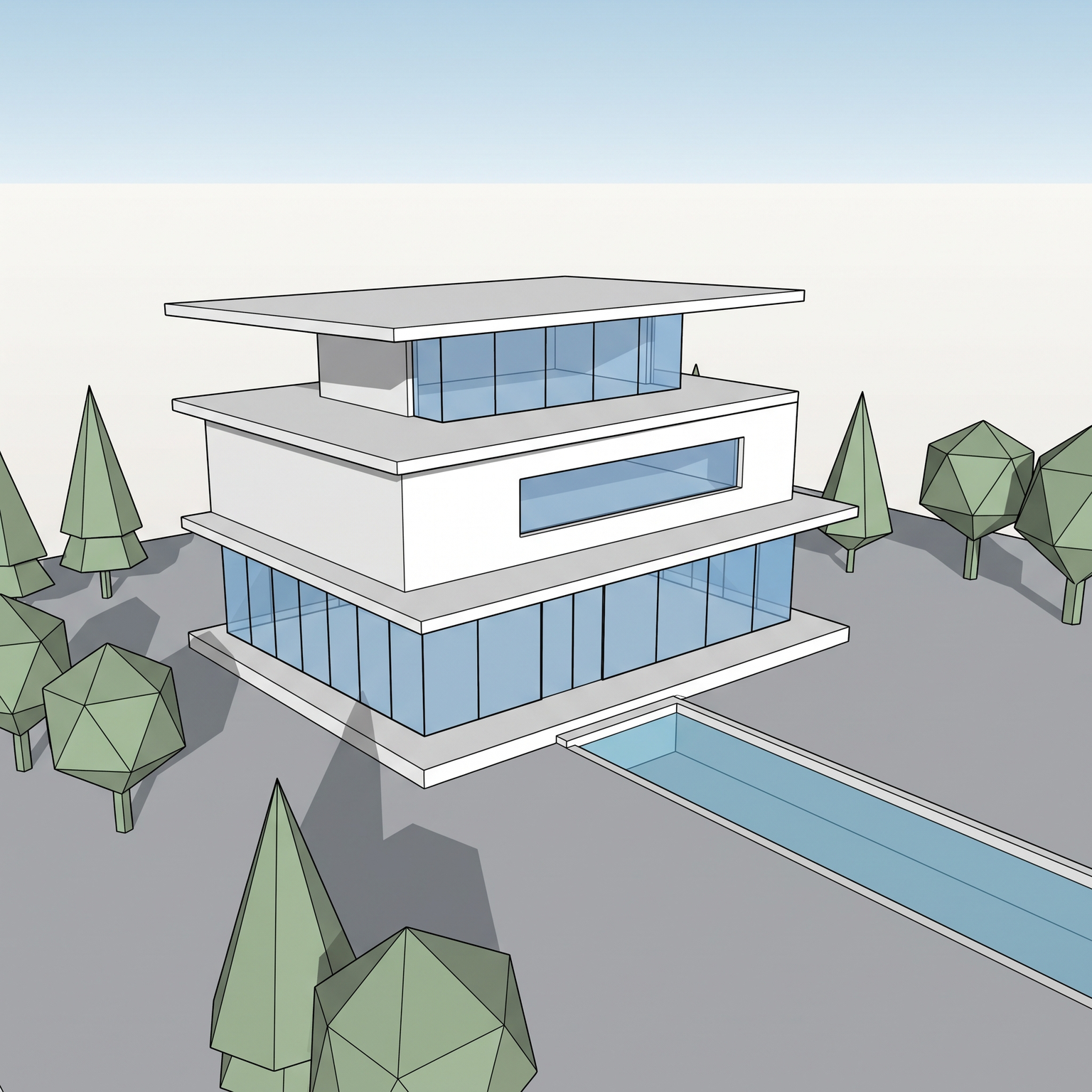
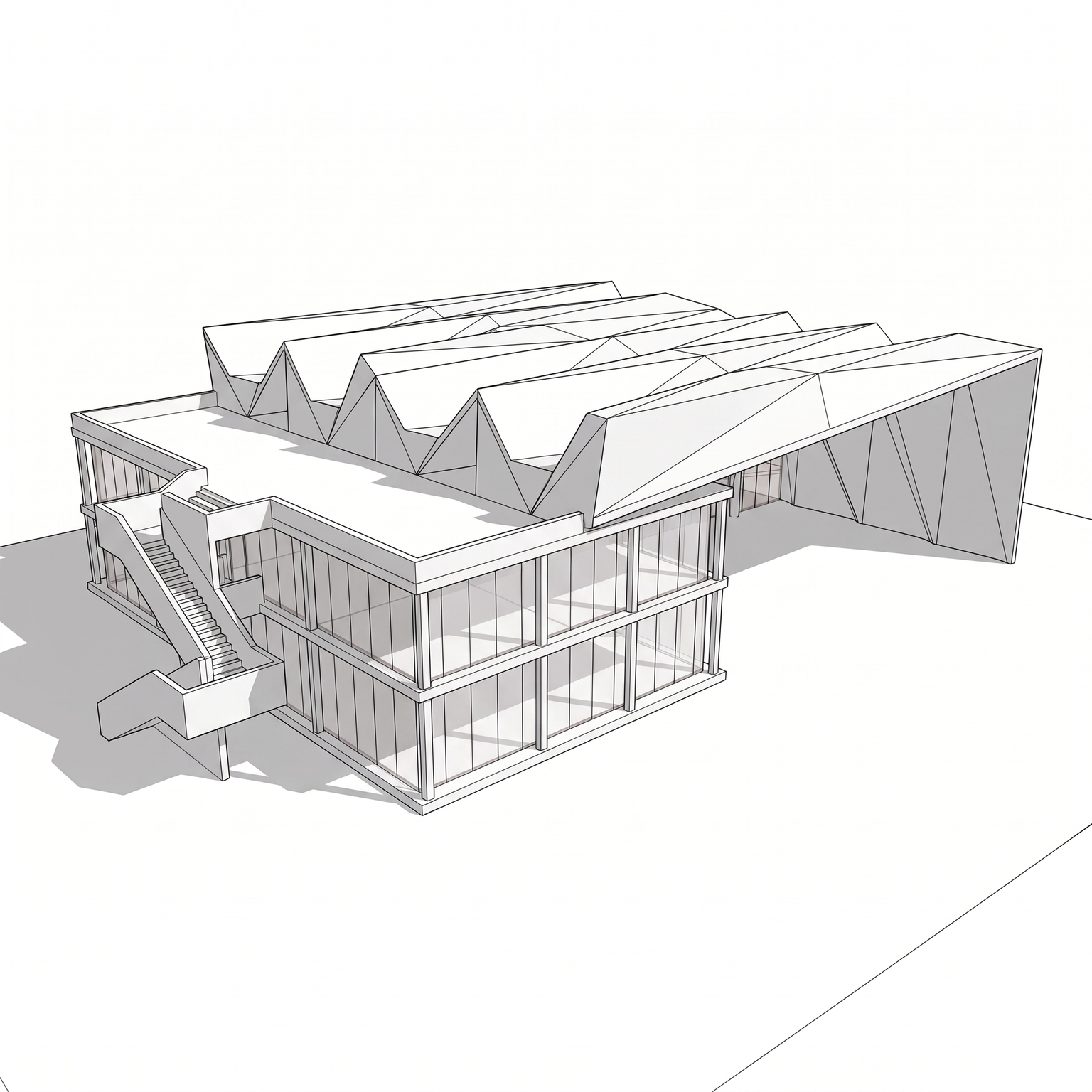
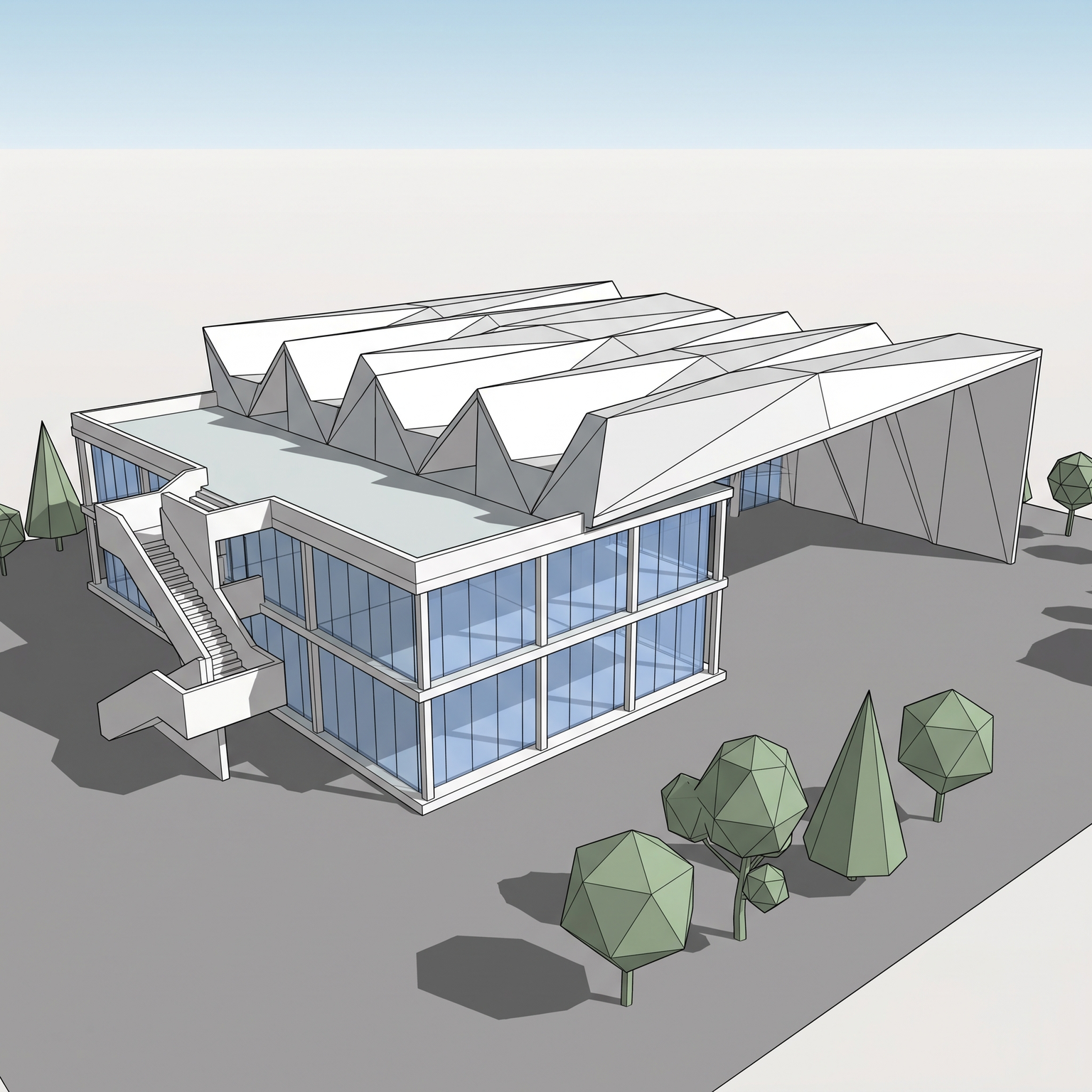
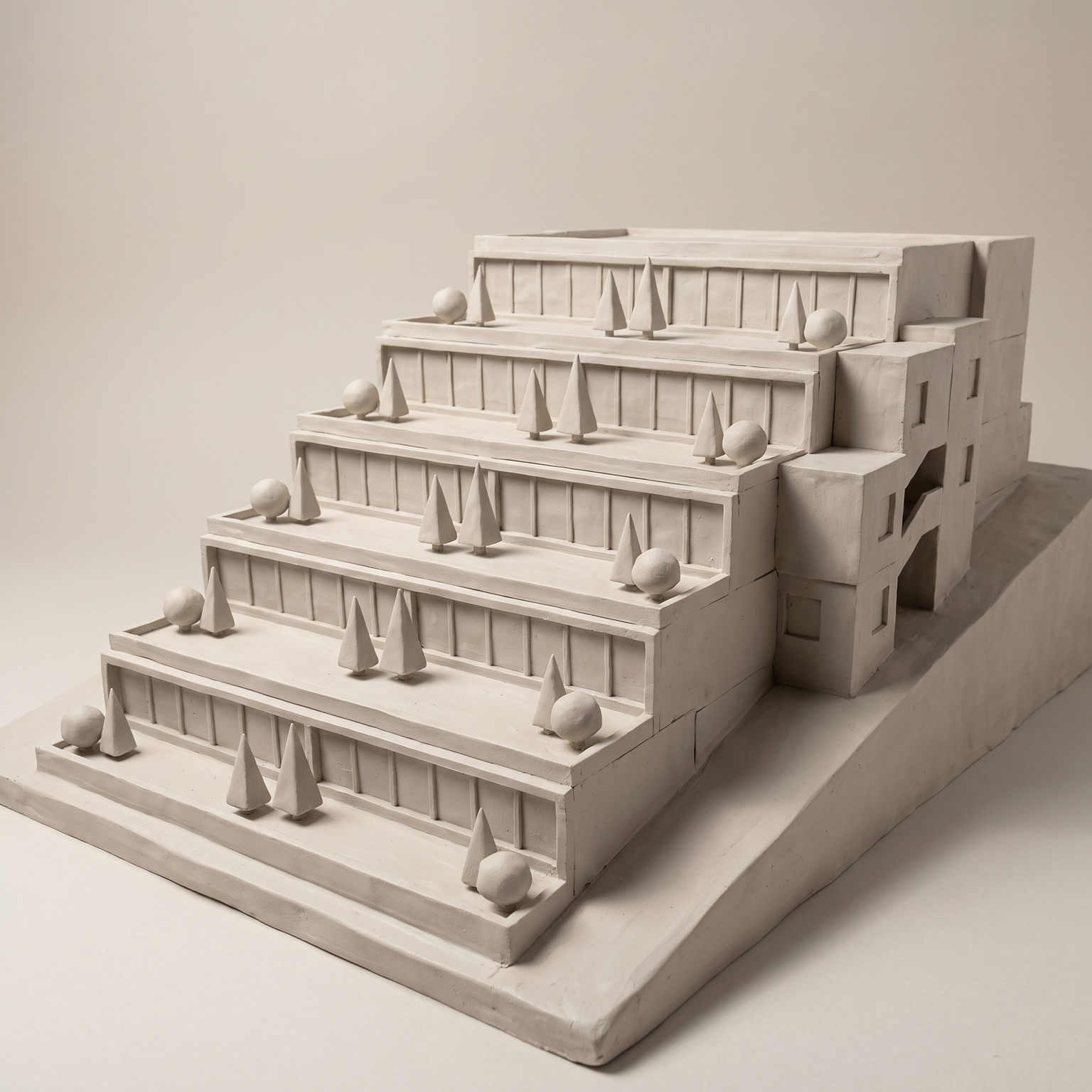
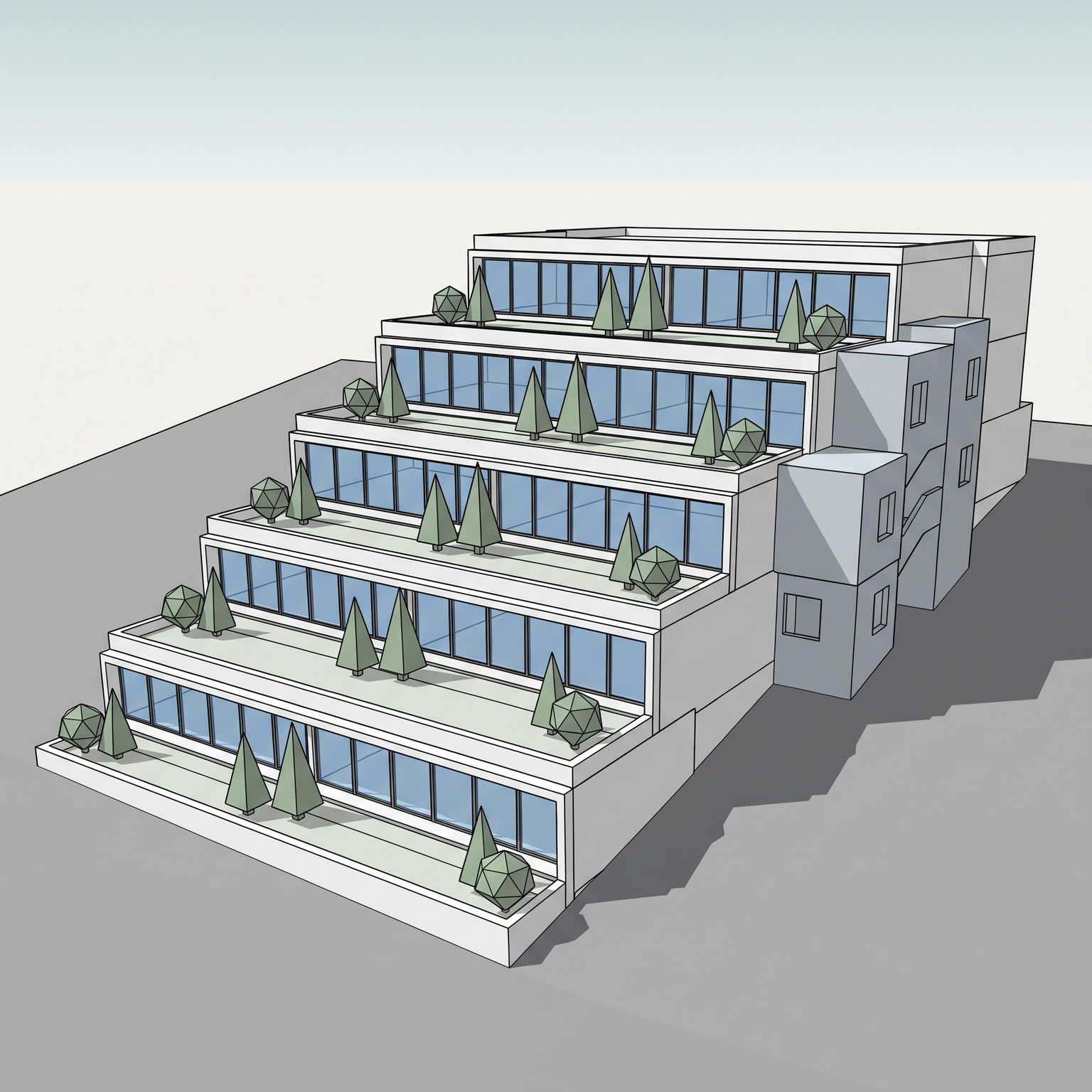
Diagram your own scheme.
Free to try. No credit card, nothing to install.