How to render a site plan.
A CAD plan is accurate but flat. A rendered site plan adds roofs, paving, planting and shadows so a board reads at a glance. Here is how it is done by hand in Photoshop, where it goes wrong, and how to get a first version.
- Free to try
- No plugin
- No credit card
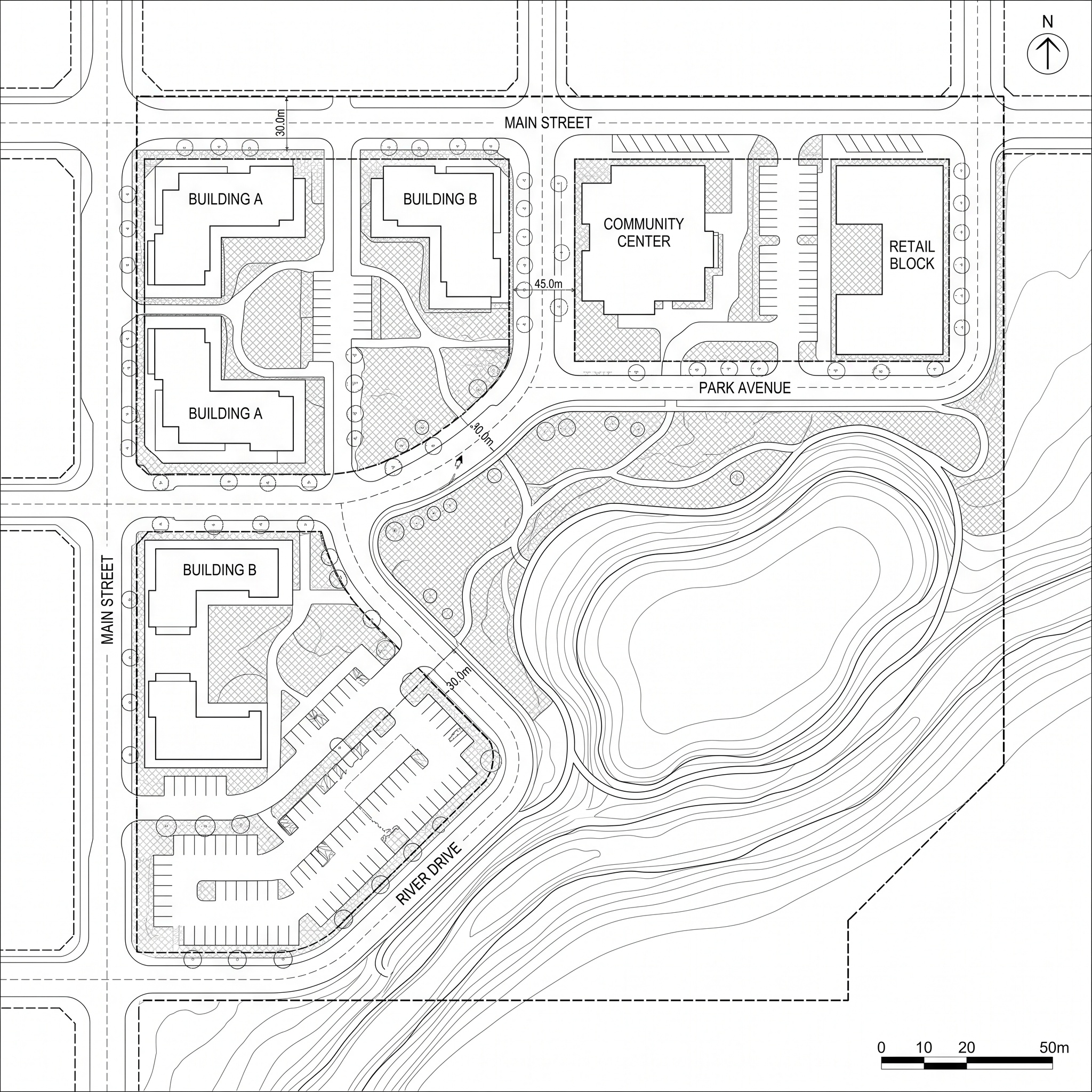
Nano Banana Pro
Sample input · click Generate to see the result
The faster method, in four steps
Export the plan as an image
Export the plan view from your CAD or BIM software as an image, or a PDF screenshot. Turn off dimension, text and grid layers if you can, and crop to the site with a small margin. Closed lines for buildings, plots and roads, plus planting outlines or tree symbols, give the template more to build on than bare footprints.
Open the CAD Plan to Render template
Drop the plan into the widget on this page, or open the CAD Plan to Render template. It takes one input: your plan, as a PDF or an image.
Run it
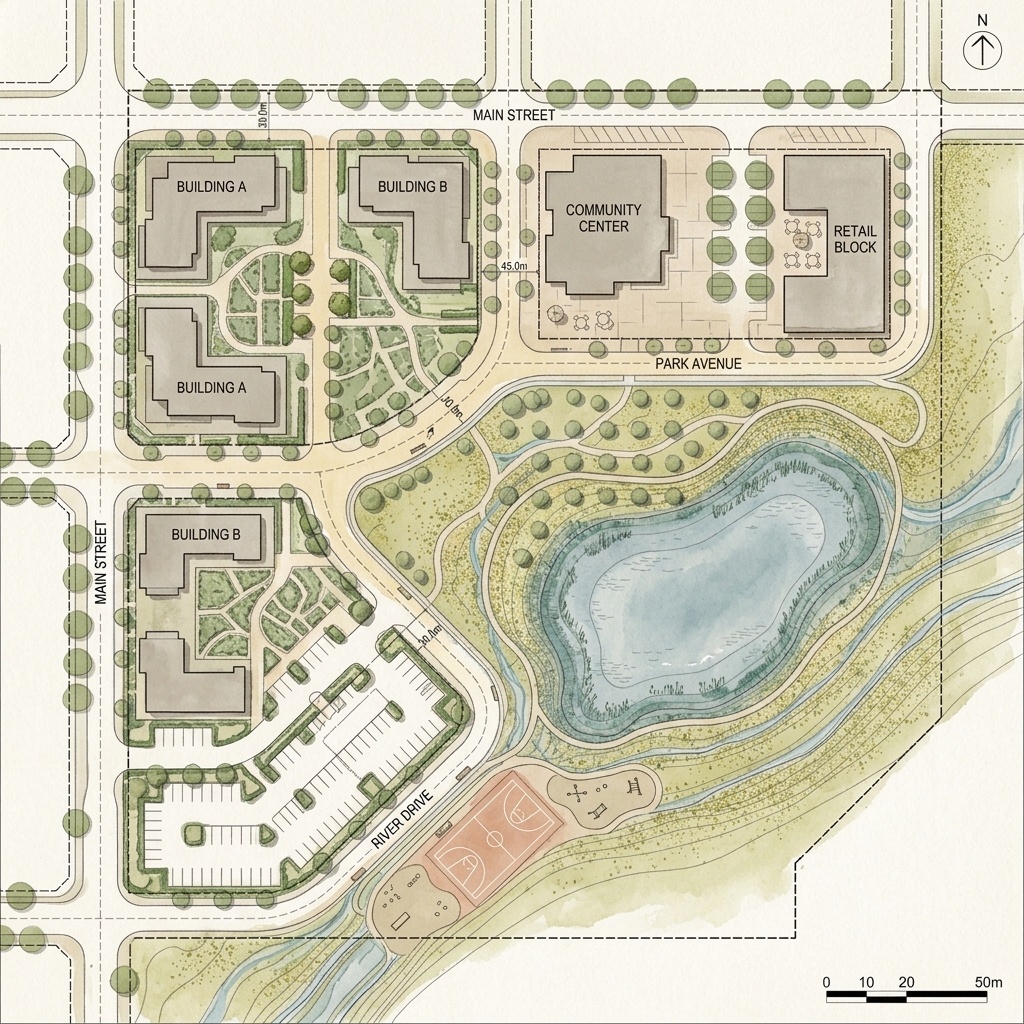
The template keeps your footprints, parcel boundaries, roads and paths where they are, in the same orientation, scale and framing. It removes the line work, annotations, dimensions, hatching and paper background, then rebuilds the site as a top-down plan with textured roofs, paving, planted areas and shadows under a single sun direction.
Check it, then finish in your layout
Compare the result with your drawing. An area read as the wrong surface is the most common thing to catch, and the output is generated, so a feature can be added or a finish can look more illustrated than photographic. The template asks for labels, a scale bar and a north arrow to be removed, but some text or symbols can survive: check for them, and add clean ones in your layout software. Run it again for another take if a zone is off.
The classic way: layers and textures in Photoshop
By hand, the plan goes in as a flattened image, and each element gets its own layer. Buildings are filled with roof textures, roads with asphalt, paths with paving, and lawns and planted areas with grass or ground cover, usually clipped to selections made from the CAD lines or from a colour-coded export.
Trees are the long part. Most people collect top-down tree canopies as cutouts, scale them to a believable crown size, vary the species and add a drop shadow to each one. Building shadows are drawn on their own layer in one direction, then blurred and set to multiply.
The result is under your control, down to the species of each tree and the paving pattern of a plaza. It also takes a long time on a large site, and a change in the CAD file means redoing the selections.
Why rendered site plans look off
Shadows are the first giveaway. If building shadows point one way and tree shadows another, or if shadow lengths change across the sheet, the plan stops reading as one place. Pick one sun direction and keep it everywhere.
The second is scale. Tree crowns drawn too large swallow the buildings and paths; crowns drawn too small make the site look empty. Crown size should vary with species and age, and stay small enough to leave buildings and circulation readable.
The third is texture. Repeating tiles show immediately from above, and saturated greens or cartoon trees break the register of a presentation plan. Use muted, varied surfaces: a mown lawn and a wild meadow should not look the same.
Finally, keep the projection strictly top-down. Any tilt or perspective stops the plan from lining up with the drawing it came from.
How to get a plan that reads well on a board
Decide what the plan has to say. A site plan on a competition board usually explains the buildings, the open spaces and the routes between them, so give those the strongest contrast and let the surroundings stay quiet.
Start from a clean drawing. The fewer layers and stray lines in the export, the less the rendering has to guess. Closed outlines for buildings, water and planted areas help the right surface to be chosen.
Add the information that belongs on a drawing afterwards: a north arrow, a scale bar, labels and any legend, in your own layout software and fonts.
When to keep the hand-textured site plan
Keep the manual method when the materials are specified and need to match exactly, when a particular tree species or paving pattern is part of the design, or when the plan has to be measured against the rendered image.
Use the template when you want a textured plan quickly from the CAD file you already have, to see how a scheme reads before committing to a hand-finished version, or to get a base you can still correct in Photoshop. The result is a presentation image, not a measured or georeferenced drawing, and materials are chosen from the building type and context, not read from your specifications.
Same plan. Now rendered.
A CAD plan and its rendered site plan. Footprints, roads and framing are kept; check labels and added details.
Drag the slider to compare
Signing up is free, with no credit card. New accounts start with free credits and receive more every Monday; the pricing page lists the plans and what each credit buys.
The template is built to remove annotations, dimensions, hatching and grids to get a clean image. Because the result is generated, some text or symbols can remain, so check the output before using it. Add your own text, scale bar and north arrow on top in your layout software.
Not in the form. The template picks materials that fit each building type and use, such as gravel, zinc or green roofs, and stone or asphalt for paths and roads. If a specific material matters, finish that area by hand.
The template is built to keep building footprints, parcel boundaries, road geometry, paths and water bodies where they are, with the same orientation, scale and framing. A dense or messy drawing can lead to an area being read as the wrong surface, and small features that are not in the drawing can appear, so compare the result with your plan.
Yes. Commercial use and full IP assignment are included, with no attribution, and no watermark on paid plans. Nothing you create is published unless you share it.
Templates that pair well.
Render your own plan.
Free to try. No credit card, nothing to install.