How to render an architectural elevation.
A rendered elevation turns a line drawing into a facade the reader can judge. Here is how it is done by hand in Photoshop on top of a CAD export, what makes it look flat, and how to get a first version.
- Free to try
- No plugin
- No credit card
Nano Banana Pro
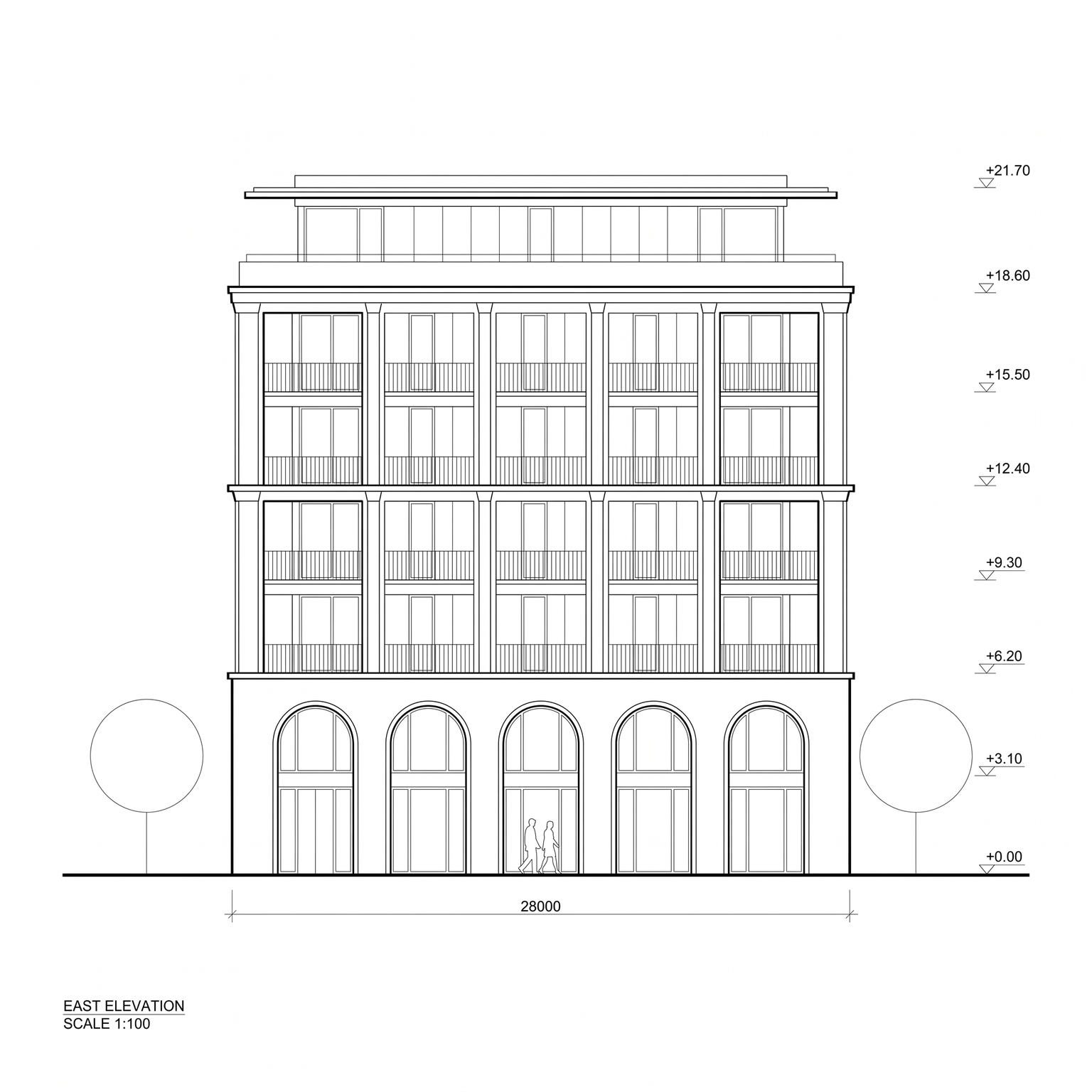
Sample input · click Generate to see the result
The faster method, in four steps
Export the elevation as an image
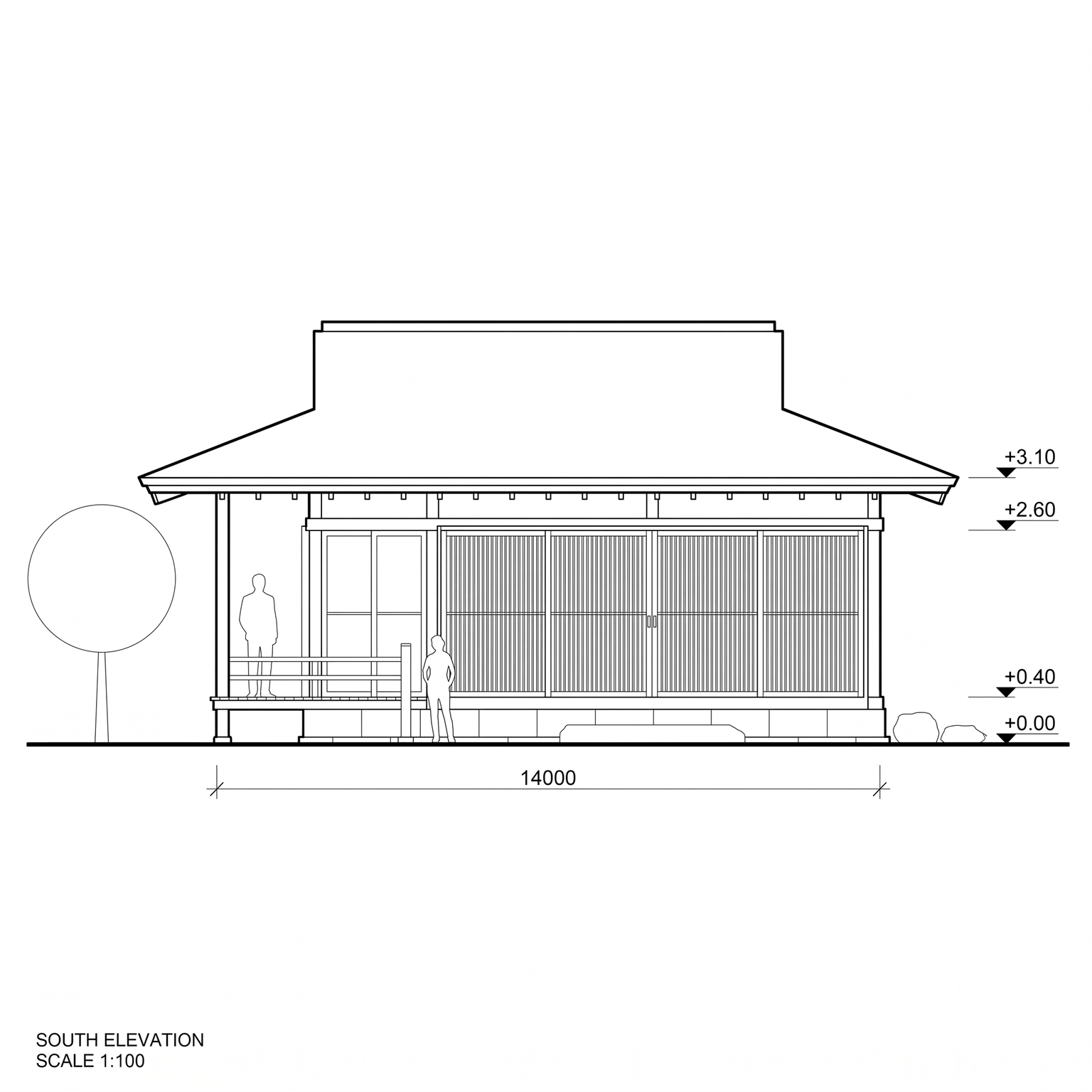
Export the elevation from Archicad, Revit, Vectorworks or AutoCAD as black lines on white, or use a clean scan. Openings, slab edges and roof lines should be readable; clear line work matters more than detail. Draw trees and figures where you want them, since they are rebuilt at those positions.
Open the Elevation to Render template
Drop the drawing into the widget on this page, or open the Elevation to Render template. It has one required input, the elevation drawing, and one optional input, a materials field.
Write a short materials brief
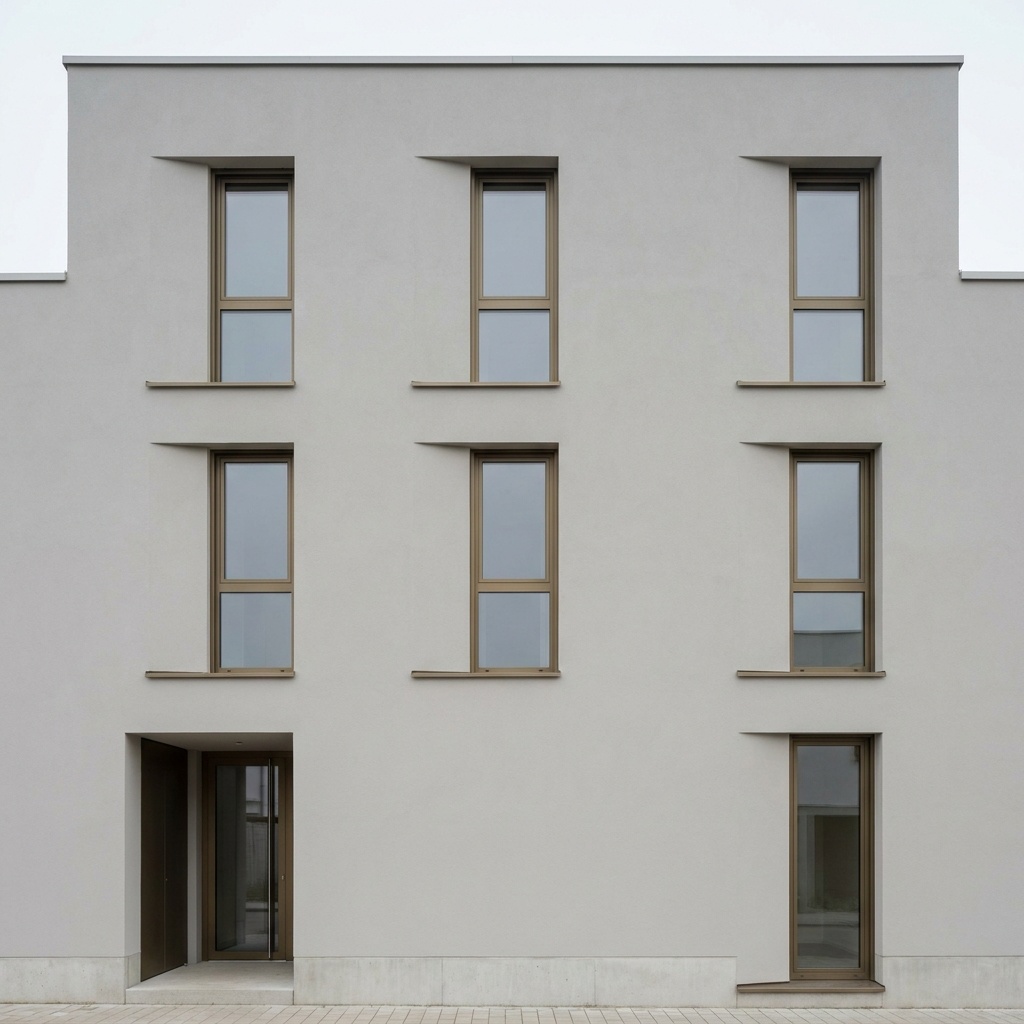
In the Materials field, list the materials in plain words, from the base up, on one line: for example board-formed concrete base, white render above, oak windows, zinc attic. Leave it empty and the template applies a restrained default palette of pale mineral render, bronze anodized window frames, board-formed concrete slab edges and clear glass railings.
Run it and check against the drawing
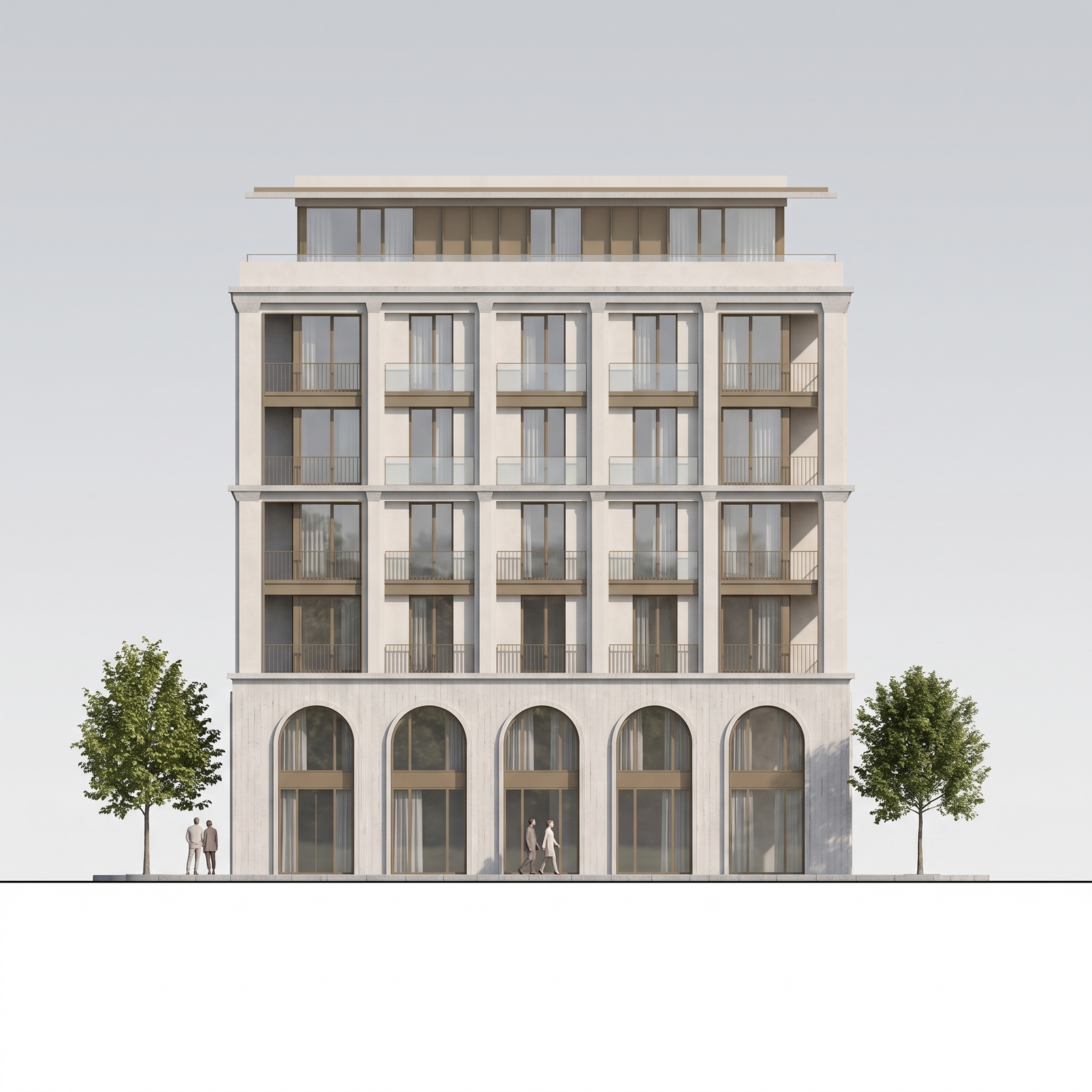
You get a photoreal orthographic facade at the same scale and framing as your drawing, with soft daylight from the upper left. Level markers, dimension lines, hatching and the title block are erased. Compare the openings and floor levels with your drawing, then run it again with a different brief if you want another material mix.
The classic way: textures over a CAD export
In Photoshop, the elevation is placed on a canvas as a line drawing, and the work is a matter of filling each area with a material. Selections or paths isolate each wall, window and slab; a texture photo is clipped into each one and scaled so that bricks, boards or panels read at the right size.
Glass gets a sky reflection and a hint of interior; shadows are painted under slabs, inside reveals and behind fins to give depth to a flat projection. Trees and people are added as elevation cutouts, then scaled and lit to match, and the background becomes a sky or a plain white.
It gives you control over every material and its scale, and it is the way to be exact about a brick bond or a panel layout. It is also hours of work on top of a CAD export, and each change to the drawing means redoing part of it.
Why rendered elevations look flat
The first failure is flatness. A facade filled with textures but without shadow gaps under slabs and inside window reveals reads as a coloured drawing. A thin shadow where one element projects from another is what makes a flat projection feel built.
The second is texture scale. A brick texture that is twice the size it should be, or a timber board that does not match the window module, shows immediately. Check the size of a unit of each material against the height of a storey.
The third is entourage. Trees with a perspective crown, people photographed from above and shadows in the wrong direction break the orthographic logic. In an elevation, trees and figures are seen straight on, and the light should come from one side for the whole sheet.
How to brief the materials
Describe materials in plain words and from the base up: a plinth, a main wall, a frame, a top. Short phrases work better than a paragraph, and fewer materials are more legible than many.
Name the tone as well as the material when it matters: pale render, dark zinc, light brick. If you leave the brief empty, the default palette is deliberately restrained, which suits a first read of the composition.
An elevation is a drawing, not a photograph, so check the rhythm of the openings, the proportions and the junctions before you worry about the surface. Material can be changed later; a wrong opening cannot.
When to keep the hand-textured elevation
Keep the manual method when the materials have to be exact: a specific brick and bond, a panel layout that follows the structural grid, a sample supplied by the client. The template reads ambiguous lines on its own, so a single line can become a joint, a slab edge or a frame depending on context.
Use the template when the 3D model does not exist yet or is out of date, when you need a facade that reads as built for a competition board or a client deck, or when you want to compare a few material mixes on the same drawing. It produces one flat elevation, not a perspective; for perspective views, start from a 3D view with the Photoreal template.
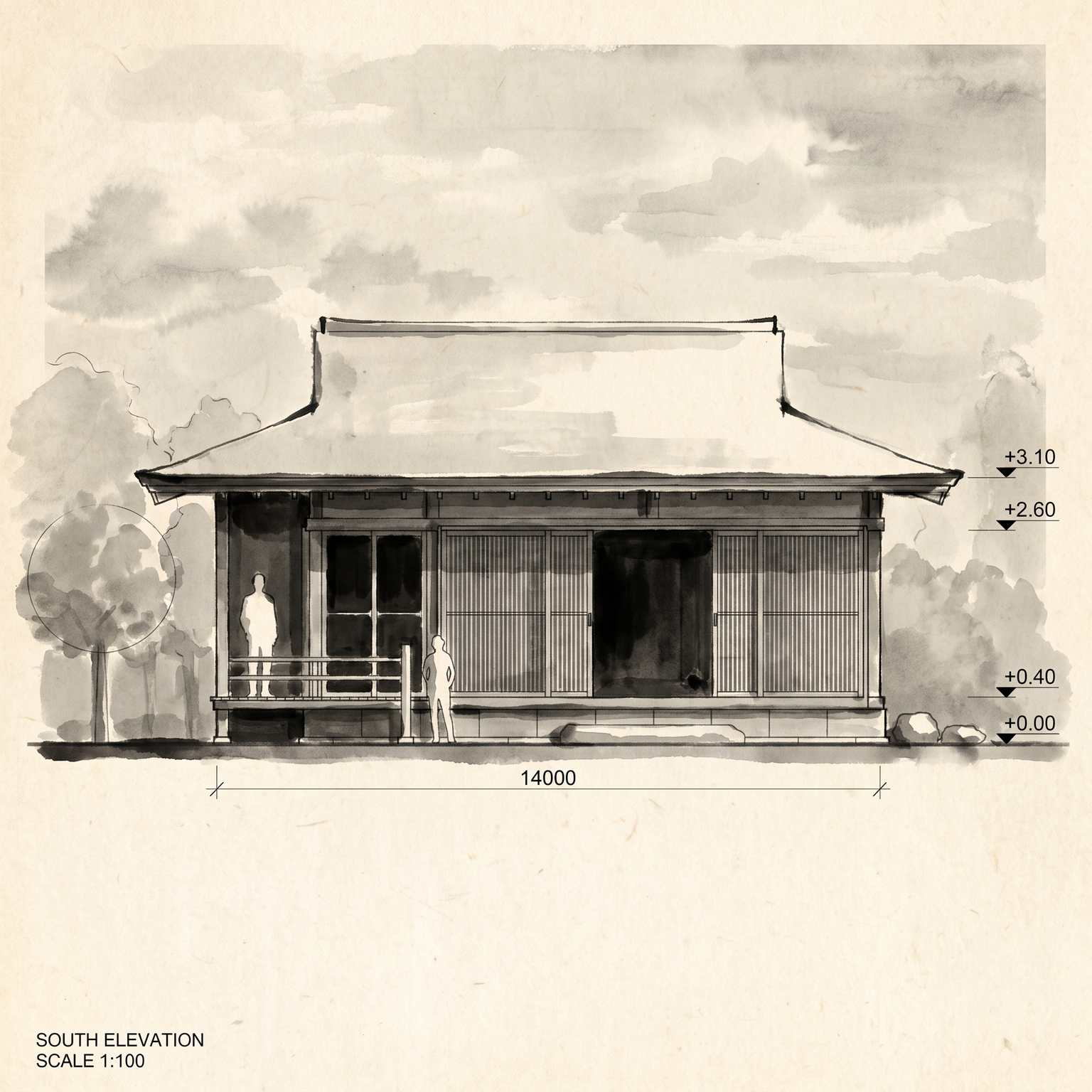
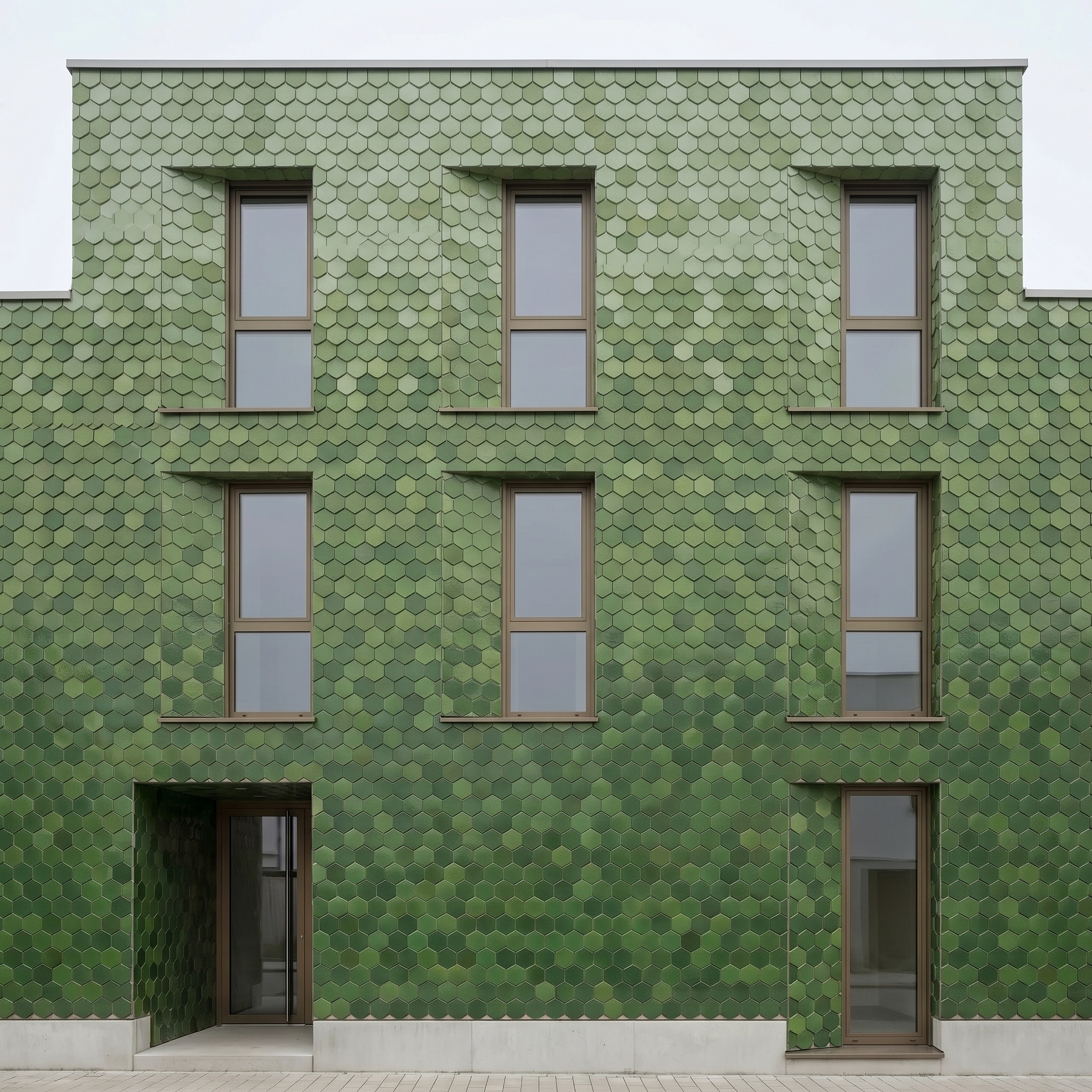
Same drawing. Now a built facade.
A line elevation and its render. Openings, levels and framing unchanged.
Drag the slider to compare
Signing up is free, with no credit card. New accounts start with free credits and receive more every Monday; the pricing page lists the plans and what each credit buys.
Yes. Your 2D elevation drawing is the only input, so it suits the early stages, or a project whose model is missing or behind the drawings.
The template is built to keep every line position: floor levels, openings, mullions, slabs, fins, railings, roof edges and the overall width and height. A cleaner drawing gives a more faithful facade, so compare the result with your original.
Describe the facade in plain words on one line, working from the base up. Leave it empty and a restrained default palette is applied instead.
Yes. Commercial use and full IP assignment are included, with no attribution, and no watermark on paid plans. Nothing you create is published unless you share it.
Templates that pair well.
Render your own elevation.
Free to try. No credit card, nothing to install.