SketchUp to photoreal render, no plugin.
Export the view you already framed in SketchUp and turn it into a photoreal render. Your camera and geometry stay as modelled. Nothing to install, so any SketchUp version works.
- Free to try
- No plugin
- No credit card
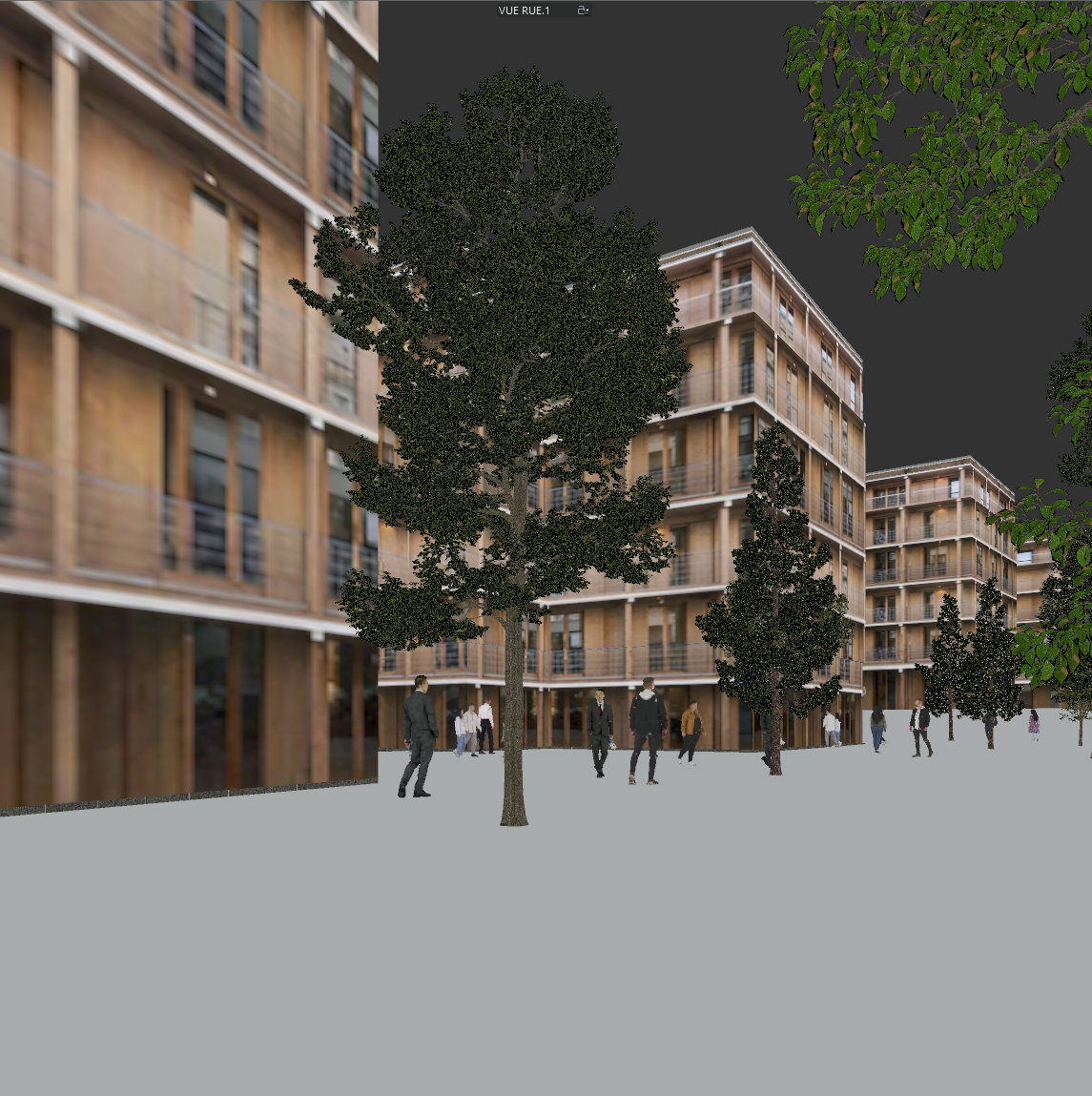
Nano Banana Pro
Sample input · click Generate to see the result
From SketchUp to render in five steps
Frame the view and save it as a scene
Set the camera where you want the photograph. Camera › Two-Point Perspective keeps the verticals straight, the way an architectural photographer would shoot. Save it as a scene (Add Scene in the Scenes panel) so you can come back to the exact same view after a design change.
Pick a clean style
In the Styles panel, set faces to Shaded with Textures and turn off or thin the edges and profiles: heavy black lines read as drawn lines, not as built edges. Add a sky and a ground in the background settings so the horizon is legible.
Turn on shadows
In the Shadows panel, switch shadows on and set the date and time. The sun direction in your export guides the light of the render, so choose the hour you want to show.
Export a 2D graphic
File › Export › 2D Graphic, as PNG or JPEG. In Options, untick Use View Size, set a width of around 3,000 pixels and keep Anti-alias on. If your SketchUp has no 2D Graphic export, a screenshot of the viewport also works, at a lower resolution.
Drop it into Photoreal
Upload the image to the Photoreal template and run it. The render lands in your gallery, and you can run the same view again to compare variants.
What Photoreal keeps from your model
A SketchUp scene is a camera plus a style, and the render keeps what the camera sees: the viewpoint, the volumes, the openings and the framing stay as exported. What it rebuilds is the photographic layer: light, material texture, reflections, depth and grading.
The cleaner the export, the closer the result. Textured faces tell the model which material goes where; a sky and a ground plane give it the horizon; shadows give it the hour.
Why there is no plugin
A plugin has to support the SketchUp release you run, and it needs updating when that release changes. arkia starts from an exported image instead, so there is nothing to install or keep in step with SketchUp, and any version that can produce an image of a view works.
It also means one workflow covers the whole office. A Revit, Rhino or Archicad view goes through the same template, and your team works in the same workspace.
After the first render
Scenes make it easy to export several angles of the same model, and each one can go through Photoreal: a street view, a courtyard view, an aerial view. On the renders you keep, chain other templates: add people for scale, add planting around the building, or test another material on the facade before you change the model.
Same view. Now a photograph.
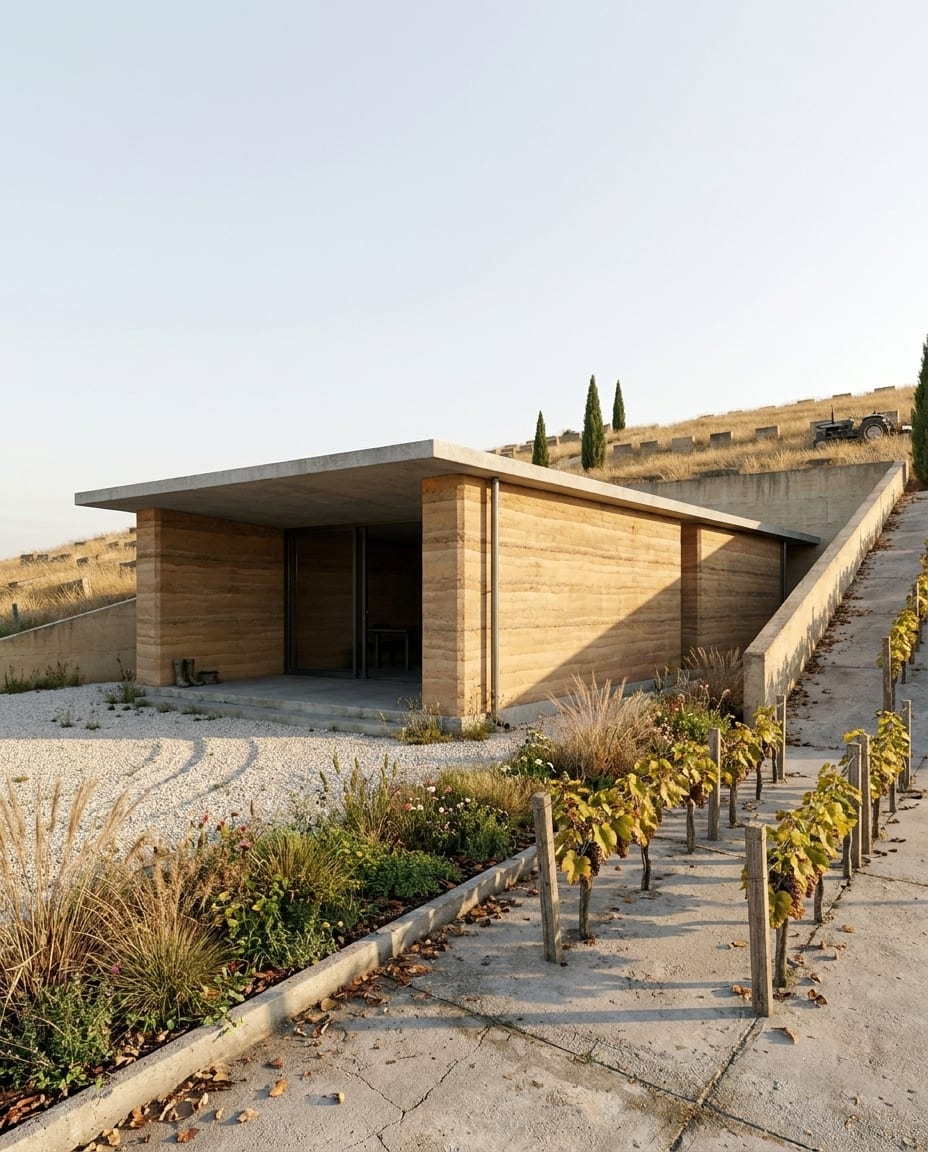
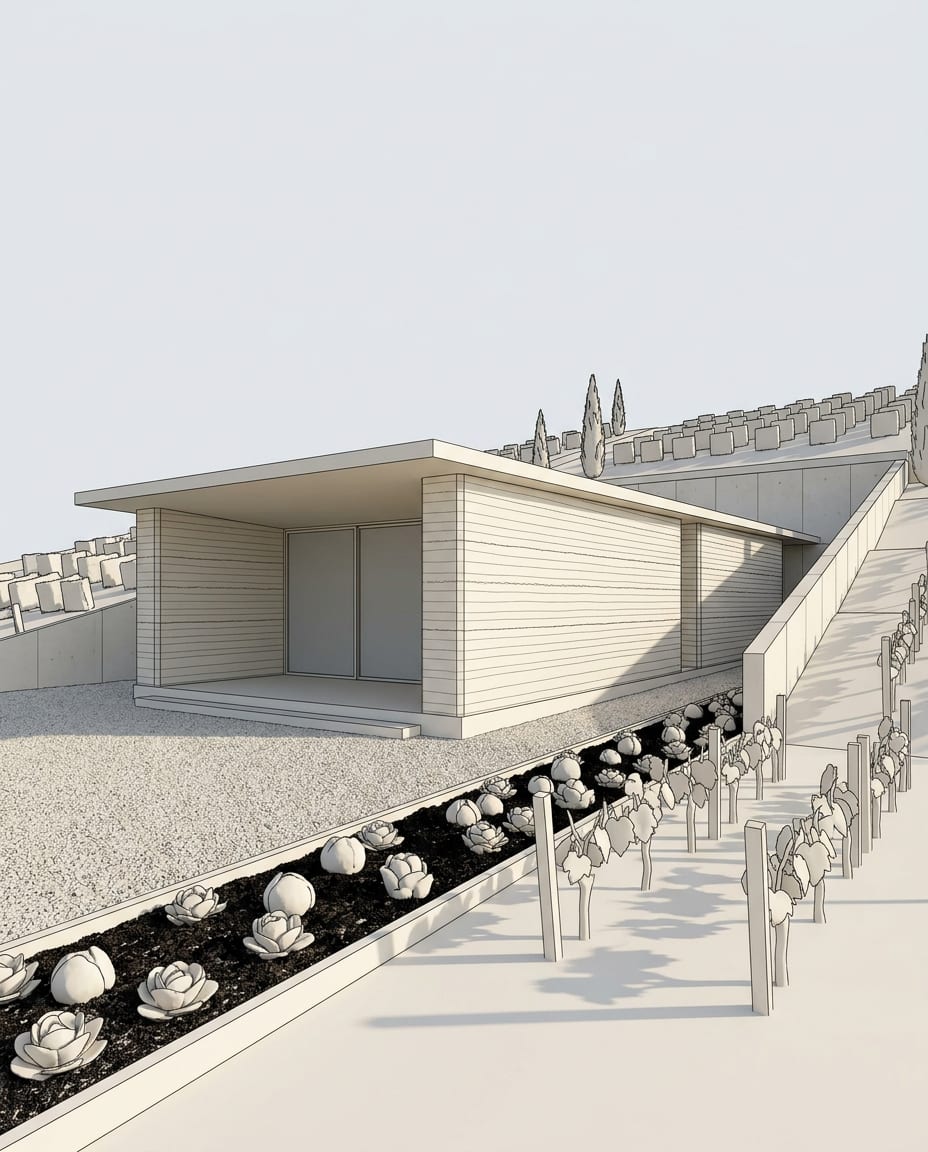
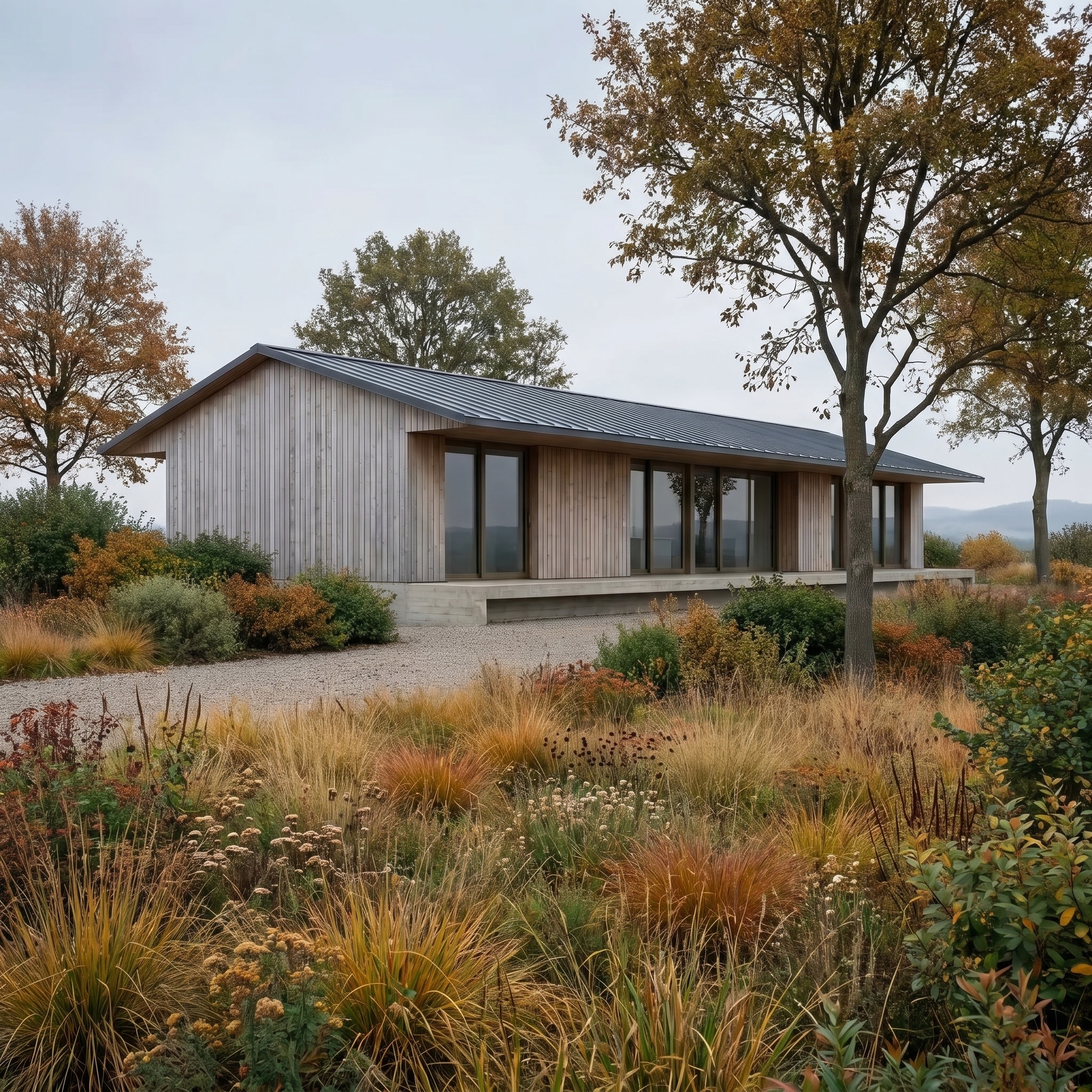
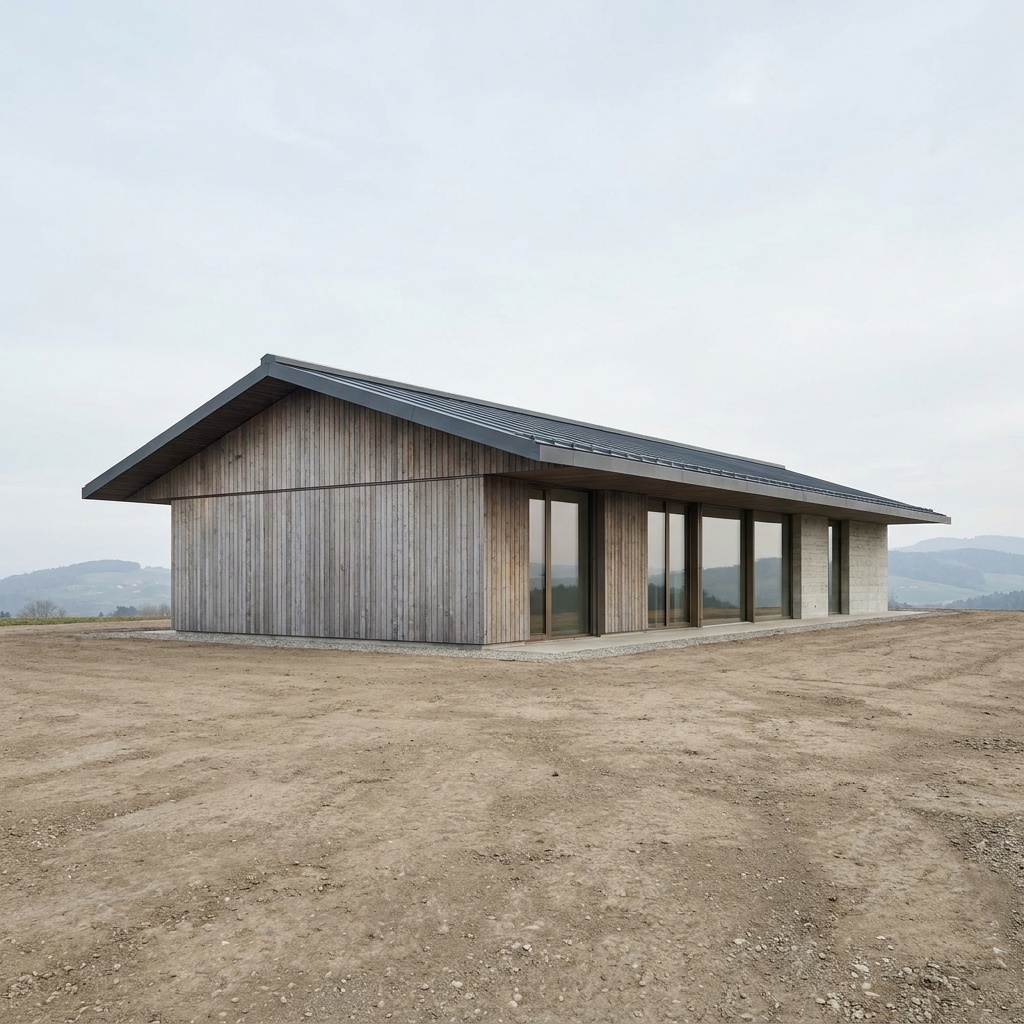
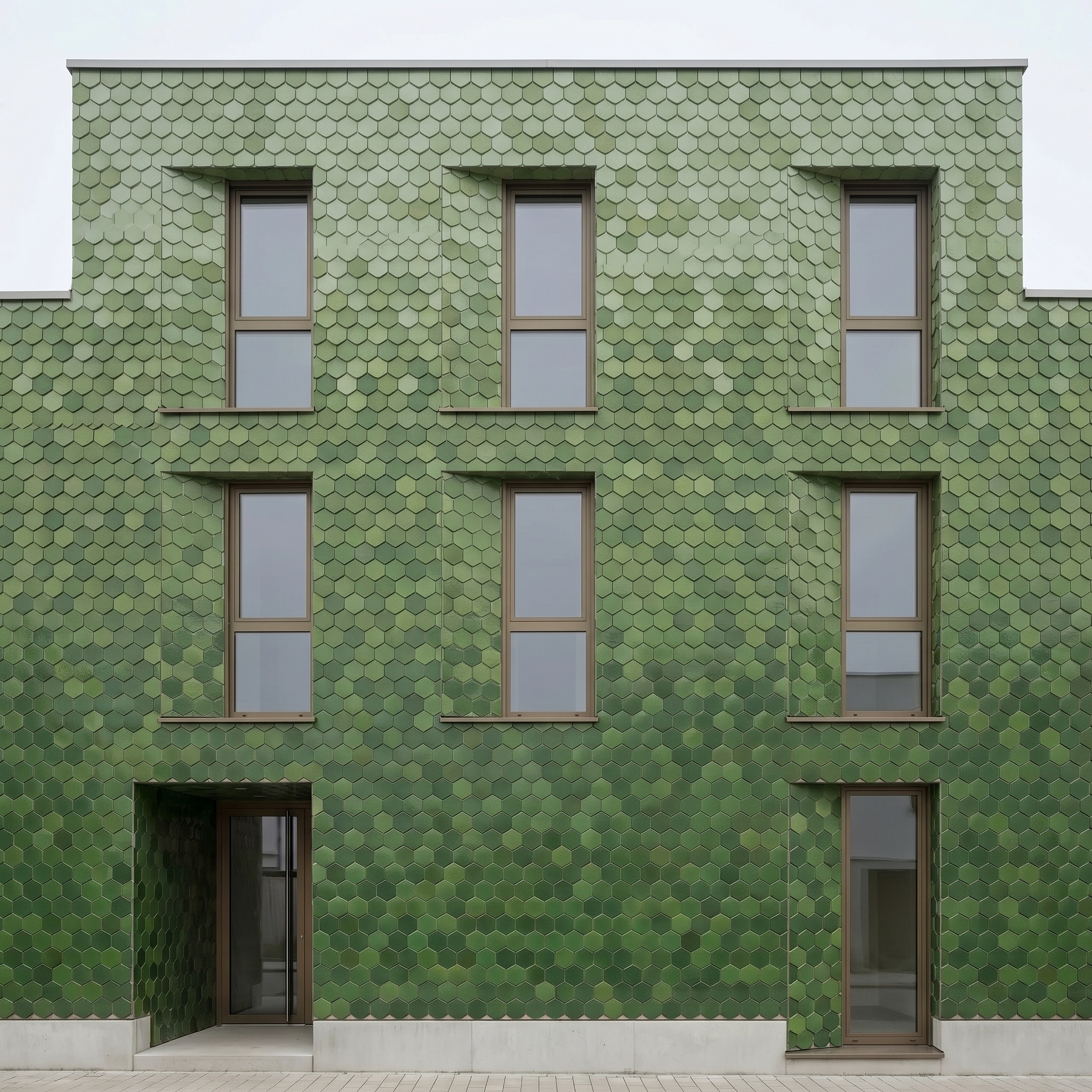
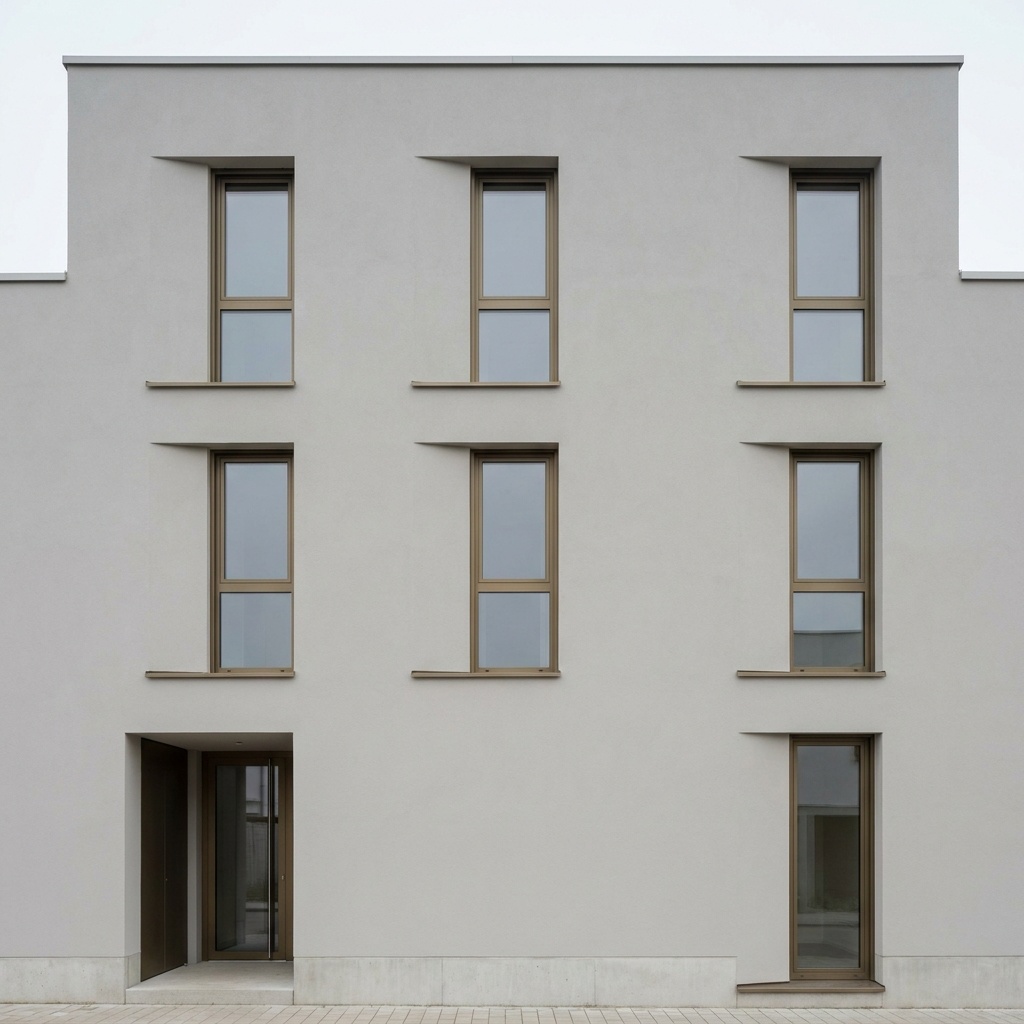
A sample 3D view and its Photoreal render. Camera and geometry unchanged.
Drag the slider to compare
One view, many results.
Once a view is rendered, the same image goes through other templates: a new hour, new weather, another season. Camera and building stay put.
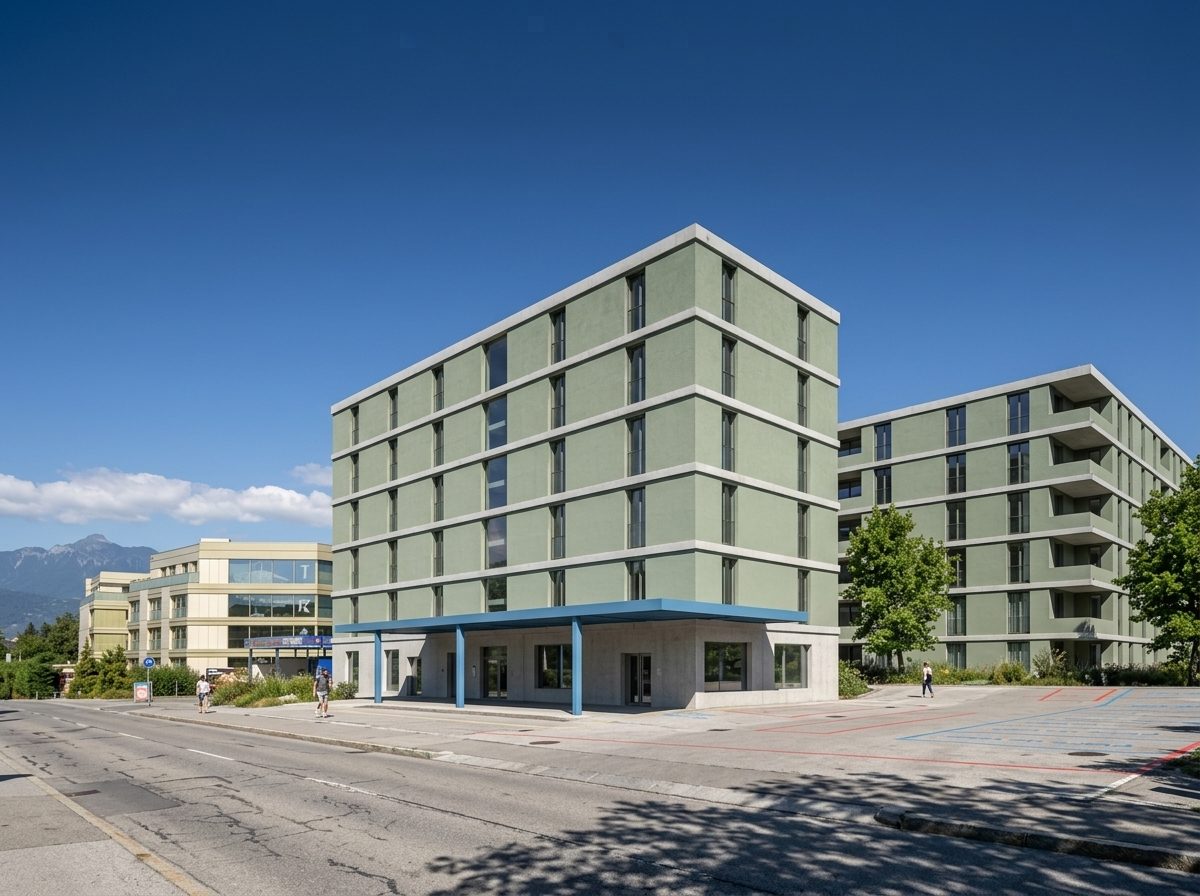
Starting view 
Lighting Change 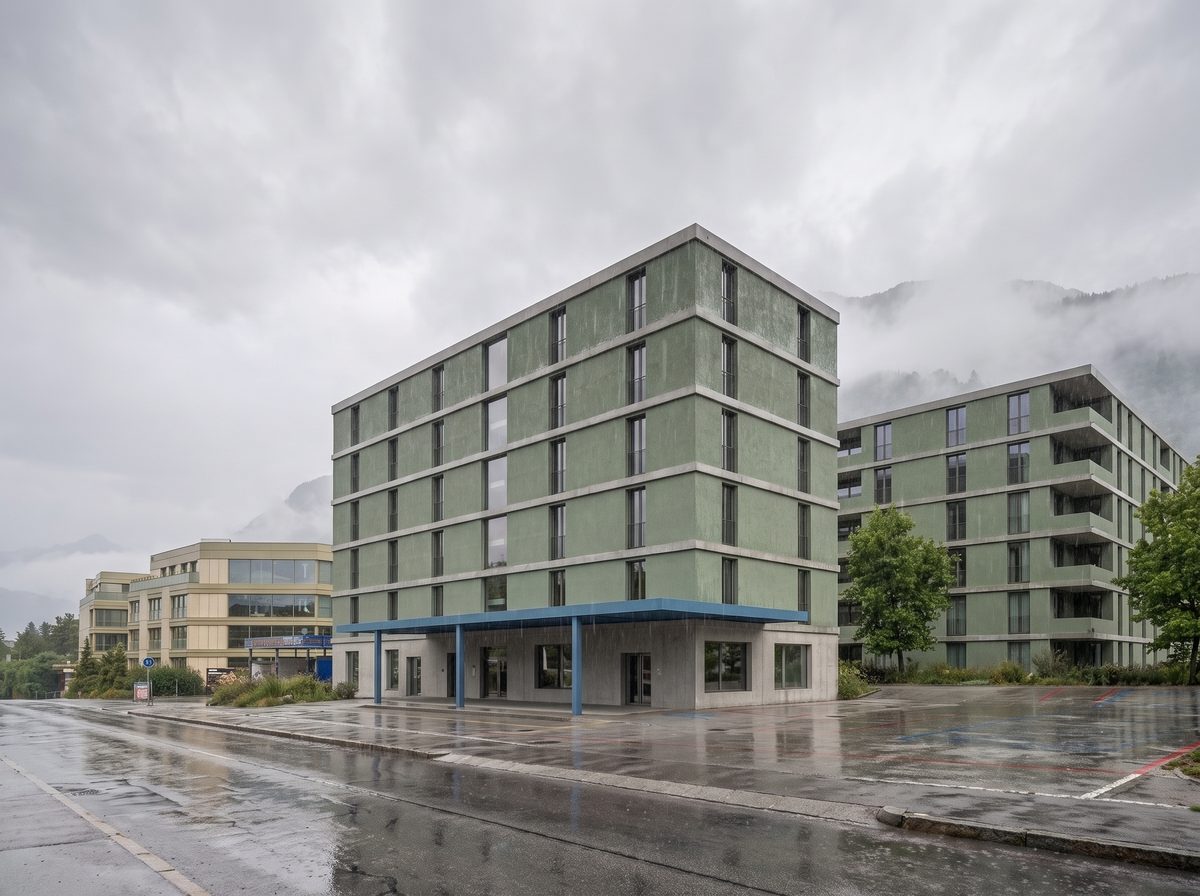
Weather Conditions 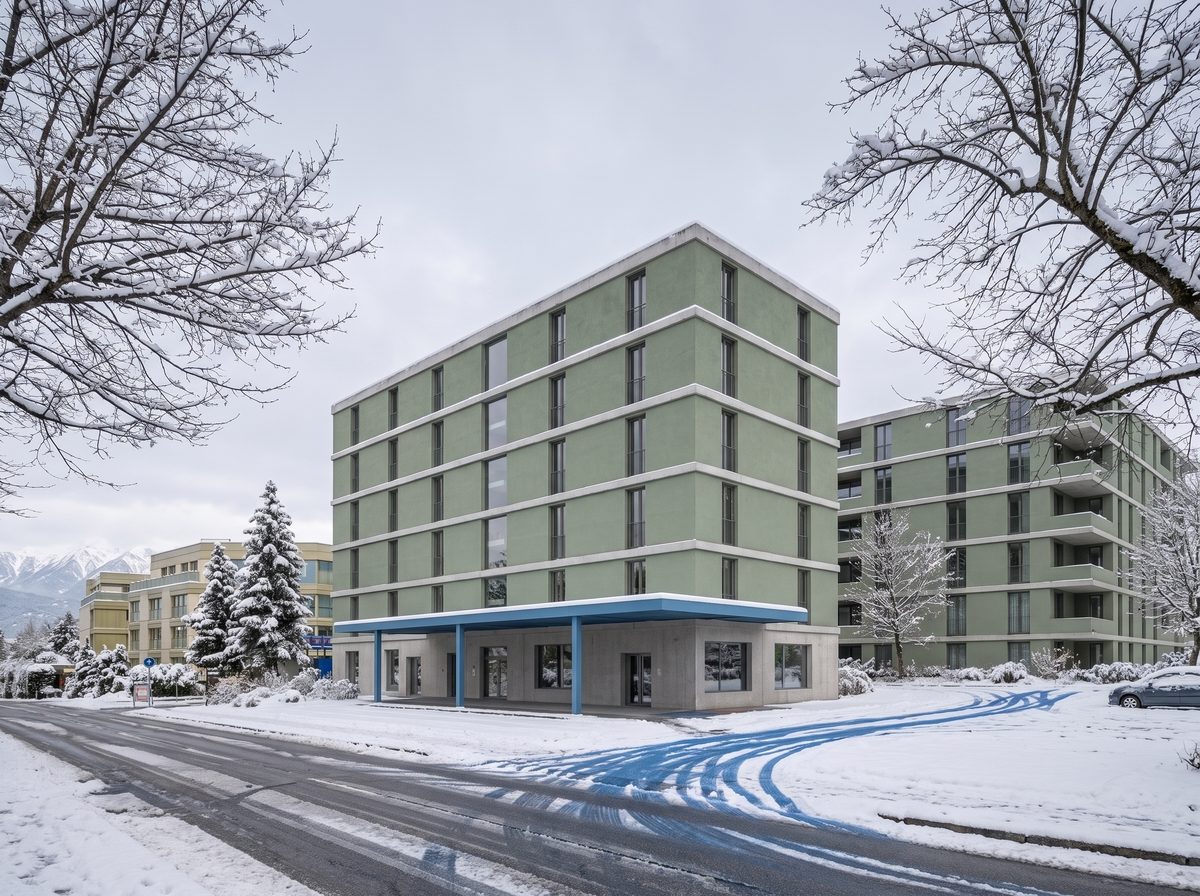
Season Change
No. arkia works from an image exported from SketchUp, so there is no extension to install from the Extension Warehouse and nothing to update. You upload the exported scene in your browser and run the Photoreal template.
Any version that can give you an image of a view. Desktop SketchUp exports one with File › Export › 2D Graphic; otherwise a screenshot of the viewport works, at a lower resolution.
The camera of your scene, the volumes and the openings are what the render is built on. What changes is the light, the material texture and the photographic quality. Check a detail that matters against the scene it came from, as you would on any render.
Export around 3,000 pixels wide: untick Use View Size in the 2D Graphic export options and set the width. A larger, sharper source gives the render more to work from.
Templates that pair well.


Your SketchUp view is one upload away.
Free to try. No credit card, nothing to install.