How to visualize furniture in a room.
A moodboard shows the pieces, not the room. Here is the fast way to see your selection in a photo of the real space, and the Photoshop one.
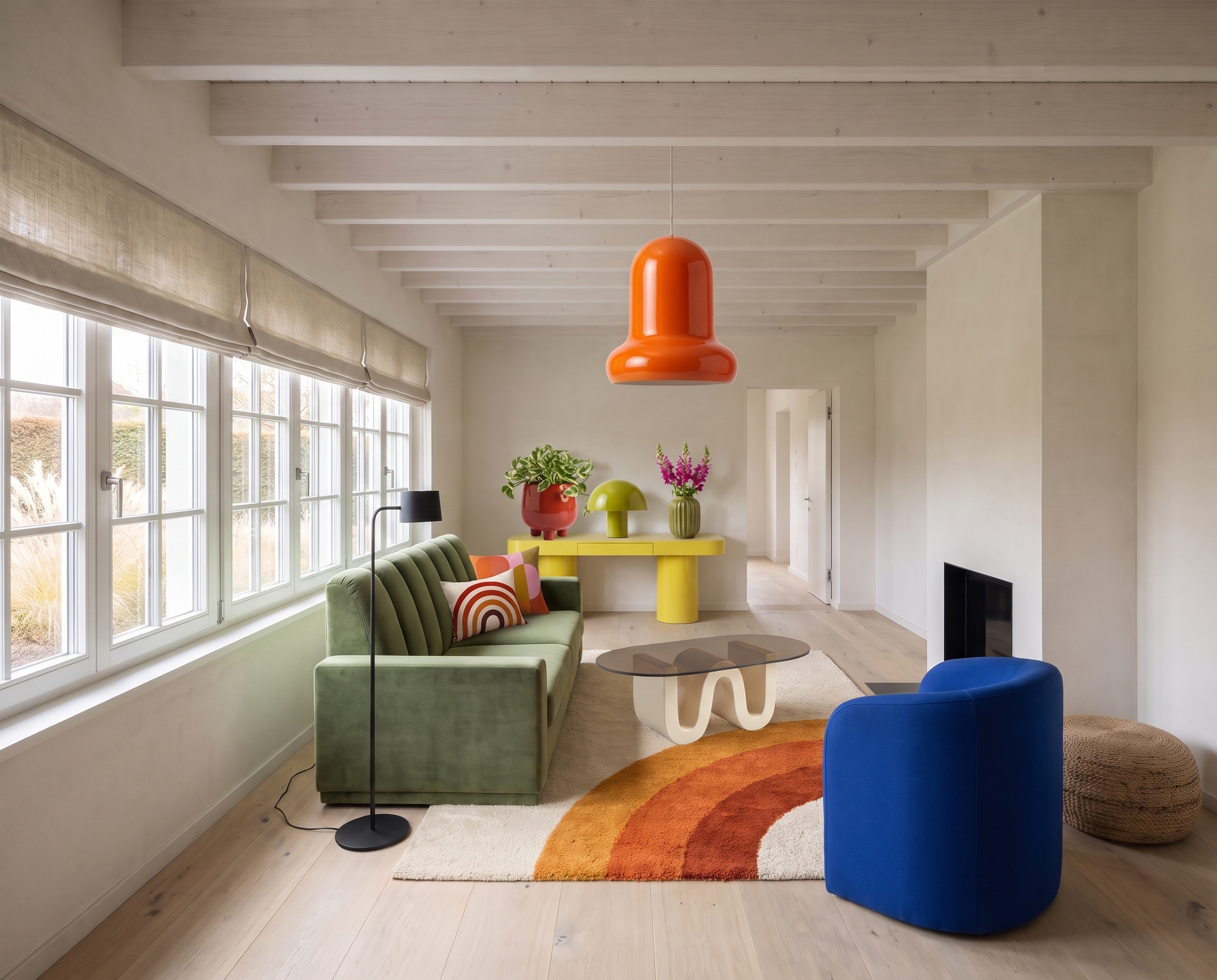
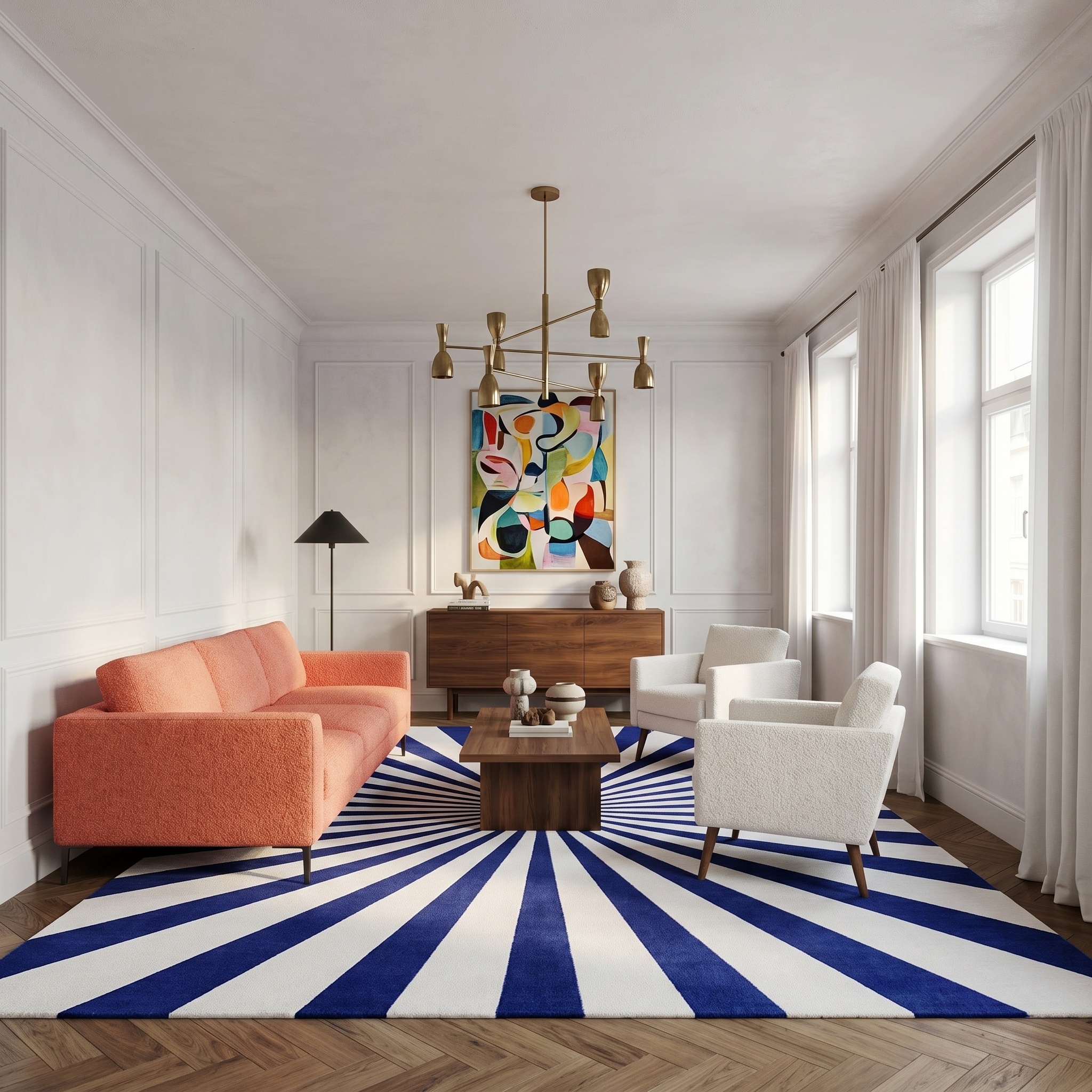
Same room. Now with your moodboard.
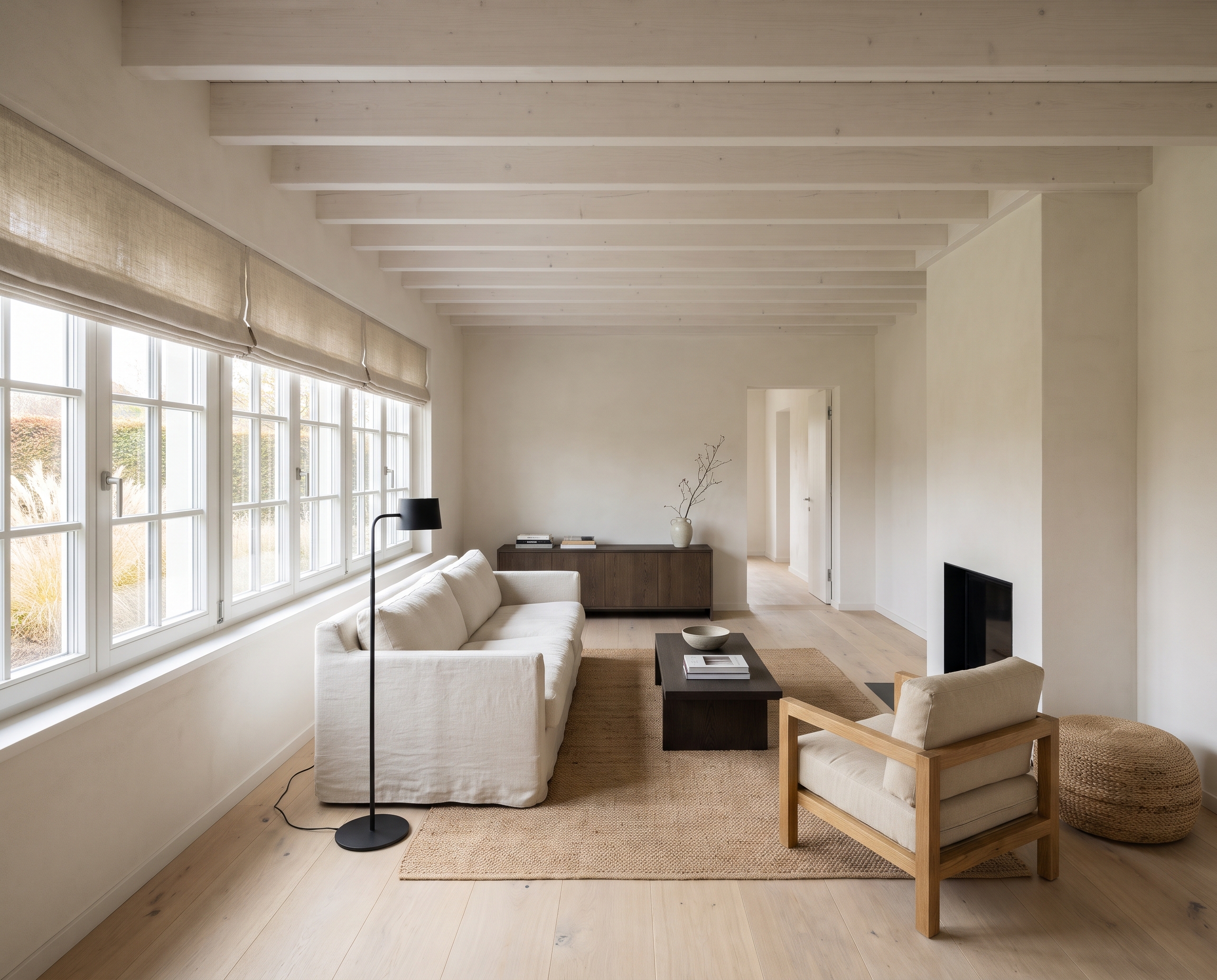
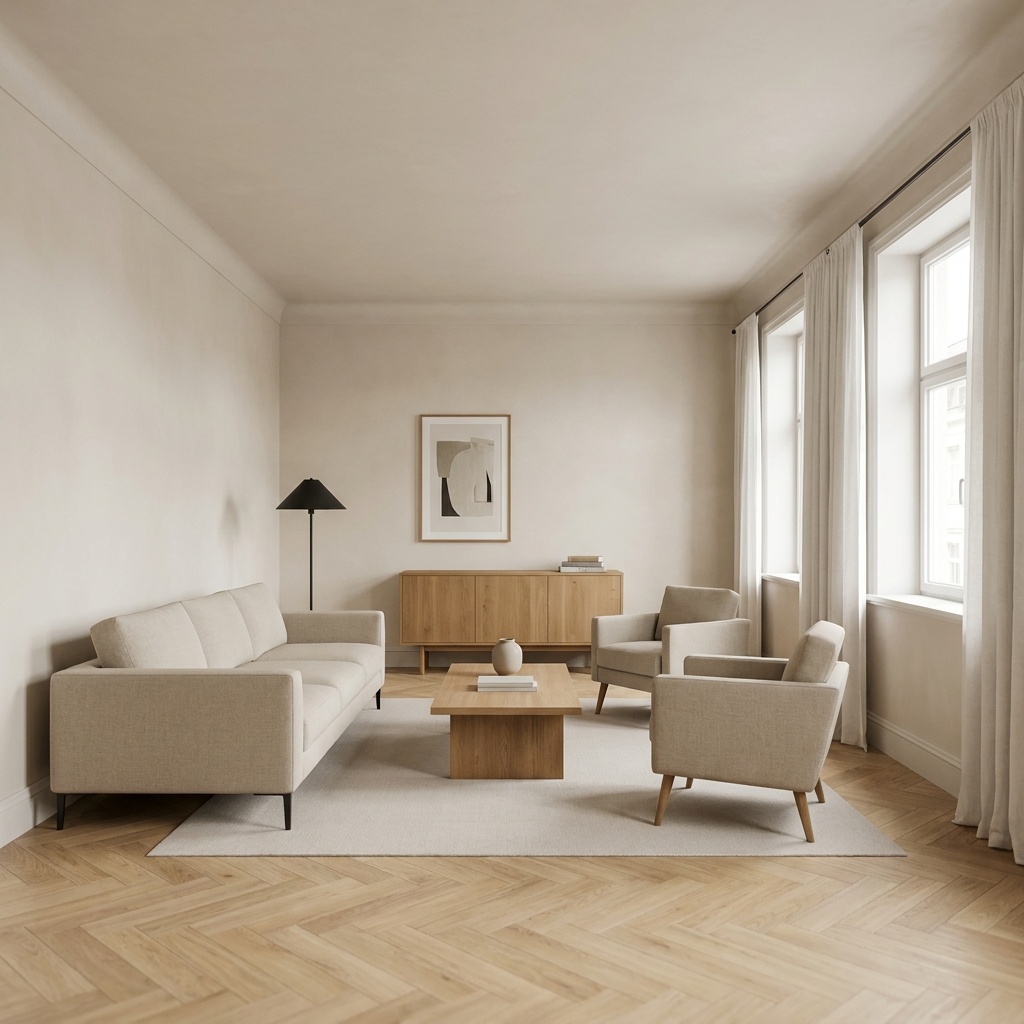
A living room and the same photograph furnished from a 1970s pop moodboard. Walls, beams, floor and light kept; the black floor lamp had no counterpart, so it stays.
The faster method, in four steps
Take a photo of the room
A clear daylight shot of the room, from the viewpoint you want to keep.
Gather the pieces in a moodboard
The pieces you want on one image: a Pinterest board or product cut-outs.
Run the Moodboard to Room template
Room photo first, moodboard second. Each matching piece is swapped in place.
Check the result, then compare options
Same room, your pieces. Try a second moodboard to compare.
Try it on your view.
Drop in a render, a viewport capture or a photograph. It opens in the Moodboard to Room template, ready to run.
Drop your image here
or click to browse · PNG, JPG, WebP up to 10 MB
- Free to try
- No plugin
- No credit card
Why show the furniture in the real room
A furniture selection is easy to like on a board and hard to judge in a space. On a white background, a green velvet sofa, a yellow console and a blue armchair look like a confident mix; in a narrow living room with pale oak floors and beams, the client has to imagine how much colour that really is, how big the sofa reads against the window, and whether the rug fills the seating area.
Seeing the pieces in a photo of their own room answers those questions before anything is ordered. It is the image that turns "I trust you" into "yes, that one", and it is often the difference between a quick decision and a second round of samples.
It also helps the designer. Placing the selection in the real light of the room shows clashes a board hides: a lacquered piece that will reflect the window, a dark table that disappears against a dark floor, a pendant that fights the ceiling beams. Better to see it in a picture than after delivery.
The classic way: Photoshop or a 3D model
In Photoshop, each product photo is cut out, scaled and placed on the room photo, then warped to match the perspective of the floor. The old furniture underneath has to be removed and the floor and wall behind it rebuilt by hand, plank by plank. Then come the shadows, painted under each foot, and the colour match, since a product shot under studio light never sits right in a room lit by a window. A convincing image of one room takes a few hours, and the hardest part is that product photos are rarely taken from the same angle as the room.
In 3D, the room is modelled from measurements (walls, openings, floor, beams), the furniture is downloaded from the manufacturers or modelled when no file exists, materials are set up, the scene is lit to match the daylight, then rendered. The result is accurate and can be viewed from any angle, but it is a day or more of work, and it shows a render of the room, not the room as the client knows it.
Both methods make it slow to compare options. Trying a second sofa, or a second complete selection, means doing a good part of the work again, so in practice clients see one version, or none at all and decide from the moodboard.
How to choose the images
The moodboard decides what the new pieces are, so make each one easy to read. Products cut out on a plain white or light background, with space between them, give the most faithful copies: the silhouette, colour and material of each piece are copied as they appear. A board where products overlap, or a photo of a furnished showroom, still works, but the pieces are harder to separate and their walls and floor are ignored.
Prefer a few large pieces to a full shopping list. A sofa, an armchair or two, a coffee table, a rug, a console and a pendant make a clear selection. Dozens of vases, books and cushions in a busy moodboard can be simplified or left out.
The room photo decides where things go. Each new piece takes the place of an existing piece that does the same job: the moodboard sofa where the sofa is, its armchair where the armchair is, its rug under the seating group. So the room needs a piece of the same kind to replace. If the moodboard has a dining table and the photo has none, the dining table will not appear; if the room has dining chairs and the moodboard has none, the chairs stay. Pairs follow the room: two armchairs in the photo give two copies of the moodboard armchair.
Shoot the room in daylight, from a standing height, straight and level, with the area that will change fully in frame. The template keeps the framing exactly, so frame it the way you want to present it.
What the template keeps, and its limits
The room stays the room. Camera, framing, walls, ceiling, floor, windows, doors and daylight are kept, and so is everything fixed to the building: built-in units, kitchens, fireplaces, radiators, curtains, blinds and artworks on the walls. Only loose furniture and objects change, and every new piece comes from the moodboard.
Not every piece of the moodboard is used. The room keeps about as many pieces as before, so products with no matching spot are left out. A piece of the room with no counterpart in the moodboard stays exactly as it is: in the example on this page, the black floor lamp and the woven pouf had no equivalent on the board, so they are still there next to the new sofa and armchair. If you want a piece gone, give it a counterpart in the moodboard.
Small objects can be simplified. Cushions, vases and plants are placed, but in a busy moodboard their patterns and exact shapes may not be copied as faithfully as a sofa or a rug. Scale is judged against the room (door height, window sills, worktops) rather than from product dimensions, so it is believable, not measured.
It is a presentation image, not a fitting plan. Check that each product reads as itself and that the room has not shifted before sending it to a client, and confirm dimensions with the manufacturer before ordering. When the exact layout of a new floor plan has to be shown, or a room must be seen from several angles, a 3D model is still the right tool.
The steps in detail
Take a photo of the room
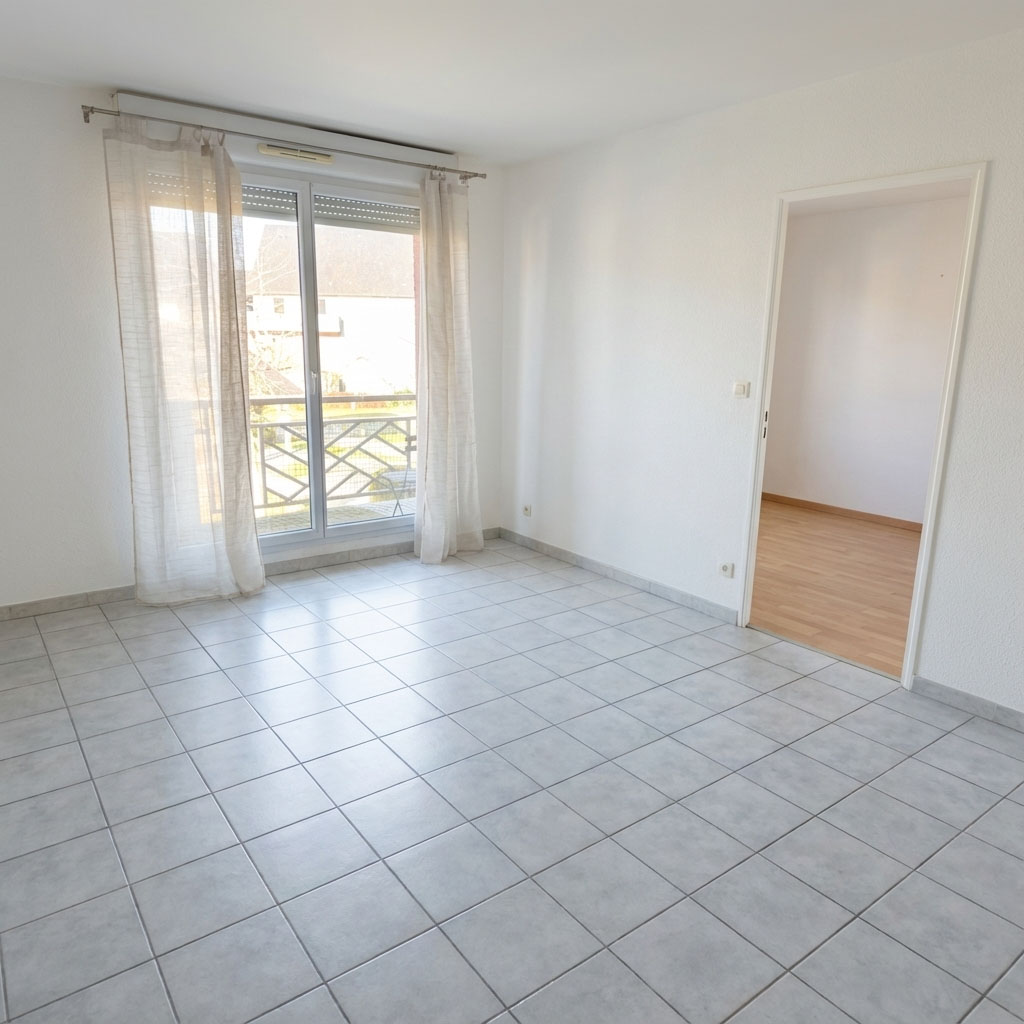
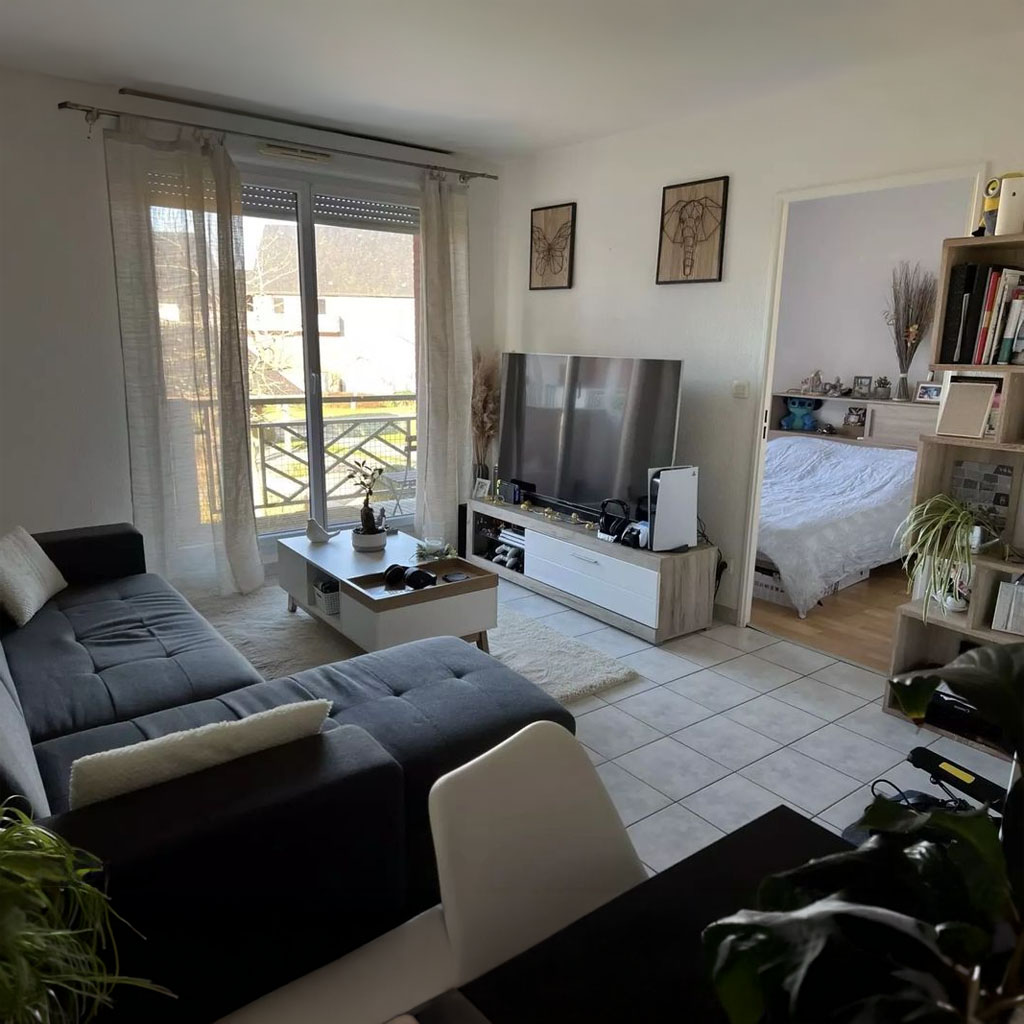
Shoot the room from the viewpoint you want to show the client, in good daylight, with the walls, floor and current furniture readable. A furnished room is fine, and even better: each existing piece marks a spot where a new one will go. The result keeps this exact framing.
Gather the pieces in a moodboard
Put the furniture you have in mind on a single image: a Pinterest board, a collage of product shots, a page of a supplier lookbook or a screenshot from a shop. Cut-out products on a plain background, well separated, work best. A few large pieces (sofa, armchair, table, rug, pendant) say more than dozens of small objects.
Run the Moodboard to Room template
Drop your room photo into the widget on this page, then add the moodboard in the template, or open Moodboard to Room directly. It takes two images: the room first, then the moodboard. Each loose piece of the room that has a counterpart in the moodboard is swapped for that exact piece, at the same spot, and relit with the room's own light.
Check the result, then compare options
Compare the result with the room and with the moodboard: shapes, colours and materials should match the products, and the walls, floor and windows should not have moved. Pieces with no counterpart are still there. Run a second moodboard on the same photo to show the client two selections side by side.
Signing up is free, with no credit card. New accounts start with free credits and receive more every Monday; the pricing page lists the plans and what each credit buys.
Virtual staging furnishes an empty room in a style you pick from a list or describe. Here the room can already be furnished, and the new pieces are the exact products of your moodboard, each at the spot of the piece it replaces.
Yes. Any single image showing the pieces works. Cut-out products on a plain background give the most faithful copies; a photo of a furnished room also works, but its walls and floor are ignored.
Each new piece replaces an existing piece that does the same job, so the room keeps a believable amount of furniture. To see a specific piece, make sure the room photo has something of the same kind in that spot.
Yes. Commercial use and full IP assignment are included, with no attribution, and no watermark on paid plans. Nothing you create is published unless you share it.
Templates that pair well.
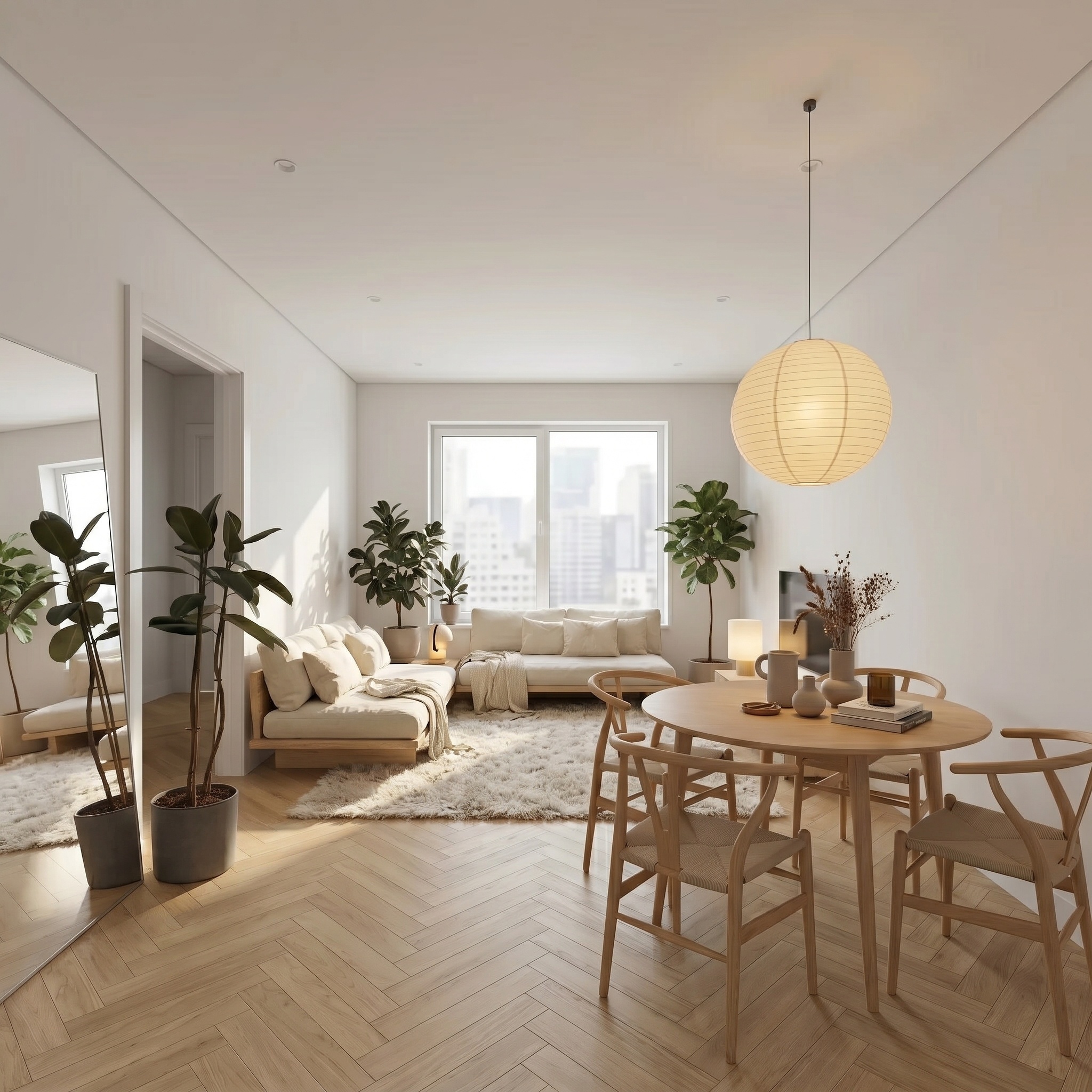
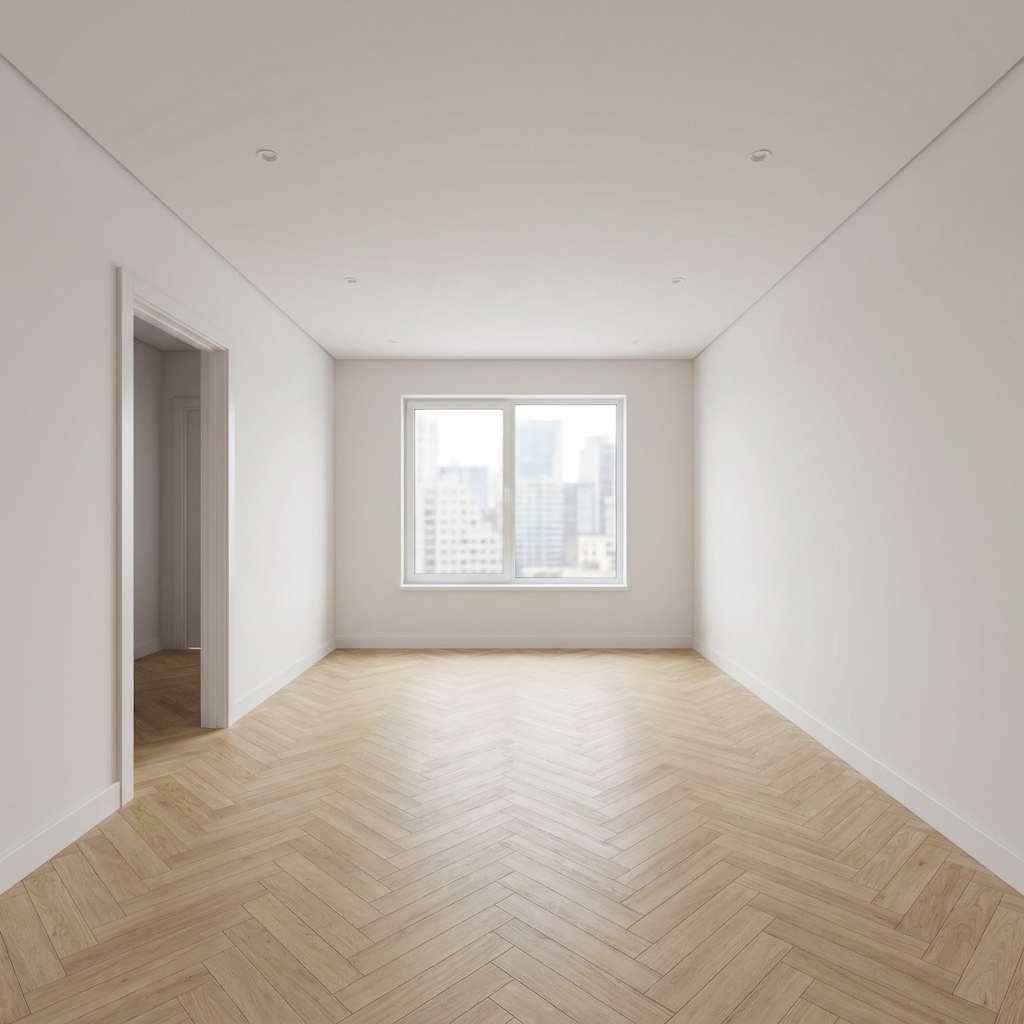
Furnish your own room.
Free to try. No credit card, nothing to install.