How to make a watercolor site plan.
A hand-drawn site plan tells a client what a place will feel like, where a CAD plan only says where things go. Here is how a watercolor or ink plan is made by hand and in Photoshop, why it takes days, and how to redraw your own site in the style of a plan you admire.
- Free to try
- No plugin
- No credit card
Nano Banana Pro
Sample input · click Generate to see the result
The faster method, in four steps
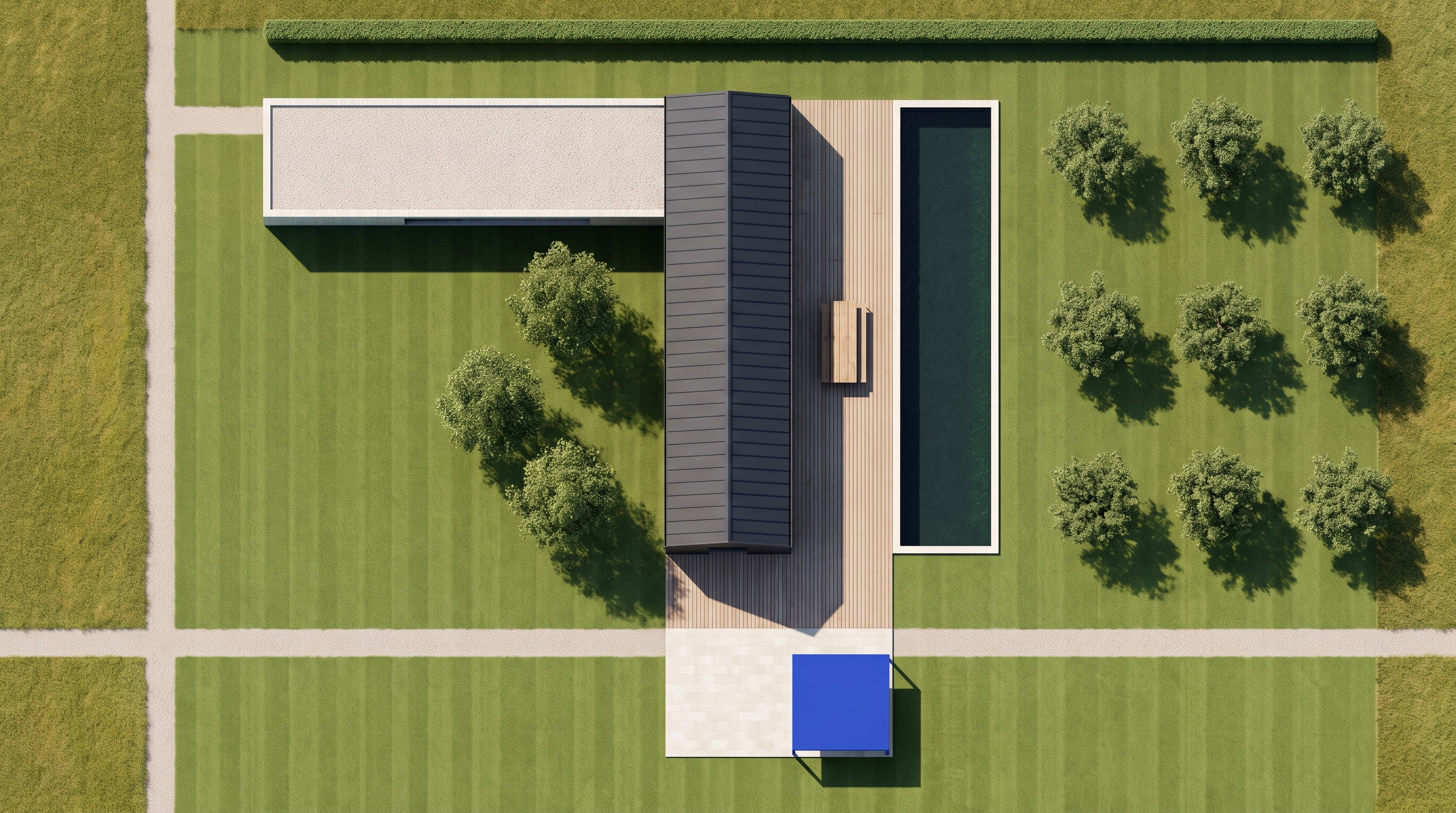
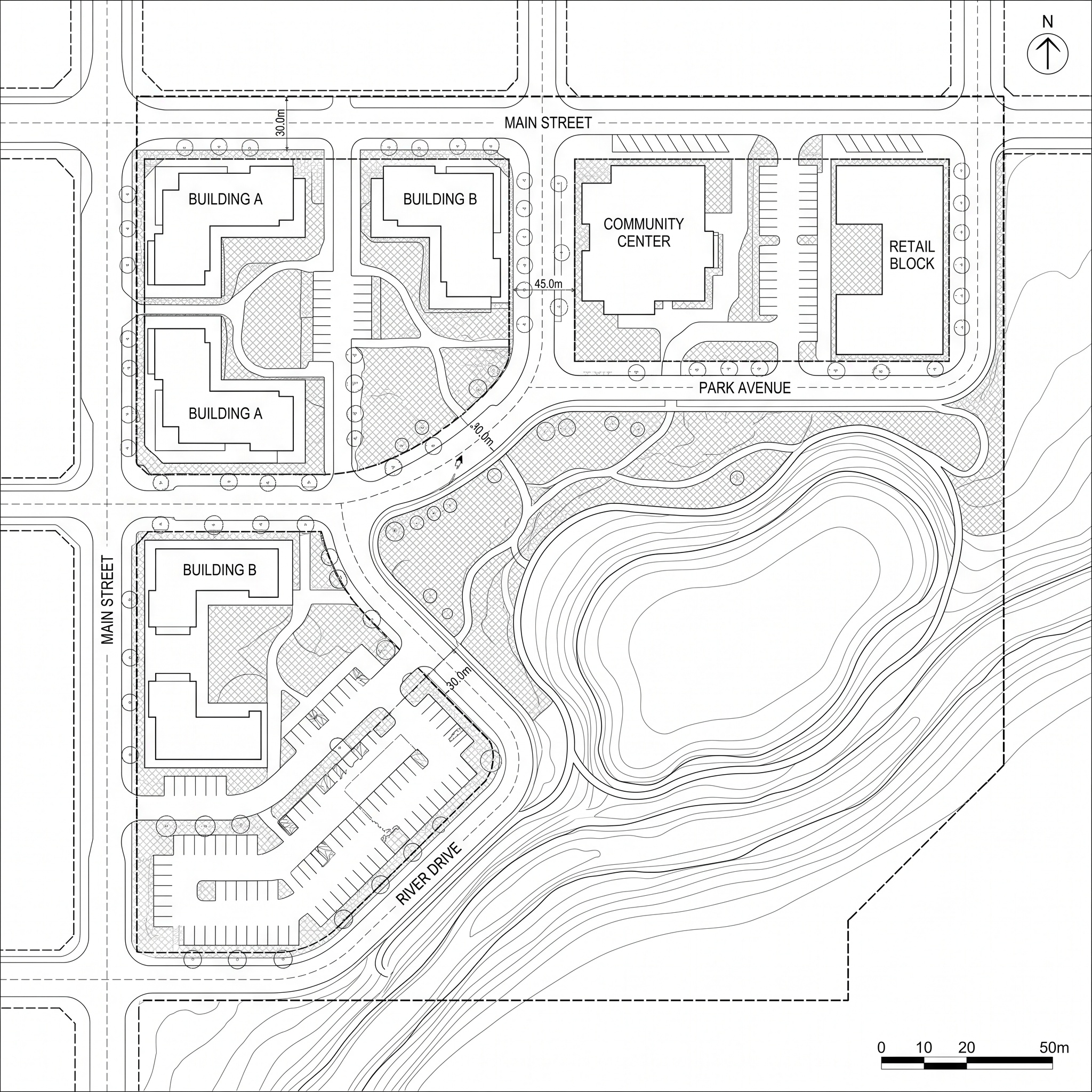
Capture a strictly top-down view of the site
Export a vertical view of your 3D model, a textured site plan or an aerial image, cropped to the area you want on the board. The result keeps this framing and aspect ratio, so frame it as you want the final plan. Readable materials help: a flat roof that reads as a roof, water that reads as water, trees that read as trees.
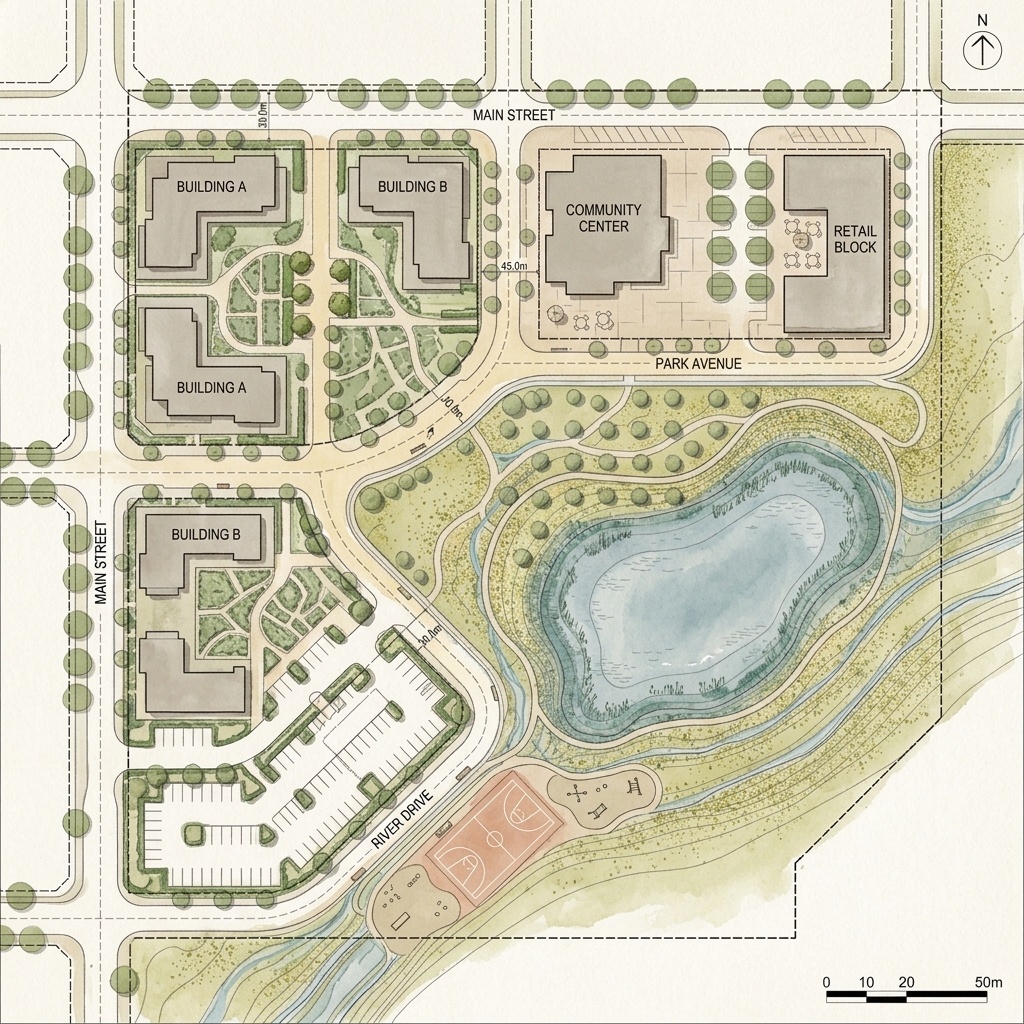
Pick a drawn plan as the style reference
Choose a plan whose drawing you want to match: a watercolor landscape plan, an ink and wash board, a coloured pencil plan from a previous project or a competition entry you admire. Crop out title blocks, legends and text where you can. The reference can show a completely different site: only its way of drawing is used.
Run the Stylize Site Plan template
Drop your top-down view into the widget on this page, then add the style reference in the template, or open the Stylize Site Plan template directly. It has two inputs: the site view first, then the reference. Your site is redrawn with the medium, linework, washes, palette and paper of the reference, and with its way of drawing trees, grass and paving.
Check it, then finish the board
Compare the result with your view: every building, roof, path, pool, lawn and tree should be where it was. People, vehicles and any text are removed, so add your labels, north arrow and scale bar in your layout software. Run it again for another take, or try a second reference to compare two styles side by side.
Why a hand-drawn site plan
A site plan is often the first drawing a client or a jury reads, and the one that sets the tone of the board. A CAD plan is precise but abstract; a photographic aerial view is literal and busy. A plan drawn in watercolor, ink or coloured pencil sits between the two: it shows the layout clearly, and it shows the intent, the shade of the trees, the softness of a lawn, the warmth of a terrace.
Landscape architects have long used it as their signature drawing, and many offices have a house style that clients recognise: loose washes and round tree crowns, fine ink hatching on paving, a limited palette on toned paper. Competition boards use the same register to stand apart from rendered aerials.
The drawing also leaves room for discussion. Early in a project, a hand-drawn plan reads as a proposal rather than a decision, which is often exactly what the meeting needs.
The classic way: paint it by hand, or fake it in Photoshop
By hand, the plan is traced from a printed base onto watercolor paper or trace, inked with a fine liner, then painted: a first light wash for lawns and planting, deeper layers for tree crowns and shadows, a neutral wash for paving and roofs, and a final pass of details. A good A3 plan takes a day or two, and a change to the design means starting again.
In Photoshop, the usual method keeps the linework from the CAD export on its own layer, set to multiply, and builds colour underneath with watercolor brushes, scanned paper and paint textures clipped to selections of each surface. Trees are placed one by one from a library of hand-painted top-down crowns, then shadows are painted in one direction. Filters such as Dry Brush or Watercolor are quick, but they look machine-made, which is why people end up painting by hand anyway.
Either way, the hard part is consistency. The style has to hold across the whole sheet: the same tree for the same species, the same paper grain, the same palette. And matching an existing house style, or a reference plan you like, usually means copying it stroke by stroke.
How to choose the style reference
The reference sets everything about how your plan will look, so choose it for its technique, not for its site. A plan with a clear medium and a consistent hand works best: one kind of tree symbol, one paper, one palette. A board that mixes several styles, or a collage of plans, gives a mixed result.
A top-down plan as reference is ideal, since its tree crowns, lawns and paving are drawn the way your plan will need them. A perspective or a sketch can work, but it says less about how to draw a roof or a path seen from above.
Clean it up. Crop titles, legends, north arrows and scale bars out of the reference. They are not copied, but the less there is to read, the clearer the style. A reference with very busy patterns, such as dense paving hatches everywhere, can pass a few of those habits into your plan, so a calmer reference is safer for a first try.
Keep the reference on the same footing as the plan you need. A loose concept sketch gives a loose plan; a precise ink drawing gives a precise one. If you want the result to stay close to your office style, use one of your own past plans.
How to prepare the top-down view
Keep the view strictly vertical. A slight tilt shows facades, and they will be drawn too. In most 3D software, a top view with a parallel camera gives the cleanest capture; a textured site plan or an orthophoto works just as well.
Let the materials read. The template decides what each surface is from the view: a pale grey flat roof, a blue pool, a green lawn, a timber deck. Clear, plain materials give a clean plan; a view where a roof and a terrace share the same colour leaves the drawing to guess.
Watch the colours. A strongly coloured 3D view, such as saturated greens or bright test materials, can keep some of its own colours instead of taking the palette of the reference. Neutral or natural materials in the capture let the reference palette take over.
Frame the site, not the neighbourhood. Context at the edges of the frame can come back simplified, so crop to the area the plan has to explain, with a small margin.
What the template keeps, and its limits
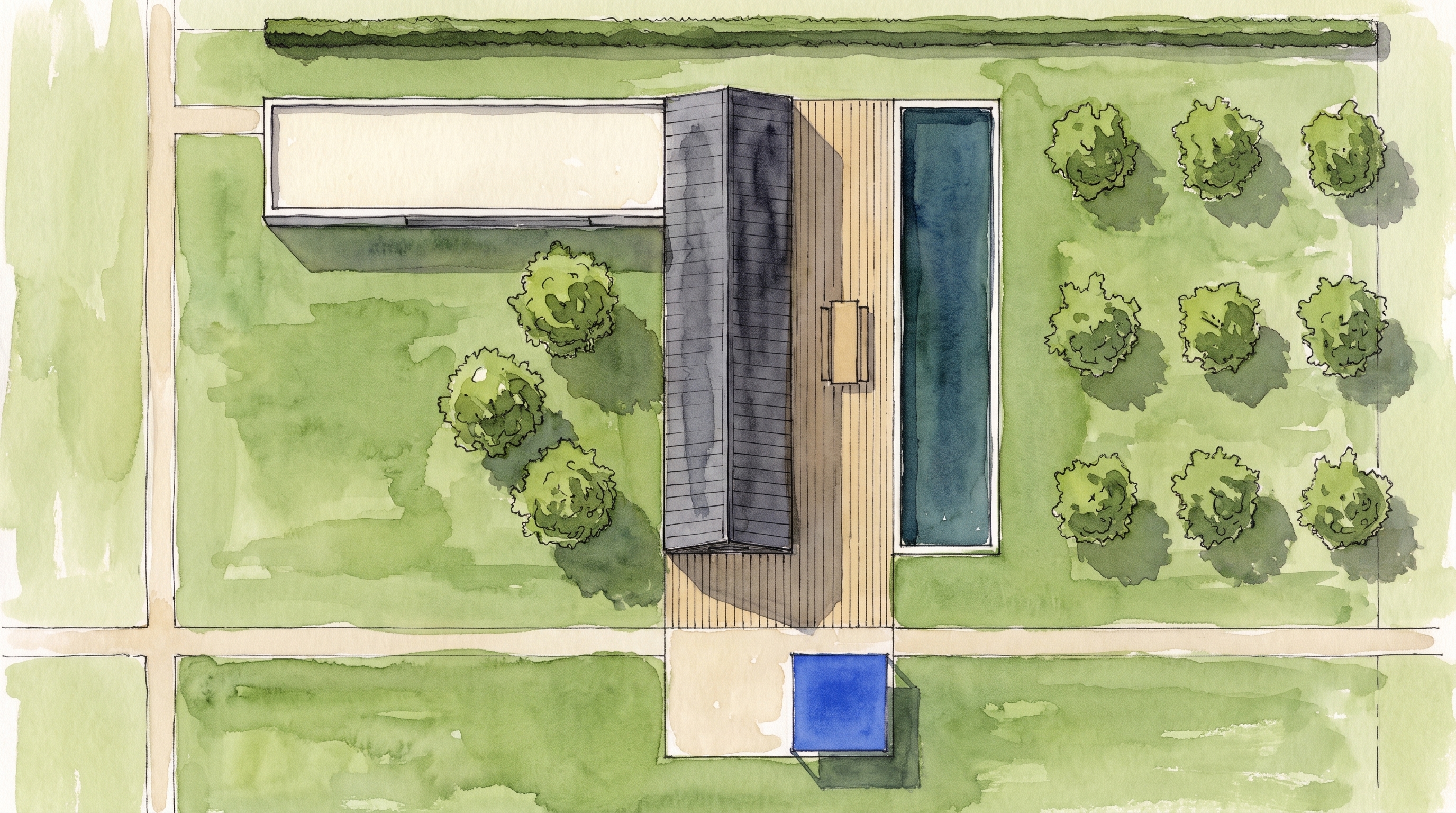
Your site decides what is drawn. Every building, roof, path, terrace, pool, lawn, planting bed and tree stays where it is, with its own shape, material and tone. A flat roof stays flat, a dark roof stays dark, water stays water and open grass stays open. Trees are drawn where your view has them and nowhere else, so a bare model stays bare. The buildings, roofs and layout of the reference are never copied into your plan.
It is a presentation image, not a measured drawing. Small or ambiguous volumes, such as a shed or a pergola that is hard to read from above, can be redrawn with a slightly different roof shape. Context at the edges can be simplified. Check the result against your view before it goes on a board.
Keep the hand-painted plan when the drawing itself is the deliverable, such as an exhibition piece or an original for a client, or when specific species and patterns are part of the design and have to be drawn exactly. Use the template to try a style on your project without painting it first, to match a house style across many plans, or to get a base you can still paint over.
Same site. Now drawn by hand.
A 3D top-down capture and its watercolor site plan. Layout, roofs and trees kept; the drawing style comes from a reference plan.
Drag the slider to compare
Signing up is free, with no credit card. New accounts start with free credits and receive more every Monday; the pricing page lists the plans and what each credit buys.
No. The reference is treated as another site: only its drawing technique, palette, paper and way of drawing trees, grass and paving are used. Every building, path and planting bed comes from your own top-down view.
No. The style comes entirely from the reference you give it: watercolor, ink and wash, coloured pencil, marker or a flat collage. Watercolor is simply the most common choice for landscape and site plans.
Yes. Any strictly top-down view works: a 3D model capture, a textured site plan or an aerial image. Roofs, lawns, water and trees are read from it and redrawn in the reference style.
Yes. Commercial use and full IP assignment are included, with no attribution, and no watermark on paid plans. Nothing you create is published unless you share it.
Templates that pair well.
Draw your own site plan.
Free to try. No credit card, nothing to install.